
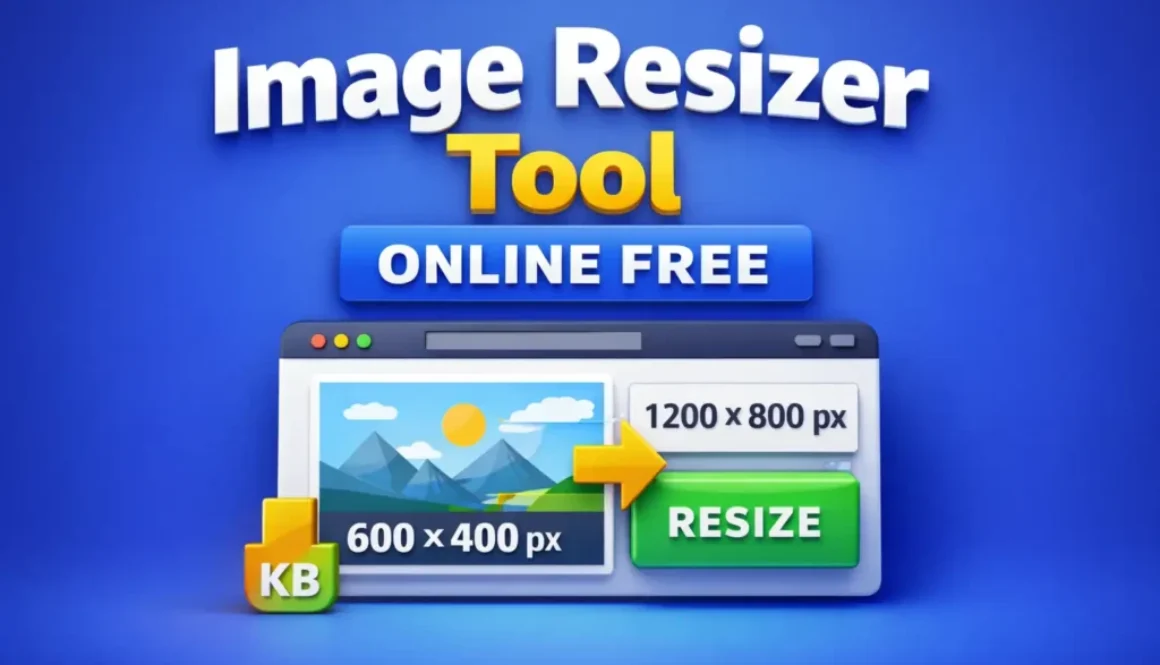
Image Resizer Tool Online – Resize Images Fast Without Quality Loss
Image Resizer Tool Online Free is the simplest way I resize images instantly without losing quality for websites, blogs, and SEO work.
I’ll be honest. For a long time, I underestimated how much image size can mess up a website.
One evening, while checking a Peplio page load issue, I noticed something silly but painful—beautiful images, yes, but heavy like a winter blanket. Pages were slow, Core Web Vitals were crying, and rankings? Stuck. That’s when I stopped doing jugaad with random apps and started using a proper image resizer tool online free—including building one for Peplio users.
This article isn’t textbook gyaan. It’s exactly how I think about image resizing today, why it matters, how to do it properly, and how you can use the Peplio Image Resizer Tool Online the smart way.
What Is an Image Resizer Tool Online?
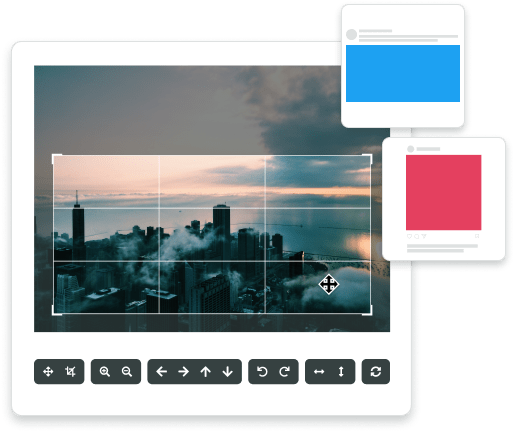
An image resizer tool online lets you change an image’s dimensions—width, height, or file size—without installing software.
In simple words:
You upload an image
Choose new size (pixels, percentage, or preset)
Download the resized image
No Photoshop. No headache.
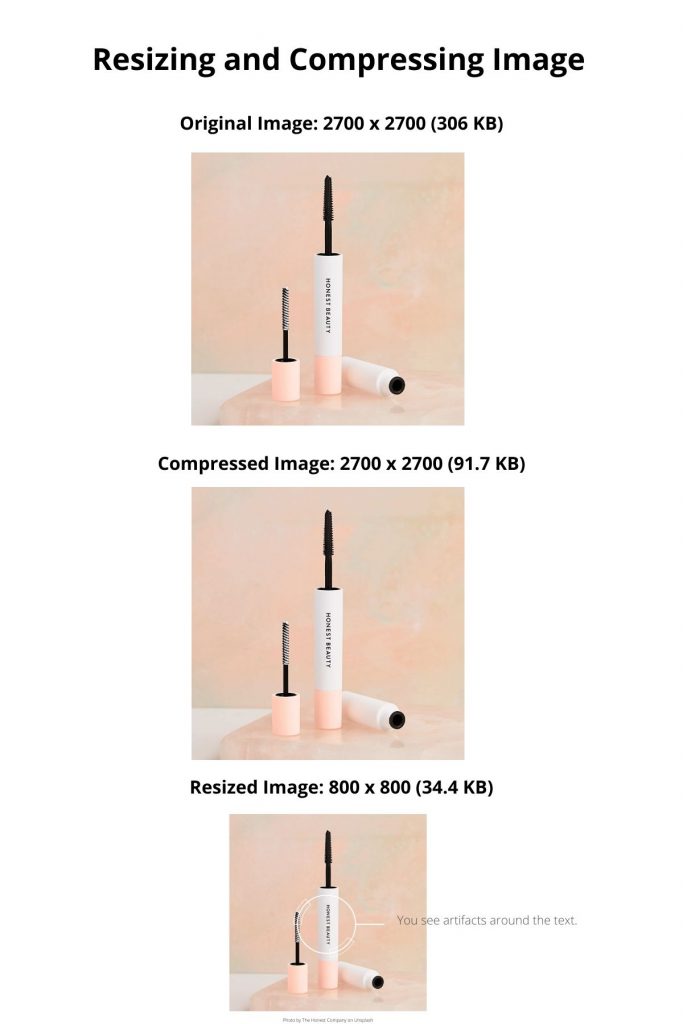
But here’s the catch most people miss 👉 resizing is not the same as compressing.
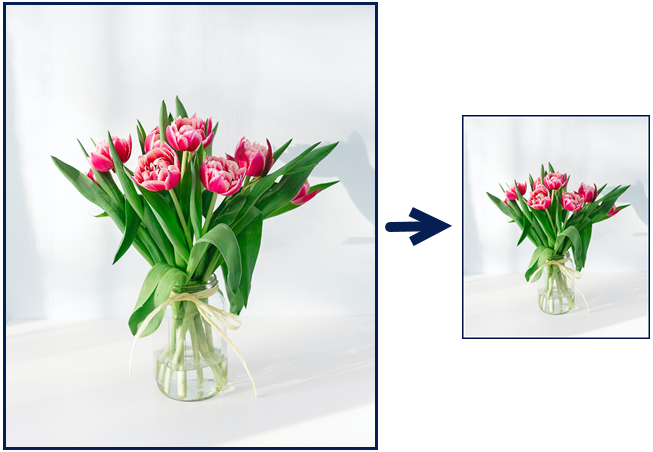
Resizing changes dimensions.
Compression reduces file weight.
A good tool balances both.
That balance is exactly what I focused on while working on Peplio’s tool.
Why Image Resizing Matters More Than You Think
Let me share a small mistake I personally made.
My Real Mistake (Learn From This)
When I launched one of my early blog posts, I uploaded camera images directly—4000px wide, 5–6MB each. Looked great on desktop, sure. But:
Mobile load time? Terrible
PageSpeed score? Below 50
Bounce rate? High
After resizing images properly:
Load time dropped
SEO score improved
Rankings slowly followed
That’s when it clicked—images are silent SEO killers if ignored.
When You Should Use an Image Resizer Tool Online
Here’s where resizing becomes non-negotiable:
1. Website Images (Most Important)
For blogs, landing pages, tools, or portfolios:
Ideal width: 1200–1600px
File size: under 200KB (best), max 300KB
2. Social Media Uploads
Every platform crops differently.
Instagram posts: 1080×1080
Thumbnails: exact ratios needed
Resizing avoids awkward cuts.
3. Email Attachments & Forms
Large images = failed uploads or slow emails.
4. Tools & SaaS Platforms
If you run tools like I do on Peplio, optimized images keep the interface fast and clean.
How I Personally Use the Peplio Image Resizer Tool Online
Here’s my exact workflow—no drama.
Step 1: Upload the Image
I upload JPG, PNG, or WebP directly into
👉 https://peplio.com/image-resizer-tool-online/
Step 2: Choose Resize Method
Depending on need, I select:
Custom width & height (for blog headers)
Percentage resize (for quick reduction)
Step 3: Maintain Aspect Ratio
Always ON.
Distorted images look cheap. Period.
Step 4: Preview & Download
Instant preview tells me if clarity is intact.
If not, I tweak size once more.
That’s it. No sign-up. No watermark. No nonsense.
Image Resizing vs Image Cropping (Don’t Confuse These)
| Feature | Resizing | Cropping |
|---|---|---|
| Changes dimensions | ✅ Yes | ❌ No |
| Removes image parts | ❌ No | ✅ Yes |
| SEO friendly | ✅ Very | ⚠️ Depends |
| Quality control | ✅ Good tools | Risky |
For websites and SEO, resizing beats cropping most of the time.
Best Image Sizes I Use (Saved You the Guesswork)
Blog Featured Images
Width: 1200px
Height: 630px
Use case: SEO + social preview
In-Content Images
Width: 800–1000px
Light, fast loading
Tool Page Images
Width: 700–900px
Clean UI focus
I follow this across Peplio tools, including this one.
Common Image Resizing Mistakes (I’ve Done These Too)
❌ Resizing Too Small
Text inside images becomes unreadable.
❌ Ignoring Mobile
Desktop-only thinking is old school.
❌ Uploading PNG Everywhere
PNG is heavy. JPG or WebP is smarter for photos.
❌ No Alt Text
Resized image without alt text = lost SEO chance.
Image Resizer Tool Online & SEO: The Direct Connection
Google clearly states that properly sized images improve page speed and user experience, which is why image optimization is a core part of modern SEO, as explained in Google’s official image optimization guidelines
Google doesn’t “see” images like humans. It sees:
File size
Load speed
Dimensions
Context
According to Google’s own performance guidance on image optimization Google Developers, properly sized images significantly improve page experience.
Also, browsers like Chrome follow image handling standards documented by Mozilla—meaning optimized images render more efficiently across devices.
This is why I treat image resizing as SEO hygiene, not optional polish.
Where This Tool Fits Inside Peplio
I didn’t build this tool randomly.
Peplio focuses on:
SEO
Blogging
Digital growth tools
An image resizer tool online is a daily-use utility. Bloggers, marketers, founders—everyone needs it. So instead of sending users to random sites, I wanted something:
Clean
Fast
No ads
No traps
That philosophy shaped this tool.
Who Should Use This Tool?
If you’re:
A blogger struggling with slow pages
A marketer uploading creatives daily
A student submitting image forms
A business owner managing your own site
This tool fits naturally into your workflow.
My Personal Take (No Sugarcoating)
You don’t need fancy design tools for 80% of image tasks.
You need:
Correct size
Clean quality
Fast load
That’s it.
A reliable image resizer tool online solves this quietly in the background—exactly how good tools should behave.
FAQs – Image Resizer Tool Online
1. Is this image resizer tool online free?
Yes. No login, no watermark, no usage limits.
2. Will resizing reduce image quality?
If done correctly, no. The tool maintains clarity while adjusting dimensions.
3. Can I resize images for SEO?
Absolutely. Proper resizing improves page speed and SEO performance.
4. Which format is best after resizing?
For photos: JPG or WebP
For graphics: PNG (only if needed)
5. Is this safe for private images?
Yes. Images aren’t stored long-term.
6. Can I use it on mobile?
Yes. Works smoothly on mobile browsers.
7. Does resizing help Core Web Vitals?
Directly. Smaller images = faster LCP and better UX.
Final Words (From Experience)
If there’s one thing I’ve learned building and running digital tools, it’s this:
Small optimizations compound.
Resizing images feels minor—until your site loads faster, ranks better, and feels smoother. That’s why this image resizer tool online exists on Peplio—not as a feature, but as a foundation.
If you’re serious about SEO, blogging, or clean digital growth, start here.