
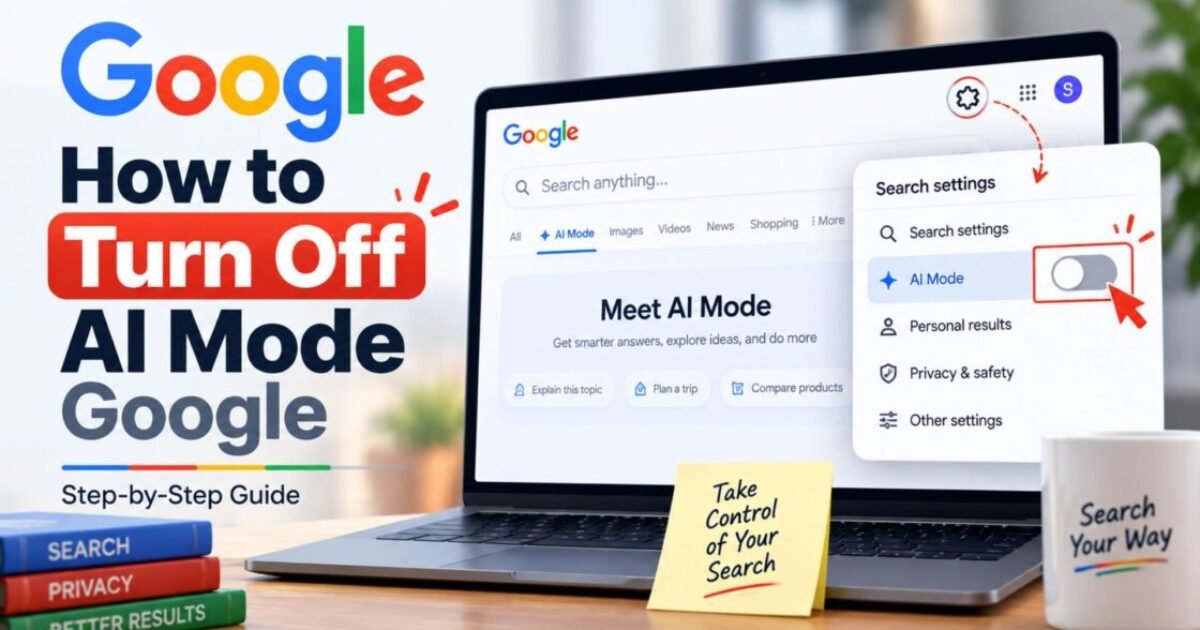
How to Turn Off AI Mode on Google: 4 Methods That Actually Work (2026)
There is no single switch to completely turn off AI Mode on Google. But there are 4 reliable workarounds that work right now in 2026. The fastest method: click the “Web” tab under the search bar to instantly remove AI answers for that search. The most permanent method: set your Chrome search engine to google.com/search?q=%s&udm=14 as a custom URL. This guide covers every working method — for desktop, Android, and iPhone.
I get it. You opened Google to find a quick answer, and instead of the clean list of links you expected, you got a wall of AI-generated text that may or may not be accurate. And now you want it gone. You are not alone. Google’s own help forum thread requesting an off switch for AI Mode is among the most upvoted feedback threads in the company’s history.
Millions of users want to know how to turn off AI Mode on Google — and Google has not provided a simple one-click solution. But there are workarounds. Tested, working ones. I spent time going through every available method in September 2026 so you do not have to.
Here is the honest truth before we get into the steps: there is no official Google setting that permanently disables AI Mode or AI Overviews entirely as of September 2026. However, the 4 methods below will remove it from your experience in practice — some temporarily, some permanently — across every device.
- Method 1 — Web tab (fastest, one-time)
- Method 2 — udm=14 custom search engine (most permanent)
- Method 3 — Search Labs opt-out (for AI Mode tab)
- Method 4 — Chrome flags (disable omnibox AI entry)
- How to turn off AI Mode on Android
- How to turn off AI Mode on iPhone
- Why you might not want to turn it off (if you are a blogger)
AI Mode vs AI Overviews — Which One Do You Actually Want to Turn Off?
Before the methods — a clarification that will save you time. Many people searching for how to turn off AI Mode on Google actually want to turn off two different things. They are separate features with separate controls.
The AI-generated summary box that appears automatically at the top of regular Google search results. Shows up without you doing anything.
A separate conversational tab you have to actively click. Appears as an “AI” tab next to All, Images, and Videos. Only activates when you choose it.
Most users want to turn off AI Overviews — the automatic summary that appears without clicking anything. Methods 1 and 2 below handle this. Methods 3 and 4 specifically remove the AI Mode tab and entry points.
Method 1 — The Web Tab (Fastest Way, One Search at a Time)
This is the fastest answer to how to turn off AI Mode on Google for a single search. No settings, no extensions, no technical steps.
- Search anything on Google as normal
- Look below the search bar — you will see tabs: All, Images, Videos, News, Web
- Click Web
- The AI Overview disappears immediately — you see traditional blue links only
Limitation: You have to do this every single search. It does not persist. The next search will show AI Overviews again. For a permanent fix, use Method 2. Time to do this: 2 seconds per search.
Method 2 — udm=14 Custom Search Engine (Most Permanent Fix)
This is the most reliable permanent answer to how to turn off AI Mode on Google. The parameter udm=14 has been available since May 2024 and continues to work as of September 2026. Adding it to your search URL forces Google to show traditional Web results only — no AI Overviews, no AI Mode tab.
- Open Chrome on desktop
- Click the three-dot menu (top right) → Settings
- Go to Search engine → Manage search engines
- Click Add next to “Other search engines”
- Name: Google (No AI)
- Shortcut: g
- URL: https://www.google.com/search?q=%s&udm=14
- Click Add
- Find “Google (No AI)” in the list → click the three dots → Make default
Every search from now on will go through this URL and skip AI Overviews entirely. This is the most effective permanent method for desktop Chrome users who want to know how to turn off AI Mode on Google without reinstalling anything. Alternative: Simply add &udm=14 to the end of any Google search URL manually after searching — the AI Overview disappears instantly on that page. Time to set up: 3 minutes. Permanent after setup.
Method 3 — Search Labs Opt-Out (Remove the AI Mode Tab)
If what you specifically want to remove is the AI Mode tab next to search results — not AI Overviews — Search Labs is the place to do it. Note: Google periodically removes and re-adds features from Search Labs, so this option may not be available for all accounts.
- Go to labs.google.com (you must be signed into your Google account)
- Find AI Mode in the list of experiments
- Click the toggle to turn it off — or click Leave to opt out completely
- Reload google.com
- The AI Mode tab next to All, Images, Videos should disappear
Important note: If AI Overviews no longer appear as a separate Labs toggle, it means Google has made it part of the default search experience for your region — which means Labs cannot be used to disable it. Use Method 2 instead. Time to do this: 2 minutes.
Method 4 — Chrome Flags (Disable AI Mode in Address Bar)
If you want to know how to turn off AI Mode on Google specifically in Chrome’s address bar — where a Gemini icon prompts you to switch to AI Mode while typing — Chrome flags are the answer.
- Open Chrome on desktop
- Type chrome://flags in the address bar → press Enter
- In the search box at the top, type AI Mode
- Find the AI Mode or omnibox AI flag
- Change the dropdown from Default to Disabled
- Click Relaunch at the bottom of the page
Also do this: Right-click the Chrome address bar → if you see “Always show AI Mode” — uncheck it. This removes the AI Mode shortcut from the address bar completely. Warning: Google sometimes resets flags after major Chrome updates. If AI Mode reappears after a Chrome update, repeat these steps. Time to do this: 3 minutes.
How to Turn Off AI Mode on Android
For Android users asking how to turn off AI Mode on Google, there is no single switch — but you can disable nearly all AI surfaces through three separate apps: Google Search, Chrome, and Gmail. The most effective approach combines the udm=14 method with disabling the AI Mode tab in the Google app.
- Open the Google app on your Android device
- Tap your profile picture (top right) → Settings
- Go to Search → look for AI features or AI Overviews
- Toggle off any available AI feature switches
- For the Web-only workaround: search anything → tap Web tab under results
The most reliable Android method remains the udm=14 custom search engine — set it in Chrome for Android using the same steps as desktop (Method 2 above). This works on Android Chrome identically.
How to Turn Off AI Mode on iPhone
iPhone users have an additional option that desktop users do not. For how to turn off AI Mode on Google on iOS:
- Easiest: Use Safari instead of Chrome — Google serves significantly fewer AI Overviews to Safari users since it is not a Google-owned browser
- Or: In Chrome for iOS, set the custom search engine to
https://www.google.com/search?q=%s&udm=14using the same Method 2 steps above — works identically on iOS Chrome - Or: Use Firefox for iOS — supports the same custom search engine method as desktop Chrome
Why Indian Bloggers Should Think Twice Before Turning It Off
If you found this article because you are a blogger or digital marketer — not just a frustrated user — there is something important to consider before you turn off AI Mode entirely. AI Mode and AI Overviews are exactly where your potential readers are getting information. If you turn them off on your own browser, you lose visibility into which sites are being cited for your topics — and you lose the ability to study what content Google is selecting as authoritative.
The smarter move for bloggers is to keep AI Mode on for research and competitive analysis, while optimising your content to appear in it. According to research published by LLM Pulse, content ranking in positions 11–20 gets cited in AI answers just as frequently as position 1–3 content.
That is an enormous opportunity for Indian blogs that are currently stuck on page 2. Read the complete guide on Google AI Mode India to understand what it means for your blog — and read the AEO checklist for Indian bloggers to make your content eligible for citation in it.
Turning off AI Mode makes sense if you are a regular user who finds it inaccurate or unhelpful. But for bloggers, understanding what AI Mode is showing — and optimising to appear in it — is worth far more than hiding it. Our AEO audit of 15 Indian blogs showed that the average AEO score is just 61.4/100 — meaning most Indian blogs are not yet structured to be cited in AI Mode at all.
Mitu tried to turn off AI Mode and broke her Chrome 😅
Follow India’s first Digital Marketing Comic Universe — where Mitu, Seema, Sougan, and Paanwala navigate Google AI, SEO, and the whole digital marketing chaos. Real lessons, comic format.
Read Comics → Get eBooks →- ✅ Fastest (one search): Click the Web tab under search results
- ✅ Most permanent (desktop): Set udm=14 as default Chrome search engine
- ✅ Remove AI Mode tab: Go to labs.google.com and toggle off AI Mode
- ✅ Remove address bar AI: Disable via chrome://flags → AI Mode flag
- ✅ Android: Use udm=14 in Chrome settings + Web tab in Google app
- ✅ iPhone: Switch to Safari OR set udm=14 in Chrome/Firefox for iOS
- ⚠️ No official permanent off switch exists as of September 2026
- 📌 For bloggers: Keep AI Mode on for research — optimise your content to appear in it instead
How to turn off AI Mode on Google permanently?
There is no single permanent off switch for AI Mode on Google as of September 2026. The most permanent method is setting https://www.google.com/search?q=%s&udm=14 as your default Chrome search engine — this forces all searches through a URL parameter that shows traditional Web results only, bypassing AI Overviews every time. You can also go to labs.google.com to opt out of the AI Mode tab specifically.
What is the udm=14 parameter and does it work?
The udm=14 URL parameter forces Google to show Web-only search results, bypassing AI Overviews and the AI Mode interface. It has been available since May 2024 and continues to work reliably as of September 2026. You can use it by adding &udm=14 to any Google search URL, or by setting it as your permanent default search engine URL in Chrome, Firefox, or Safari settings.
Is there a way to turn off Google AI on Android?
Yes — the most reliable way to turn off Google AI on Android is to set the udm=14 custom search engine in Chrome for Android (same method as desktop, works identically). In the Google app, go to Settings → Search → and toggle off any available AI feature switches. Using the Web tab in Google app search results also removes AI summaries for individual searches instantly.
Frequently Asked Questions — How to Turn Off AI Mode on Google
Can I completely turn off AI Mode on Google?
There is no official complete off switch for AI Mode on Google as of September 2026. However, the udm=14 custom search engine method and the Web tab method together effectively remove AI summaries from your search experience in practice. The udm=14 method is the closest to a permanent solution currently available.
Why does Google not have an official off switch for AI Mode?
Google treats AI Mode and AI Overviews as core features of its search product — not optional add-ons. The company’s position is that AI-generated summaries improve the search experience for most users. Google’s own feedback forum thread requesting an off switch is among the most upvoted in the company’s history, but as of September 2026 no official permanent disable option has been introduced for consumer accounts.
Will turning off AI Mode affect my Google account?
No — using the Web tab or udm=14 parameter does not modify your Google account settings. You are simply accessing a different view of Google’s search results. The Search Labs opt-out does affect your account setting for the AI Mode tab specifically — but it does not affect any other Google service or feature.
Does the udm=14 method work on mobile?
Yes — the udm=14 custom search engine method works on Chrome for Android and Chrome for iOS exactly the same way as desktop. Set the custom search engine URL in Chrome Settings → Search engine → Manage search engines → Add. Once set as default, every search bypasses AI Overviews on mobile as well.
Are there Chrome extensions that hide AI Mode?
Yes — extensions like Search Cleaner for Chrome are available and include separate toggles for AI Overview, AI Mode tab, sponsored ads, shopping carousels, and other Google search elements. These extensions work on Chrome, Edge, Brave, and other Chromium browsers. However, extensions require browser permissions and may have privacy implications — the udm=14 method is simpler and requires no third-party software.
What is the difference between AI Overviews and AI Mode?
AI Overviews are the automatic AI-generated summary boxes that appear at the top of standard Google search results without any user action. AI Mode is a separate conversational interface accessed by clicking the “AI” tab next to search results — it only activates when you choose it. Most users who want to know how to turn off AI Mode on Google are actually looking to remove AI Overviews. For Indian bloggers, both are relevant for understanding how Google AI Mode India is changing search visibility — read the complete Google AI Mode India guide.
- → Google AI Mode India — What Every Indian Blogger Must Do Now
- → AEO Score of Indian Blogs — India’s First Audit (15 Sites)
- → 5 AEO Mistakes Indian Blogs Make That Kill AI Visibility
- → AEO Checklist for Indian Bloggers — 18 Fixes in 30 Minutes
- → AEO vs SEO vs GEO — Complete 2026 Guide
- → Free AI Visibility Tracker — Check If AI Mode Cites Your Blog
- → Free AEO Content Scorer — Score Your Blog for AI Citation
Sources referenced in this guide on how to turn off AI Mode on Google: Stackmatix — Disabling Google AI Overviews (udm=14 parameter details), Bushe — Turn Off AI Mode Google Search 2026 (Search Labs steps), iTechGuides — How to Disable AI Features in Chrome 2026, Memeburn — How to Turn Off Google AI 2026 (50% stat), LLM Pulse — How to Rank in Google AI Overviews. All methods verified as working in September 2026.