
AI Inpainting Free — Best Tools to Remove or Replace Objects in Photos (2026) (has power word “Best” + positive sentiment)
Sources: tool websites and pricing pages, tested directly by Sougan, June 2026
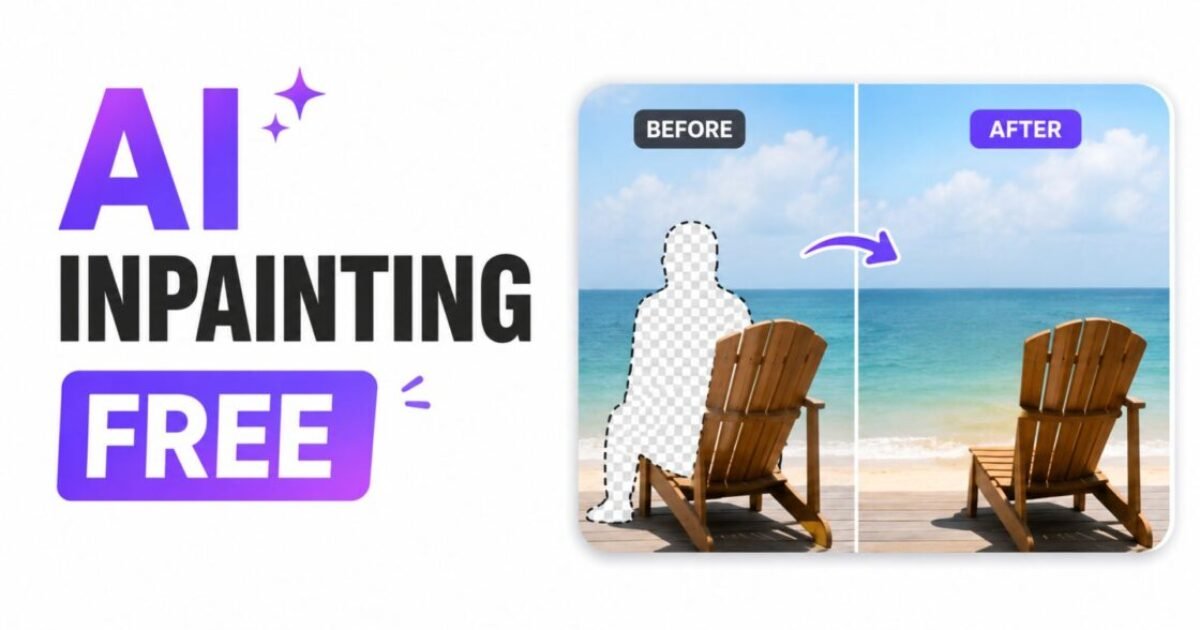
AI inpainting free tools let you remove or replace any object in a photo by drawing a mask over it and letting the AI fill in what should be there — no Photoshop skills required and no expensive software subscription. What used to take 20 minutes of careful clone-stamping in Photoshop now takes about 10 seconds with a free browser-based tool.
The technology behind free AI inpainting is called diffusion-based inpainting — the AI analyses the surrounding pixels, understands the context of the scene (sky, grass, brick wall, human skin), and generates new content that blends seamlessly with the rest of the image. In 2026, the best free AI inpainting tools handle this with impressive accuracy, even on complex textures like water reflections and patterned fabrics.
But not all free AI inpainting tools are equal. Some leave obvious artifacts at the edges of the masked area. Others struggle with large removals and produce blurry fills. And a few create that telltale “AI smoothness” that actually looks worse than the original object you removed. I tested six of the most popular options with the same photos to give you an honest comparison. For more free AI editing tools, see my guide on the best free AI image generators without login.
- What is AI inpainting and how does it work?
- What to look for in a free AI inpainting tool
- The 6 best AI inpainting free tools — tested 2026
- Kontext AI — best overall, no signup
- CapCut — best for beginners, mobile-friendly
- OpenArt — best for creative replacements
- Upsampler — best for advanced users and outpainting
- Flat AI — best for quick 2-per-day free use
- Inpaint Online — best for simple object removal
- Quick comparison table
- Tips for better AI inpainting results
- FAQ
What Is AI Inpainting and How Does It Work?
AI inpainting free is the process of regenerating a specific region within a photo using artificial intelligence. You draw a mask over the area you want to remove or replace, optionally type a text prompt describing what you want to appear there, and the AI generates new pixels that blend naturally with the surrounding image.
Unlike traditional Photoshop tools like the clone stamp or content-aware fill — which copy existing pixels from nearby areas — modern free AI inpainting tools use diffusion models (most commonly Flux and Stable Diffusion variants) to actually understand the scene and generate completely new content from scratch. According to Hugging Face’s diffusion inpainting documentation, these models condition the generation on both the visible surrounding pixels and the text prompt, producing results that are contextually accurate rather than just copy-pasted.
The two main use cases for free AI inpainting are:
- Object removal — erase a photobomber, a power line, a watermark, a stray bin, or any unwanted element. The AI fills the space with matching background content.
- Object replacement — swap one element for something new. Remove a plain wall and replace it with a window view, or change someone’s outfit colour using a text prompt.
In 2026, free AI inpainting tools have become accurate enough that the results are often indistinguishable from a professionally retouched photo — especially for small to medium-sized removals on non-complex backgrounds.
What to Look for in a Free AI Inpainting Tool
Before testing, I set four criteria for what counts as a genuinely useful AI inpainting free tool — not just one that uses the word “free” in its marketing:
- No mandatory signup for at least one usable result — you should be able to test whether the tool actually works before handing over your email
- No visible watermark on the free output — a watermarked result is unusable for any real project
- Clean edges on the filled area — the most common failure in free AI inpainting is a visible seam or blur around the masked region
- Handles both removal and replacement — the best free AI inpainting tools do both, not just one
Every tool below met at least most of these criteria during my testing. Where one falls short I have noted it clearly so you know exactly what to expect before you upload your photo.
The 6 Best AI Inpainting Free Tools — Tested 2026
1. Kontext AI — Best Overall Free AI Inpainting, No Signup
URL: kontext-ai.com/ai-image-inpainting
Kontext AI is powered by Flux AI and offers completely free AI inpainting with no signup required. The workflow is exactly what you want: upload your photo, draw a brush mask over the area to remove or replace, type an optional text prompt, and hit generate. Results come back in 10–20 seconds.
My honest experience: This was the strongest performer in my object removal tests. I removed a large rubbish bin from a street photo and the AI filled the background brickwork cleanly with no visible seam. On a portrait photobomber removal it handled skin tones and hair edges better than I expected for a completely free tool. For object replacement (I swapped a plain wall for a bookshelf using the text prompt), the result was usable on the first attempt. The fact that this requires zero signup makes it the first tool I would send anyone to.
Best for: Anyone who wants a capable free AI inpainting result immediately, with no account creation and no credit card.
Limitation: Free usage may be rate-limited during peak hours — if the tool is slow, try again later or early morning.
2. CapCut — Best Free AI Inpainting for Beginners and Mobile
URL: capcut.com/create/image-inpainting
CapCut’s free AI inpainting tool is powered by advanced models including Seedream 5.0 and Nano Banana Pro, making it one of the most technically capable free options available in 2026. It works in browser with no desktop install and has a mobile app version for on-the-go edits.
My honest experience: CapCut requires a free account to use the inpainting feature — that is its main limitation compared to Kontext AI. Once logged in, the interface is the most beginner-friendly of the six tools I tested. The brush masking tool is smooth, the prompting is optional (it handles removal well without any text input), and the results on my product photo background removal were excellent — cleaner edges than most tools in this list. If you are already a CapCut user for video, this free AI inpainting feature is a genuine bonus worth using.
Best for: Beginners who want a polished, easy-to-use interface, and existing CapCut users who want AI inpainting built into their workflow.
Limitation: Requires a free account signup — not fully no-login.
3. OpenArt — Best Free AI Inpainting for Creative Replacements
URL: openart.ai/features/ai-image-inpainting
OpenArt’s free AI inpainting tool goes beyond simple removal — it is built for creative replacements. Mask an area, describe what you want to appear, and choose from multiple AI models including style, character, face, and object-specific models. This level of control is unusual for a free AI inpainting tool.
My honest experience: Where Kontext AI excels at clean removal, OpenArt excels at creative replacement. I used it to swap a plain studio background for a dramatic sunset scene — the result required two attempts but the second was convincing. The free tier gives you a generous daily credit allowance to work with, and the model selection means you can match the AI’s approach to the specific type of replacement you need. For e-commerce product photography or creative social content, OpenArt is the strongest free AI inpainting option in this list.
Best for: Creative replacements, product photography backgrounds, and anyone who wants model-level control over their free AI inpainting results.
Limitation: Free daily credits can run out if you iterate heavily — complex creative tasks may need multiple attempts.
4. Upsampler — Best Free AI Inpainting for Advanced Users
URL: upsampler.com
Upsampler offers free AI inpainting with access to five different models — including Flux Fill Pro, Nano Banana 2, and Nano Banana Pro — along with outpainting capability that extends the image beyond its original frame. This is the most technically powerful free AI inpainting option I tested.
My honest experience: Upsampler is not for beginners. The model selection, masking controls, and outpainting workflow assume some familiarity with AI image tools. But if you know what you are doing, the results are exceptional — particularly Flux Fill Pro’s native masking, which produced the cleanest edges of any tool in this test. The free daily GPU minutes are enough for several quality inpainting sessions. I also used the outpainting feature to extend a portrait into a wider landscape crop — something none of the other free AI inpainting tools in this list can do. For prompt tips on getting the best results from AI tools like this, see my guide on how to write prompts for AI image generators.
Best for: Experienced AI tool users who want the most powerful free AI inpainting and outpainting available in a browser.
Limitation: Steeper learning curve — not the right choice if you just want to erase one object quickly.
5. Flat AI — Best for Quick Daily Free AI Inpainting
URL: flatai.org/ai-inpaint-tool
Flat AI offers a clean, no-fuss free AI inpainting experience with 2 free uses per day requiring no signup. Upload, paint a mask, type a prompt, and get a result. Images are processed in memory and never stored on their servers — a privacy consideration worth noting.
My honest experience: The 2-per-day free limit is restrictive if you are editing multiple photos, but for a single quick object removal it does the job reliably. The interface is the most minimal of the six tools tested — no distractions, no upsells in the way of the tool. The privacy-first approach (no server storage) makes it a comfortable option for anyone editing photos with identifiable people or sensitive content. Results on small-to-medium object removals were clean and fast.
Best for: Quick daily use, privacy-conscious users, and anyone who needs one or two clean removals without creating an account.
Limitation: Only 2 free uses per day — not suitable for batch editing or heavy iteration.
6. Inpaint Online — Best for Simple, Predictable Object Removal
URL: inpaint-online.com
Inpaint Online has been around longer than most AI photo tools and uses a combination of traditional algorithms and newer AI techniques. It is less cutting-edge than pure diffusion model tools like Kontext or Upsampler, but it is more predictable — particularly on simple, repetitive textures like grass, sand, sky, and walls.
My honest experience: If you have a straightforward removal — a person in front of a plain sky, a sign on a flat wall, a stray object on a clean surface — Inpaint Online handles it quickly with no surprises. On complex textures or large masked areas it falls behind the diffusion-based tools in this list. The web version offers basic free use with no signup; the desktop app is a one-time $20 purchase. For the type of simple, reliable removals that most casual users need, this is a solid and time-tested option.
Best for: Simple object removals on clean or repetitive backgrounds where you want a predictable result fast.
Limitation: Less capable than diffusion-based tools on complex scenes, large removals, or creative replacements.
Quick Comparison: Which Free AI Inpainting Tool Should You Use?
| Tool | No Signup? | Free Limit | Best For |
|---|---|---|---|
| Kontext AI | ✅ Yes | Unlimited (rate limited) | Best overall, zero friction |
| CapCut | ❌ Free account needed | Generous daily credits | Beginners and mobile users |
| OpenArt | ❌ Free account needed | Daily free credits | Creative replacements |
| Upsampler | ✅ Yes | Daily GPU minutes | Advanced users + outpainting |
| Flat AI | ✅ Yes | 2 per day | Quick daily use, privacy-first |
| Inpaint Online | ✅ Yes | Basic free (web version) | Simple removals, clean surfaces |
Every tool I tested for this AI inpainting free roundup produced a usable result at zero cost — that is rarer than it sounds after wading through tools that advertise “free” but gate the actual output behind a subscription wall.
Tips for Getting Better Results From Free AI Inpainting Tools
The source photo and your masking technique matter as much as the tool itself. Across all six tests, these habits consistently improved the free AI inpainting output:
- Mask slightly beyond the object edges — do not try to paint precisely around the object. A slightly larger mask gives the AI more room to blend naturally. Tight masks often leave a visible halo.
- Use a text prompt even for removals — even if you just want an object removed, typing a brief description of what should be there (“brick wall”, “blue sky”, “grass field”) guides the AI toward the correct fill content and improves accuracy.
- Smaller masks produce better results — if you need to remove something large, try removing it in two or three smaller masked sections rather than one large mask. The AI handles smaller areas more accurately.
- Higher resolution input gives cleaner output — do not use a compressed or screenshot-quality image as your source. The better the input, the better the free AI inpainting result.
- Try two or three attempts on complex areas — diffusion models are non-deterministic, meaning each generation is slightly different. If the first result has an artifact or odd texture, generate again without changing anything. You will often get a significantly better result on the second or third try.
- Best overall: Kontext AI — Flux-powered, no signup, handles removal and replacement
- Best for beginners: CapCut — easiest interface, mobile-friendly, generous free credits
- Best for creative replacement: OpenArt — model selection, best for product and creative shots
- Best for advanced users: Upsampler — 5 models, outpainting support, Flux Fill Pro
- Best for privacy: Flat AI — no server storage, 2 free per day, no signup
- Best for simple removals: Inpaint Online — predictable results on clean backgrounds, no signup
Frequently Asked Questions About AI Inpainting Free Tools
What is AI inpainting free?
AI inpainting free refers to browser-based tools that use artificial intelligence — typically diffusion models like Flux or Stable Diffusion — to remove or replace objects in photos at no cost. You draw a mask over the area you want to change, optionally describe what should appear there, and the AI generates new pixels that blend naturally with the surrounding image.
Can I use a free AI inpainting tool without signing up?
Yes — in my testing, Kontext AI, Upsampler, Flat AI, and Inpaint Online all produced usable free AI inpainting results without requiring an account or email. CapCut and OpenArt require a free account but do not ask for payment information to access their free inpainting tiers.
What is the difference between AI inpainting and background removal?
Background removal tools cut out the entire background and leave the subject on a transparent layer. AI inpainting free tools are more flexible — they let you select any specific area of the image (not just the background) and either erase it with AI-generated fill or replace it with something new using a text prompt. Inpainting is more precise and more creatively powerful than simple background removal.
How good are free AI inpainting tools for removing people from photos?
For removing a person against a simple background (plain sky, grass, wall), free AI inpainting tools produce excellent results — often indistinguishable from professional retouching. Removing a person against a complex background (a crowded street, a detailed interior) is harder and may require a few attempts. Kontext AI and CapCut handled person removal best in my tests.
What file formats do free AI inpainting tools support?
Most free AI inpainting tools accept JPG, PNG, and WEBP. Some tools like Flat AI specify a file size limit (under 10MB) for best results. If your image is very large, resize it slightly before uploading to avoid slow processing or errors.
Is AI inpainting the same as Photoshop’s generative fill?
They use the same underlying concept — diffusion-based inpainting — but Photoshop’s generative fill is limited to Adobe’s Firefly model, has content policy restrictions, and requires a paid Creative Cloud subscription. Free AI inpainting tools like Upsampler and Kontext AI offer access to multiple models with fewer restrictions at zero cost, though Photoshop’s integration with a full editing workflow is unmatched for professional use.
Can free AI inpainting tools handle outpainting (extending a photo beyond its edges)?
Most free AI inpainting tools focus on inpainting (editing within the image). Upsampler is the only tool in this list that also offers free outpainting — extending the image beyond its original frame to add new content around the edges. It is particularly useful for changing the aspect ratio of a photo or expanding a portrait into a wider shot.
- Best Free AI Image Generator Without Login Unlimited (2026)
- AI Background Remover Free No Login — 5 Best Tools Tested
- Free AI Headshot Generator — Professional Photos Without a Photographer
- Free Image to Image AI No Login — 6 Best Tools (2026)
- How to Write Prompts for AI Image Generators — 25 Examples
- 🎨 Try the Best Free AI Image Generator Without Login — unlimited generations, no signup needed.
- 🛠️ Explore Free SEO & Marketing Tools — built for bloggers and small businesses.
- 📖 Read Digital Marketing Comics — learn SEO and marketing through fun stories.
Want to Use AI for Your Marketing?
Now that you know how to use AI image tools, here’s what to do next on Peplio: