By Sougan Kumar Mandi, founder of Peplio and Digital Marketing Executive at Demech Chemical Products Every tool re-checked: November 27, 2026 · Last updated: November 27, 2026
Quick Answer
For AI inpainting free with no signup, start with Pixnova (its FAQ says no login and no watermark) or Kontext AI (no signup, 10 starter credits). For editing with a prompt on your phone, CapCut is free with an account. To remove a small object from a simple background without uploading your photo anywhere, use Peplio’s free object remover below: it runs in your browser, has no limits and adds no watermark. Every tool here was re-checked on its own page on November 27, 2026.
I first tested AI inpainting tools for this page in June 2026. Kontext AI removed a large bin from a street photo cleanly, and OpenArt needed two attempts to swap a background for a sunset. Five months later, I checked Peplio’s Google Search Console and saw something uncomfortable: people reaching this page through Google’s AI Mode were typing follow-ups like “none of them work” and “where can I do this for free”. Free AI tools change fast. So I re-checked every tool on its own page, removed claims I could no longer confirm, and built a free object remover that works right here, with no signup and no upload.
8free inpainting options checked on November 27, 2026
2AI tools that clearly say no signup (Pixnova, Kontext AI)
0uploads: Peplio’s object remover runs in your browser
1.7 sto remove 2 objects from a 900 x 600 test image in Peplio’s tool
Choose a photo, paint over the object you want to remove, and press Remove object. The tool fills the area with texture copied from the rest of your photo. Everything happens in your browser: your photo is never uploaded, there is no daily limit and no watermark.
Example result: Done in 1.7 seconds. Not perfect? Paint the leftover area and press Remove object again, or Download PNG.
Honest note: this is classic inpainting (patch matching), not generative AI. It works best on small objects over simple backgrounds such as sky, walls, sand, grass or water. For faces, crowds or replacing something with a prompt, use one of the AI tools below. Photos larger than 1,000 px are scaled down to 1,000 px on the long side.
A real run of Peplio’s free object remover on a test image. Busy textures like grass can show soft patches; a second pass helps.
What Is AI Inpainting?
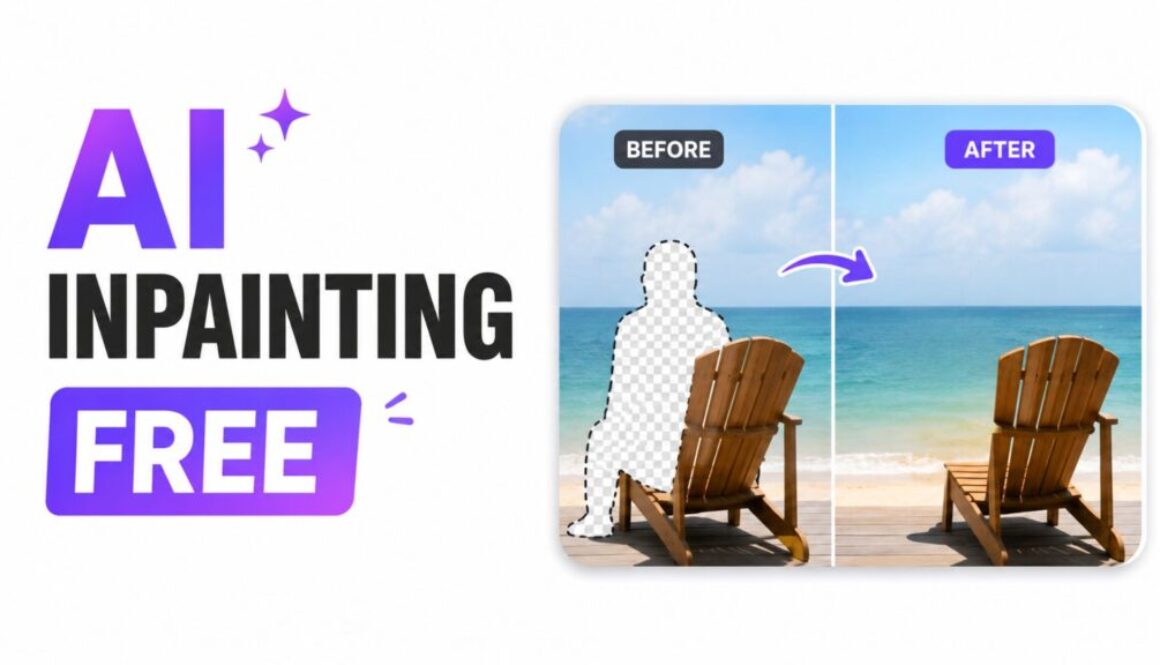
Inpainting means filling a selected part of an image so it blends with the rest. You paint a mask over the area, and the tool rebuilds it. AI inpainting uses a generative model, usually a diffusion model, to create new pixels for the masked area and can follow a text prompt, so you can replace a car with a tree, not only remove it (Hugging Face diffusers documentation). Classic inpainting, like Peplio’s tool above, copies texture from elsewhere in the same photo. It cannot invent new objects, but it is fast, private and free.
AI Inpainting Free Tools Compared (November 2026)
Each row comes from the tool’s own page or pricing page on November 27, 2026. “Not stated” means the page did not say. Free plans change often, so check before you edit important photos.
No free credits stated; pay as you go at 4 cents per credit
Not stated
Advanced users who want many models
Source: each tool’s own page and pricing page, read on November 27, 2026. The full list is in the free CSV below.
AI Inpainting Free Tools: What Is Free and What Is Not
1. Pixnova: best AI inpainting free with no signup
Pixnova’s page has an upload box (JPG, PNG or WebP up to 30MB), a prompt box and two model versions. Its FAQ says there is no need to sign up and that generated photos have no watermark. The page shows a usage counter but does not explain the free limit, so expect a cap on heavy use.
2. Kontext AI: best for prompt-based replacement
Kontext AI says “No sign up needed”, is powered by Flux, and supports JPG, PNG and WebP up to 4K. Its pricing page lists a free plan with 10 starter credits. In my June 2026 test it removed a large bin from a street photo cleanly. Note: on November 27, 2026 its pricing page said purchases are paused, so you cannot buy more credits there right now.
3. Template.net AI Inpaint: good for a few quick tries
Guests get a few free edits, then need to sign up and use credits. It has a brush from 1% to 100% size, undo and redo, and works with or without a prompt.
4. CapCut: best for beginners and phones
CapCut says its AI image inpainting is free and names the Seedream 5.0 and Nano Banana Pro models. The “Try” button leads to a signup page, so plan on a free account. It exports PNG, JPEG or PDF. Its pricing page did not load when I checked.
5. OpenArt: best for creative replacements
Select an area, describe the change, and pick from several image models. OpenArt’s pricing page lists one-time 100 trial credits and inpainting as a feature. In June it took me two attempts to replace a background with a sunset, which is normal for AI inpainting.
6. Flat AI: light daily use
Paint a mask and describe the change. Flat AI says free usage limits apply but gives no number; the Unlimited plan is $20 a month. Earlier this year it allowed 2 free uses a day, but the page no longer states a number.
7. Upsampler: for advanced users
Upsampler’s Image Edit lets you mask an area and redo only that part, with models such as Flux Fill Pro, Seedream 5 Pro and Nano Banana 2.1. It is pay as you go at 4 cents per credit, with edits costing 1 to 15 credits; Pro is $15 a month for 1,000 credits. No free credits were stated.
Removed from this list: Inpaint Online’s web tool could not be checked on November 27, 2026. Its desktop sibling, Inpaint by Teorex, rebuilds areas “from surrounding pixels” and is a paid download, not a free web tool.
Peplio Background Remover
Need the whole background gone, not one object? Remove it free, no login.
“Free” AI tools are a moving target. The only truly free option is one that runs on your own device.
Between June and November, free limits on these tools changed or disappeared, one tool paused purchases, and one web tool could not be checked at all. That is why I built a simple remover into this page. It will never beat a good AI model on faces or complex scenes, but for a sign, a bin or a stranger on a beach it does the job without an account. For everything else, try Pixnova first and keep Kontext AI as a backup.
In Episode 6: Ads Ka Dangal, the bakery learns that the picture in an ad matters as much as the offer. Clean product photos are where that starts.
Learn marketing the fun way
Peplio’s comic stories teach SEO and marketing through a bakery that learns everything the hard way. Start reading the digital marketing comic stories.
Summary
Peplio’s free object remover works in your browser: no signup, no upload, no watermark, best on simple backgrounds.
For AI inpainting free with no signup, Pixnova and Kontext AI clearly say no account is needed.
CapCut and OpenArt are strong but need an account; Template.net allows a few guest edits.
Flat AI and Upsampler suit heavier use: $20/month unlimited, or 4 cents per credit.
Paint beyond the edges, use small masks and retry two or three times for cleaner results.
People Also Asked
Which AI inpainting tool is free with no signup?
Pixnova and Kontext AI both say no signup is needed, and Peplio’s object remover above needs no account at all.
AI inpainting fills a painted area of an image with new pixels from a generative model, so you can remove or replace objects. You paint a mask, add an optional prompt and the AI rebuilds that area.
Is there a free AI inpainting tool without signup?
Yes. Pixnova and Kontext AI say no signup is needed (checked November 27, 2026). Peplio’s object remover on this page also needs no account and runs in your browser.
Do free inpainting tools add a watermark?
It depends on the tool. Pixnova’s FAQ says no watermark and Peplio’s remover adds none. Most other tools do not state it, so check the free plan before editing important photos.
Is Peplio’s object remover AI?
No. It uses classic inpainting that copies texture from your own photo, entirely in your browser. It is best for small objects on simple backgrounds; use an AI tool for faces or prompt-based replacement.
What is the difference between inpainting and a background remover?
Inpainting fills or replaces a selected area inside the photo. A background remover keeps the main subject and deletes everything around it.
Can I use this AI inpainting free tool list in my article?
Yes. The comparison table, cheat sheet and CSV are free to use. Please credit Peplio and link to peplio.com/ai-inpainting-free/.
Data sources and transparency
Fact check: every free limit, signup rule, model name and price comes from each tool’s own page or pricing page as read on November 27, 2026. “Not stated” means the tool’s page did not say. My hands-on notes on Kontext AI and OpenArt come from my June 2026 tests. Peplio’s object remover timing comes from a real run on a 900 x 600 px test image. The AI Mode follow-up queries come from Peplio’s Google Search Console (October 30 to November 24, 2026).
Peplio is not affiliated with any tool on this list and receives no commission.
Looking for AI inpainting free tools? This page compares 8 free options re-checked in November 2026 and includes a free object remover that runs in your browser with no signup or watermark. Use the AI inpainting free cheat sheet for cleaner results and bookmark this page, because we re-check every tool regularly.
Written by Sougan — Founder of Peplio.com and Digital Marketing Executive with 3+ years of SEO experience. I personally tested every tool in this list with my own photos — uploaded the same selfie to each one and compared the results side by side. No sponsored placements, no affiliate-only picks. Last updated: June 2026
📊 AI Headshot Generator Free — Quick Facts (2026):
6
Tools personally tested for this guide
$150–$500
Typical cost of a traditional headshot photoshoot
10–60 sec
Typical generation time for a free AI headshot
3
Tools tested that work with zero signup
1200×1200
Typical max free resolution (px) across tools tested
1–6
Photos needed depending on the tool
Sources: tool websites and pricing pages, tested directly by Sougan, June 2026
Need an AI headshot generator free of cost that actually produces something you’d put on LinkedIn? I tested six of the most-used options with my own selfie — same photo, every tool — to see which ones deliver a usable professional headshot without paying $150-500 for a studio session.
A polished headshot used to mean booking a photographer, renting studio time, and waiting days for edited files. Most freelancers, job seekers, and small business owners skip it entirely and use a cropped selfie instead — and it shows. AI headshot generators have closed that gap, but the “free” claims vary wildly. Some genuinely need zero signup. Others give you 3 free credits and then ask for an email, a card, or a subscription.
This guide covers exactly what I found when I tested each tool — what’s actually free, what the output looked like, and direct links so you can try them yourself. If you want more free AI image tools beyond headshots, see my guide on the best free AI image generators without login.
Before testing, I set four criteria for what counts as a genuinely useful AI headshot generator free tool — not just one that advertises “free” in its title:
No mandatory signup for at least one usable result — entering an email shouldn’t be required just to see what the tool can do
No visible watermark on the free output — a watermarked headshot is unusable for LinkedIn or a resume
Realistic, not obviously AI-looking results — distorted faces or uncanny skin textures defeat the purpose
Resolution good enough for profile photos — at least 1000px on the long edge for crisp display on LinkedIn and printed materials
Only the tools below met at least most of these criteria during my testing. I’ve noted where each one falls short so you know exactly what to expect.
The 6 Best AI Headshot Generator Free Tools — Tested 2026
1. HeadshotPro — Best for Instant LinkedIn-Ready Results
HeadshotPro’s free tool lets you upload one photo and generates a free HD headshot with no sign-up and no credit card. In my test, I uploaded a casual selfie and got back a result that looked notably more polished — better lighting, cleaner background, more “professional photo” feel — within about a minute.
My honest experience: The free tier gives you one download in HD. If you want more variations — different outfits, backdrops, or poses — you’ll need to unlock credits. For a single LinkedIn profile photo update, the free result alone was good enough that I didn’t feel pushed to pay.
Best for: A quick, single professional photo for LinkedIn or a resume with minimal effort.
Limitation: One free HD download; additional variations require unlocking paid credits.
Magic Hour’s free AI headshot generator free tool needs just one photo and claims a 10-second turnaround with no sign-up required. In my test this was genuinely the fastest of the six — upload, click generate, and the result appeared almost immediately.
My honest experience: You get 3 free headshots per day with no account. The output quality was solid for a quick professional look, though for more refined results across multiple outfits and scenes, the tool nudges you toward signing up for bonus credits. For a same-day need — updating a LinkedIn photo before an interview, for example — this is the fastest option I tested.
Best for: Speed — when you need a usable headshot in under a minute with zero setup.
Limitation: 3 free generations per day; more variety requires signup for bonus credits.
Aragon’s free tier is included with every account — no payment information required to use it. The catch is that free generations are limited per day and can land you on a waitlist during busy periods.
My honest experience: When my generation went through, the quality difference between the free and paid “Professional” tier was noticeable — the free version is good but not quite studio-photorealistic. Still, for casual professional use (internal team directories, smaller resumes, social profiles) the free output was perfectly serviceable. If you can tolerate a short wait during peak times, this is worth trying.
Best for: People who want to try multiple style directions without committing to a paid plan first.
Limitation: Free generations are rate-limited and may queue during high demand.
4. Pixelbin — No Signup, 3 Free HD Headshots Per Month
Pixelbin lets you generate up to three HD professional headshots per month completely free, with no signup required for those three. It transforms a selfie or casual portrait into a properly-sized headshot for LinkedIn, resumes, business cards, and company directories.
My honest experience: The output was crisp and free of watermarks — exactly what I’d expect from a “studio-grade” claim for a quick edit. Three free headshots per month is a real limitation if you need to iterate a lot, but for getting one solid profile photo updated, it’s more than enough, and the no-signup aspect for those three is genuinely true in my test.
Best for: A clean, no-fuss headshot once a month with zero account creation.
Limitation: Capped at 3 free generations per month; more requires signup for additional credits.
This tool takes a different approach — instead of fully regenerating your face, it removes the background from your existing photo and swaps in a solid color, gradient, or studio backdrop, then exports at 1200×1200px. No sign-up, no email, runs entirely in-browser.
My honest experience: If your existing photo is decent but the background is messy (a cluttered room, an outdoor setting that looks too casual), this is the fastest fix. It won’t change your pose, outfit, or lighting on your face — it’s a background and framing upgrade, not a full AI regeneration. For people who already have a reasonably good photo and just need it “office-ready,” this worked well and the 1200×1200px output was sharp.
Best for: Fixing the background of an already-decent photo without changing anything else.
Limitation: Doesn’t regenerate your face, outfit, or pose — background and framing only.
Upsampler’s free AI image generator gives access to multiple models — including Flux 2 Klein, Wan 2.2, and Qwen Image — with no signup, no watermark, and free daily generation minutes. Unlike the dedicated headshot tools above, this works by prompting: describe the headshot you want (e.g. “professional corporate headshot, navy suit, soft studio lighting, neutral grey background”) and it generates from scratch or from a reference image.
My honest experience: This requires more effort than the one-click tools, but gives you the most control over style — useful if you want a specific look (creative portfolio vs. corporate) rather than whatever the dedicated tool defaults to. I paired it with Upsampler’s free upscaler to bring the result to print-ready resolution, which the dedicated headshot tools above don’t offer for free.
Best for: Anyone comfortable writing prompts who wants a specific style rather than a generic “professional” default. For prompt-writing tips, see my guide on how to write prompts for AI image generators.
Limitation: Requires prompt-writing rather than a simple upload-and-go workflow.
Quick Comparison: Which AI Headshot Generator Free Tool Should You Use?
Every tool I tested for this AI headshot generator free roundup worked without forcing signup for at least an initial result — that’s rarer than you’d expect after testing tools that advertise “free” but gate the actual output behind an email wall.
Tips for Getting Better Results From a Free AI Headshot Generator
The source photo matters more than the tool. Across all six tests, here’s what consistently improved the output:
Use a well-lit, front-facing photo — natural daylight facing a window works best. Shadows and backlighting confuse every tool I tested.
Make sure your face is clearly visible — no sunglasses, no hats casting shadows over your eyes, hair not covering your face.
Higher resolution input = higher resolution output — don’t use a heavily compressed or screenshot-quality photo as your source.
Try more than one source photo — different angles and expressions on the same tool can produce noticeably different results. I got my best HeadshotPro result on my second attempt with a slightly different photo.
Match the tool to your need — if your existing photo is already decent, AiProPortrait’s background swap is faster than a full regeneration. If you want a specific creative direction, Upsampler’s prompt control beats the one-click tools.
📌 Best AI Headshot Generator Free Tools — Quick Summary (2026)
Best overall: HeadshotPro — one free HD download, no signup, LinkedIn-ready
Fastest: Magic Hour — 3/day, ~10 second turnaround, no signup
Best for variety: Aragon AI — multiple style options, free tier on every account
Best for monthly use: Pixelbin — 3 free HD headshots/month, no watermark
Best for background fixes: AiProPortrait — instant background swap, 1200×1200px
Best for control: Upsampler — full prompt control plus free upscaling
Frequently Asked Questions
Is there a truly free AI headshot generator with no signup?
Yes — in my testing, HeadshotPro, Magic Hour, Pixelbin, and AiProPortrait all produced a usable headshot without requiring an account or email. Each has free-tier limits (ranging from one HD download to a few per day or month), but the initial result requires no signup.
How many photos do I need for an AI headshot generator free tool?
This varies by tool. Magic Hour and HeadshotPro’s free tier work from a single photo. Some paid headshot services request 6-12 selfies from different angles for the most photorealistic results, but the free tools I tested all worked from one source photo.
Will a free AI headshot have a watermark?
Of the six tools tested, none added a visible watermark to the free output. This is worth double-checking with any new tool, since watermarked results are common among lesser-known “free” generators not covered here.
What’s the best free AI headshot generator for LinkedIn specifically?
HeadshotPro’s free tool was the most LinkedIn-ready result in my test — proper headshot framing, professional lighting, and clean background in one HD download with no signup. Pixelbin’s output was similarly clean if you want to save HeadshotPro’s single free credit for later.
Can I use an AI headshot generator free tool for a resume photo?
Yes — all six tools tested produce results suitable for resume photos. AiProPortrait’s 1200×1200px export is particularly good for printed resumes where resolution matters. For digital resumes and online profiles, any of the six should look sharp.
Is it worth paying for a headshot tool instead of using the free tier?
For a single updated profile photo, the free tiers I tested were sufficient — I didn’t feel the need to upgrade for basic LinkedIn or resume use. If you need multiple outfits, backdrops, or a full set of 20-40 variations for team photos or a portfolio, the paid tiers (typically $19-29 for a batch) become more worthwhile.
Written by Sougan — Founder of Peplio.com and Digital Marketing Executive with 3+ years of SEO experience. I use AI generated images across Peplio daily, so I researched the legal and platform-policy side thoroughly before relying on them for commercial content. Last updated: June 2026
📊 Can You Sell AI Generated Images — Key Facts (2026):
Yes
Selling AI generated images is generally legal on most platforms
No
US Copyright Office: pure AI output without human input isn’t copyrightable
2023
Year US Copyright Office issued key AI authorship guidance
Required
Etsy mandates AI-use disclosure on listings
3
Core risk factors to check before selling any AI image
Edits
Meaningful human edits strengthen any copyright claim
Sources: US Copyright Office (2023–2026), Etsy Seller Policies (2026), platform terms of service reviewed June 2026
Can you sell AI generated images? Yes, in most cases — but the legal protection differs from traditional artwork. I get asked this every week from bloggers, Etsy sellers, and small business owners experimenting with AI art as a side income. I get asked this every week from bloggers, Etsy sellers, and small business owners experimenting with AI art as a side income. The honest answer is more nuanced than a simple yes or no — and most guides online conflate two completely different questions: “is it legal to sell” and “do you legally own it.”
I personally generate and sell AI generated images and use AI images across Peplio every week — hero images, social graphics, product mockups. Before relying on them commercially, I researched exactly where the legal lines sit in 2026. This guide gives you the complete picture: what the US Copyright Office actually says, what major AI tools permit, what marketplaces like Etsy and Shutterstock require, and the practical steps to protect yourself if you want to sell AI generated images as part of your business.
If you’re scaling AI visuals as part of a broader business strategy, also read our guide on AI image generation for businesses — it covers the workflow side of what this article covers legally.
The Short Answer — Can You Sell AI-Generated Images?
Yes — in most cases you can sell AI generated images, and many creators already do this successfully. Selling them is widely done across Etsy, Redbubble, stock photo sites, and print-on-demand stores, and the practice is generally permitted by both AI tools and major marketplaces. But “can you sell AI generated images” and “can you legally protect AI generated images from being copied” are two separate questions, and the gap between them is what this guide is really about.
Here’s the core issue: in the United States, the Copyright Office has repeatedly stated that works generated entirely by AI, with no meaningful human creative input, cannot be copyrighted. That doesn’t make selling them illegal — it means you may not be able to stop someone else from copying and reselling the exact same image, because there is no copyright to enforce in the first place.
So the practical answer to “can you sell AI generated images” breaks down into three separate questions — and understanding can you sell AI generated images legally starts with separating them:
Is it legal to sell? — Generally yes, with platform-specific exceptions.
Can you protect it from being copied? — Often no, unless you’ve added substantial human edits.
Could the underlying AI model create legal exposure? — Possibly, depending on ongoing training-data lawsuits.
I want to be direct about why this question matters so much right now. Thousands of people are asking “can you sell AI generated images” because AI art has become a genuine income stream — Etsy shops full of AI-generated printables, Redbubble stores stocked with AI t-shirt designs, stock portfolios padded with AI-generated lifestyle photos. The volume is enormous, and for the most part it’s allowed. But “allowed” and “fully protected” aren’t the same thing, and understanding that gap is what separates a sustainable AI image business from one that gets blindsided later.
Why AI Images Sit in a Copyright Gray Zone
Copyright law was built around the idea of human authorship. The US Copyright Office’s guidance on AI and copyright clarified that copyright protection requires a human author — and a text prompt alone typically isn’t considered enough “creative control” to qualify on its own.
This means if you type “a fox in a forest, watercolor style” into an AI generator and get an image, that raw output likely cannot be copyrighted by you. Anyone else could generate something nearly identical, or simply screenshot and reuse your image, and you would have limited legal recourse based on copyright alone.
However — if you take that AI output and meaningfully edit it (compositing, painting over sections, combining multiple generations, significant manual adjustment), the resulting work may qualify for copyright protection on the human-authored portions. This is why many sellers treat AI generation as a “first draft” and add real editing work on top.
Can You Sell AI Generated Images in Practice? What This Means
Can you sell AI generated images as a small seller without issues? For most small sellers — Etsy shops, print-on-demand stores, stock photo contributors — this gray zone rarely causes real problems day to day. The volume of AI content being sold commercially is enormous, and enforcement against individual sellers for “lack of originality” is not currently a major risk. The bigger risks in practice are platform-specific rules and the training-data lawsuits covered later in this guide.
I think of it this way: “can you sell AI generated images” has a much lower bar than “can you build a defensible portfolio out of AI generated images.” The first is almost always yes. The second requires real work — editing, compositing, combining your own photography or illustration with AI elements, and developing a consistent style that becomes recognisable as yours regardless of the underlying tool.
There’s also a practical reality worth naming: the market for AI images is so saturated that the bigger business risk usually isn’t legal — it’s competitive. If anyone can generate something visually similar with a free tool and a five-word prompt, your differentiation has to come from curation, niche selection, bundling, or customisation — not from the image itself being legally unique.
What Major AI Tools Say About Commercial Use (Can You Sell AI Generated Images From Each One?)
Every AI image tool has its own terms of service regarding commercial use — and they vary significantly. Here is how the major free tools I cover regularly on Peplio generally handle it:
Tool
Commercial Use Allowed?
Notes
Bing Image Creator
Yes
Microsoft’s terms explicitly permit commercial use of outputs on the free tier
Perchance
Generally yes
Broad usage rights stated; verify current terms before large commercial runs
Craiyon
Generally yes
Permissive terms; images considered usable for most purposes
Hugging Face Spaces
Varies by space
Depends on the underlying model’s license — check each space individually
DeepAI
Check current terms
Commercial terms have changed historically; verify before relying on it
Can you sell AI generated images made with these tools commercially? The pattern across most tools: if you generated the image yourself using your own prompts, you generally have permission to use it commercially, including selling it. The exception is when a tool explicitly reserves commercial rights or requires a paid tier for commercial licensing — always read the specific terms before building a business around one tool. For the no-login, no-watermark options I rely on most, see my guide on the best free AI image generators without login.
Where Can You Sell AI Generated Images? Etsy, Shutterstock, and Print-on-Demand
Even if a tool permits commercial use, the marketplace you’re selling on may have its own AI-specific rules. This is where sellers most often get caught off guard.
Can You Sell AI Generated Images on Etsy?
Etsy’s seller policies allow AI-generated items but require sellers to disclose that an item was made using AI tools. Failing to disclose this can result in listing removal. The disclosure requirement applies to both physical products and digital downloads.
Can You Sell AI Generated Images on Stock Photo Platforms?
Major stock platforms have introduced AI-specific submission categories and metadata tagging requirements. Some platforms restrict AI content from certain categories — particularly images depicting real, identifiable people — due to likeness and consent concerns. Always check the current AI content policy of any stock platform before submitting, as these policies have changed multiple times since 2023 and continue to evolve.
Can You Sell AI Generated Images via Print-on-Demand?
Most print-on-demand platforms allow AI-generated designs but enforce strict content policies around copyrighted characters, trademarked logos, and recognisable celebrity likenesses — regardless of whether the image was AI-generated or hand-drawn. The AI origin doesn’t exempt you from these underlying IP rules.
Action step: before listing any AI-generated product, search the platform’s help centre for “AI-generated content policy” — these are usually separate, dedicated policy pages updated independently of the main terms of service.
The Training Data Lawsuit Risk — Does It Affect Whether You Can Sell AI Generated Images?
Several ongoing lawsuits involve AI companies and the data used to train their image models — artists and rights holders arguing that training on copyrighted images without permission infringes their rights. These cases are still working through courts and the outcomes could affect AI image tools going forward.
Can you sell AI generated images while these lawsuits are ongoing? What does this mean for someone trying to sell AI generated images today? For most individual sellers, the practical exposure is low — these lawsuits target the AI companies themselves, not end users generating images through their tools. However, it’s worth being aware that:
The legal landscape around AI training data is actively evolving and could affect tool availability or terms in the future
Some AI companies have begun offering “indemnification” for enterprise or paid users — meaning they’ll cover legal costs if a generated image is challenged. Free tiers typically don’t include this
If your business depends heavily on AI-generated content, diversifying across multiple tools reduces your exposure if any single tool faces legal restrictions
If your business relies heavily on AI visuals — for example, if you’re scaling AI image generation for your business — this is worth monitoring as the legal landscape develops through 2026 and beyond.
How to Protect Yourself When You Sell AI Generated Images
If you’re still asking can you sell AI generated images safely, here is a practical checklist before you sell AI generated images commercially:
Read the specific tool’s commercial use terms — not the general terms of service, but the section specifically addressing commercial rights and ownership of outputs.
Disclose AI usage where required — Etsy and similar platforms require this. Disclosure protects you from policy violations even if it feels unnecessary.
Add meaningful human edits — compositing, colour correction, combining elements, or manual touch-ups strengthen any copyright claim and differentiate your product.
Avoid generating recognisable people, characters, or logos — this creates separate legal issues (publicity rights, trademark) that exist regardless of AI involvement.
Keep records of your prompts and process — if you ever need to demonstrate the creative process behind a piece, your prompt history and iteration steps help.
Diversify your tools — don’t build an entire business on a single AI tool’s outputs if that tool’s terms could change.
Can you sell AI generated images as a long-term business rather than a one-off experiment? The diversification point matters most. Building a shop entirely around one tool’s free tier means your business is exposed to that single tool’s terms-of-service changes. I’ve seen this happen — a tool quietly updates its commercial use policy, and sellers who built entire catalogues around it suddenly have to re-evaluate everything they’ve listed.
A more resilient approach: use AI generation as the starting point, but build a repeatable editing or curation process on top of it. That process — your selection criteria, your editing style, your niche focus — is the part of the business that’s actually yours, regardless of how the underlying copyright questions around AI images eventually get resolved.
Can You Sell AI-Generated Images Without Any Edits at All?
This is worth addressing directly because it’s the version of the question most people actually mean. Technically, yes — many marketplaces permit listing raw, unedited AI output for sale, and millions of such listings exist right now across Etsy, Redbubble, and stock platforms. The legal permission to sell exists independent of how much editing you’ve done.
So can you sell AI generated images with zero edits and still build a business? What changes with zero edits is your competitive position, not your legal standing. An unedited AI image is trivially reproducible by anyone with the same tool and a similar prompt — so “can you sell AI generated images” with no modifications is really a question about whether that’s a viable long-term strategy, not whether it’s allowed.
What You Should NOT Sell — Even If You Can Sell AI Generated Images Generally
Even where you generally can sell AI generated images, these categories create legal risk independent of how the image was made:
Recognisable real people — even AI-generated, images depicting identifiable individuals can violate right-of-publicity laws, especially for commercial use
Copyrighted characters — an AI generated image “in the style of” a Disney or Marvel character is still potentially infringing; AI origin doesn’t change that
Trademarked logos or brand elements — same principle; trademark law doesn’t care how the infringing image was created
Direct copies of existing artworks — prompts designed to closely replicate a specific living artist’s distinctive style and signature work sit in particularly contested legal territory
Whether or not you can sell AI generated images in a given category, these restrictions exist whether you’re selling a hand-painted piece or an AI generation — the AI doesn’t add risk here, but it also doesn’t remove it.
📌 Can You Sell AI-Generated Images — Key Takeaways (2026)
Yes — you can sell AI generated images on most marketplaces, but legal protection differs from traditional artwork
Pure AI output with no human input generally cannot be copyrighted in the US
Meaningful human edits strengthen any ownership claim and improve differentiation
Etsy requires AI-use disclosure; stock and print-on-demand platforms have their own AI policies
Avoid recognisable people, copyrighted characters, and trademarked logos regardless of AI involvement
Diversify tools — don’t build a business entirely on one AI provider’s free-tier terms
Differentiation comes from curation and editing, not from the raw image being legally unique
Frequently Asked Questions
Can you sell AI generated images on Etsy?
Yes, but Etsy requires you to disclose that the item was created using AI tools. This applies to both physical products and digital downloads. Failure to disclose can result in listing removal, so check Etsy’s current AI disclosure policy before listing.
Do I own the copyright to AI generated images?
In the US, purely AI generated images with no meaningful human creative input generally cannot be copyrighted, according to US Copyright Office guidance. If you significantly edit or combine AI outputs with your own creative work, the human-authored portions may be protectable. Rules vary by country, so check your local copyright office for jurisdiction-specific guidance.
Can someone else legally copy and sell my AI generated image?
Potentially, yes — if the image lacks copyright protection because it was purely AI-generated with minimal human input, there may be no copyright for you to enforce against a copy. This is why many sellers add substantial manual edits to AI outputs before selling, to strengthen any ownership claim.
Is it illegal to sell AI art that looks like a specific artist’s style?
Generating images “in the style of” a living artist sits in contested legal territory, particularly when it closely mimics distinctive, recognisable characteristics of that artist’s signature work. While style itself isn’t traditionally copyrightable, courts are actively examining AI-specific cases. The safer approach is to use AI tools for original concepts rather than explicitly replicating a named artist’s style for commercial sale.
Which AI image generators have the clearest commercial use policy?
Bing Image Creator has one of the clearest stated commercial use policies among free tools, explicitly permitting commercial use of generated images. Always verify current terms directly on the tool’s website before relying on this for business use, as policies can change.
Do I need to disclose AI use when selling stock photos?
Most major stock photo platforms now require AI content to be tagged or submitted through dedicated AI categories, separate from traditional photography. Some platforms also restrict AI submissions in certain categories, particularly those involving recognisable people. Check the specific platform’s AI content policy before submitting.
Written by Sougan — Founder of Peplio.com and Digital Marketing Executive with 3+ years of SEO experience. I have been testing content optimisation for AI citation across ChatGPT, Perplexity, and Gemini since early 2026 and tracking what actually gets cited vs what gets ignored. Last updated: September 2026
📊 Perplexity AI in 2026 — Key Numbers:
100M+
Monthly active users on Perplexity AI in 2026
46.7%
Of Perplexity citations come from Reddit
3–5
Sources cited per Perplexity answer on average
14.2%
Conversion rate from AI-referred traffic vs 2.8% from Google
Real-time
Perplexity crawls the live web — no training data cutoff
8–12 wk
Typical time to see citation improvements after optimising
Perplexity AI is no longer a niche tool for researchers. Now is the right time to start — competition is still low and the citation window is wide open. With over 100 million monthly active users in 2026, it has become the AI search engine that professionals, students, and marketers actually use to research topics — and it cites its sources directly in the answer. That citation is a link. That link drives traffic that converts at 14.2% — five times higher than standard Google search traffic.
I started testing how to get cited by Perplexity AI for Peplio articles in early 2026. What I found is that Perplexity operates on completely different logic from Google. You cannot rank in Perplexity by doing Google SEO. The signals it uses, the content formats it prefers, and the distribution patterns it rewards are distinct enough that they require a separate optimisation strategy. This guide gives you that strategy — exactly how Perplexity chooses its sources, what makes a page citation-worthy, and the specific steps to follow to start appearing in Perplexity answers.
If you have already optimised for ChatGPT, this guide will show you how Perplexity differs and what to do additionally. If you have not started yet, read our guide on how to rank in ChatGPT alongside this one — the two engines share some signals but differ significantly in what they weight most.
In Episode 9 of Peplio Originals, Sougan said jo fast create karta hai, woh fast dikhta hai. Getting cited by Perplexity is that same speed principle — your content appearing in AI answers before anyone clicks a single Google result, reaching people at the exact moment they’re looking for an answer.
How Perplexity AI Chooses Its Sources — and Why It Matters
Before you can get cited by Perplexity AI, you need to understand how it selects sources — because it is fundamentally different from how Google ranks pages. Perplexity is an answer engine built by Perplexity AI. When a user asks a question, it does not show a list of links like Google — it generates a direct answer and attaches 3 to 5 cited sources at the end. Getting cited means your page was retrieved, evaluated, and selected as one of those sources. Here is how that selection actually works:
Step 1 — Retrieval. Perplexity crawls the live web in real time using its own crawler (PerplexityBot) plus access to search index APIs. You can verify your site is accessible to it by checking the PerplexityBot documentation. Unlike ChatGPT, there is no training data cutoff — Perplexity is always pulling from current web content. This means recently published, well-structured pages can get cited within days of going live if they match the query well.
Step 2 — Relevance scoring. Perplexity evaluates retrieved pages for how precisely they answer the user’s specific question. It prefers pages that answer the question directly and explicitly — not pages that eventually get to the point after 300 words of introduction. The clearer and more direct your answer to a specific question is, the higher your citation probability.
Step 3 — Source credibility signals. Perplexity weights authority differently from Google. It does not rely heavily on PageRank-style link authority. Instead it looks at: domain age and consistency, how frequently the domain appears in other cited sources, whether the content is factually consistent with other trusted sources, and whether the author or brand has an established entity presence online.
Step 4 — Format extractability. Perplexity needs to be able to extract a clean, quotable answer from your page. Pages with clear headings, short direct answer paragraphs, structured lists, and FAQ sections are dramatically more citation-friendly than pages with long unbroken prose that buries the answer.
Perplexity vs ChatGPT — Key Differences for Citation Strategy
Most GEO guides treat all AI engines the same. They are not. If you already know how to rank in ChatGPT, here is what is different about Perplexity:
Signal
Perplexity AI
ChatGPT
Index source
Live web crawl (real-time)
Bing index + training data
Top citation source
Reddit (46.7% of citations)
Wikipedia (47.9% of citations)
Authority weighting
Community validation + recency
Domain authority + brand mentions
Content freshness
Very high weight — prefers recent
Moderate weight
Format preference
Direct answers, lists, tables
Comprehensive structured guides
Number of citations
3–5 per answer
1–3 per answer
Crawl speed
Days after publishing
Weeks to months
The most important insight from this table: Perplexity heavily favours Reddit. 46.7% of its citations come from Reddit threads. This means your off-site presence on Reddit — not just your website — is a primary citation driver for Perplexity in a way it is not for any other AI engine.
Step-by-Step: How to Get Cited by Perplexity AI
Step 1 — Answer the Question First (the Most Important Step to Get Cited by Perplexity AI)
Perplexity retrieves your page and immediately looks for a direct answer to the query that triggered the search. If your article spends the first 200 words on an introduction before getting to the point, Perplexity will skip it in favour of a page that answers immediately. The rule is simple: your H2 heading should name the topic, and the very first paragraph under that H2 should answer it directly in 40 to 60 words. This is the single highest-impact change you can make to get cited by Perplexity AI.
Every article on Peplio now follows this structure — the answer comes first, the supporting detail follows. Before (Perplexity will skip this):“Backlinks have been a topic of discussion in SEO for many years. Some experts believe they matter more than ever, while others think their importance has declined…”After (Perplexity will cite this):“A backlink is a link from one website to another. Google uses backlinks as a major ranking signal — the more high-quality backlinks a page has, the more authority Google assigns it and the higher it ranks.”
Step 2 — Use FAQ Sections With Exact Question Phrasing
Perplexity answers a large proportion of its queries by matching them directly to FAQ content on web pages. When your FAQ section contains a question that exactly matches or closely paraphrases what a user asked Perplexity, that answer becomes extremely citation-eligible.
The key is phrasing FAQ questions the way real users ask them — not the way an SEO tool suggests. Use natural language: “How does Perplexity AI choose its sources?” not “Perplexity AI source selection factors.” Add FAQ schema markup so Perplexity’s crawler can identify and extract the Q&A structure programmatically. Every Peplio article includes FAQ schema for this reason — it doubles as an optimisation for Google rich results and AI citation simultaneously.
Step 3 — Publish Original Data, Tested Results, or Personal Experience
Perplexity strongly prefers sources that contain information unavailable elsewhere. Generic content that summarises what other sites already say rarely gets cited — there is no reason for Perplexity to pick your version over the original source it is summarising. What gets cited: original test results, personal case studies, first-hand comparisons, specific numbers from your own experience, and opinions backed by documented evidence. When I write about SEO results for Peplio — real GSC numbers, real traffic changes, what worked and what failed — that is content Perplexity has no other source for. That uniqueness is the citation hook.
Step 4 — Structure Content With Tables, Lists, and Clear Headings
Perplexity extracts information to synthesise its answers. Pages that make extraction easy get cited. Pages that require the AI to interpret dense prose get skipped. For every article you want to get cited by Perplexity AI, make sure you include:
Comparison tables — Perplexity frequently cites comparison tables directly when answering “X vs Y” or “best X” queries
Numbered step lists — HowTo content with clear numbered steps is extracted and cited constantly for process queries
Definition paragraphs — short 40-60 word definitions under clearly labelled H2 or H3 headings are Perplexity’s favourite citation format for informational queries
Stat callouts — specific statistics with named sources are cited far more than vague claims
Step 5 — Build Your Reddit Presence Strategically
This is the step most guides skip entirely. 46.7% of Perplexity citations come from Reddit. This means participating genuinely in relevant Reddit communities is not optional if you want to get cited by Perplexity AI at scale. The approach that works: find the 3 to 5 subreddits most relevant to your niche. For Peplio that is r/SEO, r/blogging, r/juststart, and r/digital_marketing. Participate genuinely for several weeks — answer questions helpfully, contribute to discussions, build karma.
Then, when a question comes up that your article directly answers, share your article in a comment with context. Do not spam links — Reddit communities ban self-promoters immediately and banned accounts cannot contribute to citations. Over time, Reddit threads where your article is shared and upvoted become citation sources themselves. When Perplexity crawls those threads, it finds your URL associated with positive community signals — and that association directly improves your citation probability for related queries.
Step 6 — Add Schema Markup and Keep Content Fresh to Stay Cited by Perplexity AI
Perplexity weights recency heavily. An article last updated 18 months ago will lose citation priority to a similar article updated last month — even if the older article ranks higher on Google. Update your most important articles every 3 to 4 months: refresh statistics, add new sections, update your “last updated” date, and resubmit for indexing in GSC. Schema markup helps Perplexity’s crawler identify your content type and structure.
At minimum, add Article schema to every post (RankMath does this automatically), FAQPage schema to posts with FAQ sections, and HowTo schema to step-by-step guides. For the full technical SEO foundation that supports AI citation, see our guide on technical SEO for beginners — schema is covered in detail there.
The Content Formats That Help You Get Cited by Perplexity AI Most Often
After testing dozens of pages and tracking which formats appear most often in Perplexity answers, here is the ranking of content formats by citation frequency:
Content Format
Citation Frequency
Best Query Type
FAQ section with schema
⭐⭐⭐⭐⭐
Direct questions
Numbered step-by-step lists
⭐⭐⭐⭐⭐
How-to queries
Comparison tables
⭐⭐⭐⭐
X vs Y queries
Definition paragraphs (40–60 words)
⭐⭐⭐⭐
What is X queries
Original data / statistics
⭐⭐⭐⭐
Research queries
Bullet point lists
⭐⭐⭐
Best X, tips for X
Long-form prose (unstructured)
⭐
Rarely cited
The pattern is clear: Perplexity cites structured, extractable content. The more your article resembles a well-organised reference document — with clear headings, direct answers, tables, and schema — the more citation-friendly it becomes. Long-form narrative content without structural markers is rarely cited regardless of how good the information is.
The Reddit Factor — The Fastest Way to Get Cited by Perplexity AI — Why It Matters More for Perplexity Than Any Other AI Engine
Most content marketers treat Reddit as an afterthought — a place to share links and hope for referral traffic. For Perplexity specifically, Reddit is the primary citation engine. 46.7% of Perplexity citations come from Reddit threads, compared to near zero for ChatGPT which heavily favours Wikipedia and authoritative domains. What this means practically is that a genuine, upvoted Reddit comment that links to your article is worth more for Perplexity citation than almost any other distribution action you can take. Here is the exact strategy that works:
Find the right subreddits. Use Perplexity itself to research your topic. Ask it a question in your niche and look at which Reddit threads it cites. Those are the communities you need to be active in. For SEO and blogging content, the primary subreddits are r/SEO, r/blogging, r/juststart, r/digital_marketing, and r/content_marketing.
Build karma before sharing links. New accounts that immediately share links get banned. Spend 2 to 4 weeks genuinely answering questions, upvoting quality content, and contributing to discussions before you share your own work. Reddit communities have excellent spam detection and any self-promotional pattern gets caught quickly.
Share contextually, not promotionally. When someone asks a question your article directly answers, write a genuine helpful reply that includes the key information from your article — then mention the article as a source for more detail. Do not post “check out my article on X.” Write the actual answer, then provide the reference. This approach gets upvoted and stays visible.
Target threads that stay active. Perplexity crawls Reddit continuously. A thread posted last week is more valuable than a thread from 2022. Create new threads on topics where your best content exists — ask a genuine question, answer it yourself with insight, and include your article as a reference. These “founder threads” stay indexed and keep generating citations over time. For a broader understanding of how AI engines decide what to cite, see our guide on what is generative engine optimization.
🎙️ Sougan’s Take
The Reddit stat surprised me more than anything else in this research — 46.7% of Perplexity citations come from Reddit.
When I first saw that number I thought it was wrong. Then I tested it myself — asked Perplexity 20 questions in the SEO and digital marketing space and tracked every citation. Reddit appeared in 9 of the 20 answers. That’s not a coincidence. It means the fastest path to Perplexity citation for a new site isn’t more backlinks or better keyword density — it’s showing up genuinely in the communities where your audience is already asking questions. Build karma first. Share contextually. Let the upvotes do the citation work.
How to Check if You Successfully Get Cited by Perplexity AI
There is no official Perplexity citation dashboard. Here is how to track your citation status manually:
Direct Perplexity testing. Open Perplexity and search for the exact queries your articles target. Check whether your site appears in the cited sources. Do this monthly for your 10 most important articles. Keep a simple spreadsheet: query, date tested, cited or not, position in citations.
Google Analytics referral traffic. In Google Analytics 4, go to Acquisition → Traffic Acquisition → filter by Source containing “perplexity.” Any session from perplexity.ai is a confirmed citation click. Small numbers are normal for new sites — even 5 to 10 sessions per month from Perplexity is meaningful given the 14.2% conversion rate of AI-referred traffic.
Google Search Console. GSC does not break out Perplexity clicks directly, but if you notice referral traffic from perplexity.ai in GA4, the corresponding pages in GSC will show increased impressions over time as the topic gains more coverage. For a full guide on setting up and reading GSC data, see our SEO fundamentals guide.
Perplexity Pages search. Perplexity now has a “Pages” feature where users can search specifically for cited sources on a topic. Search your brand name or article topic in Perplexity Pages to see whether your content appears as a reference.
📌 How to Get Cited by Perplexity AI — Key Takeaways (2026)
To get cited by Perplexity AI — answer the question directly in your first paragraph, Perplexity skips slow introductions
FAQ sections with exact question phrasing and FAQPage schema are the highest-citation format
Original data, personal test results, and first-hand experience get cited over generic summaries
Comparison tables, numbered steps, and definition paragraphs are Perplexity’s preferred formats
Reddit is 46.7% of Perplexity citations — build genuine community presence in your niche subreddits
Keep content fresh — update every 3 to 4 months with new data and refresh the “last updated” date
Add Article + FAQPage + HowTo schema — it makes your content structurally extractable
Track citations by testing your target queries in Perplexity monthly and checking GA4 referral traffic
Frequently Asked Questions
How does Perplexity AI choose which sources to cite?
Perplexity AI crawls the live web in real time and selects 3 to 5 sources per answer based on relevance, content structure, and source credibility. It prefers pages that answer the query directly in the first paragraph, use structured formats like FAQs and tables, contain original data or expert perspective, and have positive community validation signals — particularly from Reddit, which accounts for 46.7% of its citations. Unlike ChatGPT, Perplexity does not have a training data cutoff and can cite content published days ago.
Do I need high domain authority to get cited by Perplexity AI?
No — traditional domain authority matters much less for Perplexity than it does for Google. Perplexity weights content relevance, freshness, structural clarity, and community signals more heavily than link-based authority metrics. A new blog with well-structured, original, answer-first content can get cited by Perplexity before it ranks anywhere on Google. This makes Perplexity one of the most accessible AI citation opportunities for newer sites.
How long does it take to get cited by Perplexity AI?
Most practitioners report seeing initial citation improvements within 8 to 12 weeks of implementing structured content optimisations. However Perplexity crawls in real time, so a well-optimised article published today could appear in Perplexity answers within days. The Reddit strategy takes longer — building genuine community presence before sharing links takes 2 to 4 weeks minimum — but the citation impact compounds over time as your threads accumulate upvotes and stay active.
Does Reddit really matter for Perplexity citations?
Yes — more than for any other AI engine. Research shows 46.7% of Perplexity citations come from Reddit, compared to near zero for ChatGPT which favours Wikipedia. Perplexity appears to treat highly-upvoted Reddit threads as community-validated sources and cites them heavily. Building a genuine presence in the subreddits your audience uses — and sharing your best content contextually in relevant threads — is the highest-leverage distribution action specifically for Perplexity citation.
What is the difference between getting cited by Perplexity vs ranking on Google?
Google ranks pages by position — position 1 gets the most clicks, position 10 gets very few. Perplexity cites sources directly in its answer — there is no position 1 through 10. You are either cited or you are not. Getting cited drives traffic that converts at 14.2% vs Google’s 2.8% average. The optimisation signals are also different: Google weights backlinks and on-page keyword optimisation heavily; Perplexity weights content structure, freshness, and community validation more heavily.
Can I get cited by Perplexity without being indexed by Google?
Technically yes — Perplexity uses its own crawler (PerplexityBot) and is not dependent on Google’s index. However in practice, pages that are well-optimised for Google’s technical requirements — fast loading, mobile-friendly, proper schema, clean crawlability — are also easier for PerplexityBot to process. Getting indexed by Google and Perplexity simultaneously by following solid technical SEO is the most efficient approach.
Which content formats does Perplexity cite most often?
FAQ sections with schema markup and numbered step-by-step lists are the most frequently cited formats by Perplexity. Comparison tables, short definition paragraphs (40 to 60 words), and original statistics are also cited frequently. Long unstructured prose without clear headings or extractable answer blocks is rarely cited regardless of content quality. Structure your content as a reference document rather than a narrative essay.
How is Perplexity different from ChatGPT for content strategy?
The two key differences are: Perplexity crawls the live web in real time (no cutoff), while ChatGPT relies primarily on Bing’s index and training data. And Perplexity heavily cites Reddit (46.7% of citations) while ChatGPT heavily cites Wikipedia (47.9%). This means your Perplexity strategy needs a strong Reddit presence component that your ChatGPT strategy does not require. Both engines prefer structured, answer-first content — but Perplexity’s real-time crawling and Reddit weighting make it the more accessible citation target for newer sites.
Written by Sougan — Founder of Peplio.com and Digital Marketing Executive based in Durgapur, West Bengal. I built the Peplio Background Remover Tool myself and have tested every tool in this list with the same set of images — product photos, portraits, and complex subjects with hair and fine edges. Last updated: June 2026
📊 AI Background Removal in 2026 — Key Numbers:
5 sec
Average AI background removal time in 2026
$0
Cost of the best free no-login tools
84%
Of marketers say visual content is critical
PNG
Transparent background output format
100%
Free — Peplio Background Remover Tool
No login
Required for the tools in this guide
Sources: Digital Marketing Institute (2026), Upsampler AI Research (2026)
If you are looking for an ai background remover free no login that actually delivers a clean transparent PNG — without making you create an account, sit through a watermark preview, or pay for a subscription — this guide gives you exactly that. Background removal used to require Photoshop, masking skills, and 20 minutes of careful editing. In 2026, AI does the same job in under 5 seconds. The real problem is not finding a background remover — it is finding one that is genuinely free, genuinely no-login, and genuinely good.
Most “free” tools are free in name only: they blur the output, stamp a watermark, or demand your email before you can download anything. I have tested 5 of the best free ai background remover no login tools available right now — including the background remover tool I built directly on Peplio.
What Is AI Background Removal and How Does It Work?
An ai background remover free no login tool uses computer vision and deep learning to automatically separate the foreground subject from the background in an image — without any manual selection or masking. Traditional background removal required manually drawing around your subject in Photoshop, using the magic wand tool, and then cleaning up the edges by hand.
For complex subjects like hair, fur, or transparent objects, this could take 20–30 minutes per image even for a skilled editor. Modern AI background removers use neural networks trained on millions of images to recognize subjects — people, products, animals, objects — and separate them from their backgrounds in seconds. The output is a transparent PNG where the background has been cleanly removed, ready to drop onto any new background or use on its own.
What makes a good AI background remover:
Clean edge detection — especially around hair, fur, and fine details
No colour bleeding from the background onto subject edges
Full-resolution output — not a downscaled preview
Fast processing — under 10 seconds for most images
Transparent PNG download — not a JPEG with a white background
5 Best Free AI Background Remover No Login Tools (2026)
I tested all 5 tools with 3 source images: a product shot on a cluttered shelf, a portrait with wavy hair, and a pet photo with complex fur edges. Here is exactly what each ai background remover free no login tool delivered.
1. Peplio Background Remover Tool — Best Free No Login Tool Built for Simplicity
🦸 Built by Peplio | Login required: No | Free tier: 100% free | Watermark: None | Output: Transparent PNG
The Peplio Background Remover Tool is a free ai background remover no login tool I built specifically for people who want zero friction — no account, no watermark, no complicated steps. Open the tool, upload your image, click Remove Background, and download your transparent PNG in under 5 seconds. It supports JPG, PNG, and WEBP formats up to 5MB. The AI uses advanced image processing technology to detect your subject and remove the background with accurate edge detection. Your image is processed securely and not stored permanently — privacy is built in.
What makes it stand out: It is genuinely the simplest tool in this list. No decisions to make, no settings to configure, no upsell screens between you and your download. Upload → Remove → Download. That is the entire workflow. For anyone who just needs a clean background removal done quickly, this is the right starting point.
2. Remove.bg — Best for Edge Accuracy on Complex Subjects
Login required: No for preview | Free tier: Low-res download free | Watermark: None (low-res) | Output: Transparent PNG
Remove.bg pioneered one-click AI background removal back in 2018 and remains the edge accuracy benchmark in 2026. Their AI model handles hair strands, semi-transparent objects, and complex fur better than almost any other tool — which is why it is still the reference point every new tool compares itself against. The free tier delivers a low-resolution output without an account required. For many use cases — social media posts, website thumbnails, quick previews — the free resolution is sufficient. For full-resolution downloads, a paid plan starts at $9/month.
What makes it stand out: Edge quality on difficult subjects. If you have a product photo with reflective surfaces or a portrait with flyaway hair, Remove.bg consistently produces cleaner edges than any other free tool in this list.
Limitation: Full-resolution output requires payment. If you need high-res results for print or large-format use, the free tier falls short.
Best for: Complex subjects, hair and fur, when edge accuracy matters more than output resolution. 👉 Try Remove.bg free
3. Erase.bg — Best Free No-Login Alternative to Remove.bg
Login required: No | Free tier: Full resolution | Watermark: None | Output: Transparent PNG
Erase.bg is one of the few competitors that offers free background removal without mandatory signup and delivers full-resolution output on the free tier. For users who need Remove.bg-level quality but cannot accept the resolution limitation on free downloads, Erase.bg is the natural alternative. Processing speed is good — most images complete in 5–8 seconds — and the edge quality is solid on standard subjects. Where it falls slightly behind Remove.bg is on very complex edges like fine hair or transparent materials, where the AI occasionally misses detail that Remove.bg catches.
What makes it stand out: Full-resolution free output with no login. This combination is rare — most tools that offer free use either limit resolution or require registration. Erase.bg gives you both without either condition.
Limitation: Quality can be inconsistent on complex edges, particularly fine hair and fur. Free users may also experience longer processing queues during peak hours.
Canva’s background remover is included in the free Canva plan with a free account. It is not a standalone tool — it works inside Canva’s design editor, which means background removal happens as part of a broader design workflow. If you are already using Canva to create social media posts, presentations, or marketing materials, this is the most convenient option. Quality is strong for standard portraits and product shots. The AI handles clean edges well and integrates seamlessly with Canva’s template library — remove the background, place the subject on a new background or design template, and export — all in one tool without switching between apps.
What makes it stand out: Workflow integration. If background removal is one step in a larger design process rather than a standalone task, Canva eliminates the need to switch between tools.
Limitation: Requires a free Canva account. Not suitable for quick standalone background removal without the design workflow context.
5. Clipdrop Remove Background — Best Quality from an Official AI Lab
Login required: No for basic use | Free tier: Limited uses/day | Watermark: None | Output: Transparent PNG
Clipdrop is Stability AI’s consumer product — the same company behind Stable Diffusion. Their Remove Background tool uses official Stability AI models, which means output quality is consistently high and edge detection is among the best in the free no-login category.
No account is required for basic use, and the free tier gives you several uses per day with no watermark on the output. For users who occasionally need professional-quality background removal without paying, Clipdrop is the highest-quality free no-login option available from an official AI research lab.
What makes it stand out: Output quality. Because it runs official Stability AI models, Clipdrop produces more polished results than community-built alternatives on the same category of image. The edge detection is particularly strong on product photography.
Limitation: Free uses are capped per day without login. For heavy use you will hit the limit. Best used for final high-quality outputs rather than bulk processing.
Best for: Professional-quality output for ecommerce listings, client work, or any situation where edge quality is the priority and daily volume is low. 👉 Try Clipdrop Remove Background free
Quick Comparison — All 5 Free AI Background Remover No Login Tools
Tool
Login?
Resolution
Watermark
Daily Limit
Best For
🦸 Peplio Tool
❌ No
Full
❌ None
Free
Simplest workflow
Remove.bg
❌ No
Low-res free
❌ None
Limited
Best edge accuracy
Erase.bg
❌ No
Full
❌ None
Limited
Full-res free
Canva
⚠️ Free account
Full
❌ None
Limited
Design workflow
Clipdrop
❌ No
Full
❌ None
3–5/day
Highest quality
How to Remove a Background Free Without Login — Step by Step
Using any ai background remover free no login tool follows the same simple workflow. Here is the exact process using the Peplio Background Remover Tool:
Step 1 — Prepare and upload your image. Go to the Peplio Background Remover Tool. Drag and drop your image onto the upload area or click to browse. Supported formats are JPG, PNG, and WEBP up to 5MB. For best results, use the highest-quality version of your image — AI edge detection performs better with more pixel data to work from.
Step 2 — Click Remove Background. Click the “Remove Background AI” button. The AI processes your image automatically — no settings to configure, no selections to draw. The neural network identifies your subject and separates it from the background in under 5 seconds.
Step 3 — Preview the result. The processed image appears on screen with the background removed and replaced by a transparent checkerboard pattern — the standard visual indicator of a transparent background. Check the edges around your subject. For most standard subjects, the result is clean and ready to use immediately.
Step 4 — Download your transparent PNG. Click download to save your transparent PNG. The file is ready to use immediately — place it on any new background in Canva, PowerPoint, your website, or any image editor without any further editing needed.
Best Use Cases for Background-Removed Images
Once you have a clean transparent PNG from any ai background remover free no login tool, here is exactly where it adds value:
Use Case
What You Do
Recommended Tool
Ecommerce product listings
White background product photos for Amazon, Flipkart, Meesho
Peplio Tool or Clipdrop
Social media posts
Place product or person on branded background
Peplio Tool or Canva
YouTube thumbnails
Cut out face/subject, place on custom thumbnail background
Peplio Tool or Erase.bg
Website banners
Product images on hero sections without background clash
Clipdrop or Remove.bg
Presentations and slides
Clean product or person images on any slide background
Peplio Tool or Canva
Logo and branding
Remove white background from logos for transparent use
Peplio Tool or Erase.bg
Tips for Cleaner Background Removal Results
Use the highest resolution source image you have. AI background removal performs significantly better with more pixel data. A 1200px image produces cleaner edges than a 400px thumbnail of the same subject. Always use the original file, not a compressed download.
High contrast between subject and background helps. If your subject and background are similar in colour — a white product on a light beige background, for example — the AI has less to work with. Shooting products or portraits against a contrasting background before using any free ai background remover no login tool produces consistently better results.
For hair and fur, try multiple tools. Complex hair and fur edges are the hardest test for any AI background remover. If one tool produces rough edges around hair, try the same image in Remove.bg or Clipdrop — different models handle these cases differently and the result can vary significantly between tools on the same image.
PNG format preserves transparency — always download PNG. If a tool gives you a choice of download format, always choose PNG. JPG does not support transparency and will fill your transparent background with white. The transparent checkerboard you see in the preview only carries through to a PNG download.
Crop tightly before uploading. Remove unnecessary background area before uploading. A tightly cropped image with the subject filling most of the frame gives the AI a clearer task and reduces the chance of the model misidentifying background elements as part of the subject.
📌 Free AI Background Remover No Login (2026) — Key Takeaways
Peplio Background Remover Tool — 100% free, no login, no watermark, transparent PNG in 5 seconds
Remove.bg — best edge accuracy for hair and complex subjects, low-res free download
Erase.bg — full-resolution free output, no login, consistent on standard subjects
Canva — best for design workflows, requires free account, integrated with templates
Clipdrop — highest output quality from official Stability AI models, 3–5 free uses/day
Always download as PNG — JPG does not support transparency
Use the highest-resolution source image you have — quality in = quality out
For complex hair and fur, test multiple tools and compare results
Frequently Asked Questions
What is the best free AI background remover with no login in 2026?
The best free AI background remover with no login in 2026 depends on your priority. For the simplest zero-friction experience, the Peplio Background Remover Tool is completely free, requires no account, adds no watermark, and delivers a transparent PNG in under 5 seconds. For maximum edge accuracy on complex subjects like hair and fur, Remove.bg remains the benchmark. For full-resolution output without login, Erase.bg is the strongest option. For highest overall output quality from an official AI lab, Clipdrop (limited to 3–5 free uses per day) leads the field.
Is the Peplio Background Remover Tool really free with no login?
Yes. The Peplio Background Remover Tool at peplio.com/background-remover-tool/ is completely free to use with no account required, no email verification, and no watermark on the output. You upload your image (JPG, PNG, or WEBP up to 5MB), click Remove Background, and download a clean transparent PNG in under 5 seconds. Your image is processed securely and not stored permanently.
What image formats does the Peplio Background Remover support?
The Peplio Background Remover Tool supports JPG, PNG, and WEBP image formats with a maximum file size of 5MB. The output is always a transparent PNG file, which preserves the transparency of the removed background. If your source file is larger than 5MB, resize or compress it slightly before uploading for best results.
Does AI background removal reduce image quality?
No — a good AI background remover does not reduce image quality. The Peplio Background Remover Tool outputs a high-quality transparent PNG at the same resolution as your input image. What changes is only the background — the subject itself is preserved at full quality. The only exception is if you use a tool that specifically downgrades resolution on the free tier, like Remove.bg’s free download option. Always check whether the tool you are using outputs full resolution before downloading.
Are my images safe when using a free background remover?
Reputable free background removers process your images securely and do not store them permanently. The Peplio Background Remover Tool processes images securely and does not retain uploaded files after processing. Clipdrop (by Stability AI) and Remove.bg both have explicit privacy policies stating that uploaded images are deleted after processing. For highly sensitive images — personal documents, confidential business photos — read the privacy policy of any tool before uploading, regardless of how reputable the tool appears.
Can I use background-removed images commercially?
Background removal tools process your own images — they do not generate new content from AI training data. If you own the original image (you took the photo, it is a product you sell, or you have a licence to use it), the background-removed version carries the same rights as the original. You can use background-removed versions of your own product photos on Amazon, Flipkart, your website, and in advertisements without copyright concern. Always ensure you own or have appropriate rights to the source image before any commercial use.
Final Thoughts on Free AI Background Remover No Login Tools in 2026
Finding the right ai background remover free no login tool comes down to what you need from it — simplicity, edge quality, resolution, or workflow integration. For most people, the Peplio Background Remover Tool is the right starting point — completely free, no account, no watermark, clean transparent PNG in 5 seconds. If your subject has complex hair or fur and you need maximum edge accuracy, test the same image in Remove.bg or Clipdrop and compare.
If you need full-resolution output without any login, Erase.bg covers that gap. Background removal is just one part of the free AI image editing toolkit. For more free no-login AI tools including generators, upscalers, and image-to-image tools, see our complete guide: Free AI Image Generator Without Login — Every Tool Worth Using in 2026.
Written by Sougan — Founder of Peplio.com and Digital Marketing Executive based in Durgapur, West Bengal. I have personally tested every tool in this list using the same source image and prompt set to give you honest, comparable results — not recycled tool descriptions. Last updated: June 2026
📊 AI Image Generation in 2026 — Key Numbers:
150M+
People use AI image tools monthly
80M
AI images generated every single day
$12.4B
AI image generation market in 2026
30B+
Total AI images created since 2022
310%
Average ROI for AI image marketing
59%
AI adoption rate in India — highest globally
Sources: Imagera AI Research (2026), Forrester TEI Study, OmniBound AI Statistics (2026)
If you are searching for a image to image ai free no login tool that actually works in 2026 — no sign-up wall, no watermark, no daily cap that runs out in 10 minutes — this is the only guide you need. Image-to-image AI (img2img) lets you upload an existing photo or sketch and transform it into something completely new using AI. Change the art style, swap the background, turn a rough drawing into polished artwork — all guided by your original image. The problem is that most popular tools bury this feature behind a paid plan or a login wall.
I have personally tested 6 of the best free image to image AI no login tools available right now — using the same source image and prompt across every tool so you get a real, honest comparison. Over 150 million people use AI image tools every month in 2026, and the free no-login tier has genuinely matured to the point where you do not need to pay for quality img2img generation anymore.
Already familiar with free AI image generators and want the full list beyond img2img? See our complete guide: Free Image to Image AI Generator Without Login — Every Tool Worth Using. In this article we go deeper specifically into the img2img workflow, tool-by-tool comparison, and how to get the best results from each one.
Before jumping to the tools, it helps to understand exactly what a free image to image AI no login tool is doing under the hood — because this directly changes how you use it and what results you can expect. Standard text-to-image AI generates from nothing — you write a prompt and the AI creates something entirely new. Image to image AI free no login works differently. You provide:
An input image — your photo, sketch, screenshot, or reference artwork
A text prompt (optional but recommended) — describing what you want the output to look like
A denoising/strength setting — controlling how much the AI transforms your input vs. preserves it
The AI uses your input image as a structural guide. It reads the edges, composition, lighting, and spatial relationships in your photo — then applies your prompt on top of that foundation. The result is a new image that follows your original in structure but transforms it in style, medium, or content. What image to image AI free no login tools are best for:
Turning a pencil sketch into polished digital artwork
Changing the art style of a photo (anime, oil painting, watercolour, cyberpunk)
Swapping or regenerating image backgrounds
Making a realistic photo look like an illustration or comic panel
Enhancing image quality and adding fine detail
Creating product mock-ups from rough reference photos
Generating multiple visual variations of the same scene
The underlying technology is Stable Diffusion — a diffusion model that works by gradually adding and then removing noise from your image in a controlled way, guided by both your input image and your text prompt. Most image to image AI free no login tools you will find today are built on top of Stable Diffusion or its newer variants including SDXL and Flux.
6 Best Free Image to Image AI No Login Tools (2026)
I tested all 6 of these free image to image AI no login tools with the same input: a medium-quality photo of a city street, with the prompt “anime style, warm golden hour lighting, detailed Studio Ghibli aesthetic.” Here is exactly what I found.
1. Mage.space — Best Overall Free Image to Image AI Without Login
Login required: No | Free tier: Unlimited on SD 1.5 models | Watermark: None | img2img: ✅ Full support
Mage.space is the strongest overall pick for anyone looking for a image to image ai free no login experience. It runs Stable Diffusion models directly in the browser with a proper image upload slot, denoising strength slider, and negative prompt field — everything you need for real img2img work without creating any account whatsoever. The free no-login experience gives you access to SD 1.5 and a selection of fine-tuned community models spanning photorealistic, anime, and artistic styles. Open the site, click img2img, upload your image, write your prompt, and generate. Nothing else required.
What makes it stand out: Model variety. You can switch between a photorealistic model and an anime model with a single dropdown — no need to use separate tools. For the style transfer test, Mage produced the most consistent results across multiple runs of any tool in this list. Limitation: Generation speed slows during peak hours on the free tier. For faster results, try early morning or late evening IST.
Best for: Style transfer, anime conversion, creative exploration, beginners who want proper img2img controls without a sign-up wall. 👉 Try Mage.space free — no login required
2. Dezgo — Fastest Free img2img AI No Login
Login required: No | Free tier: Unlimited (ad-supported) | Watermark: None | img2img: ✅ Full support
Dezgo is a minimalist Stable Diffusion interface built for speed. Upload image, write prompt, generate — that is the entire experience. No account, no setup, no friction. It supports negative prompts, multiple aspect ratios, and a denoising strength setting, all accessible in under 30 seconds from a cold start. Models available include SD 1.5, DreamShaper, Realistic Vision, and epiCRealism — giving it a meaningful edge for users who need realistic outputs rather than purely artistic ones.
What makes it stand out: Speed. Dezgo consistently produced results in 8–12 seconds during testing — the fastest of any image to image ai free no login tool in this list. For rapid iteration through multiple prompt variations, nothing else keeps pace.
Limitation: Intentionally bare interface. No image history, no gallery, no model fine-tuning beyond the dropdown. What you see is all you get.
Best for: Fast iteration, testing prompt variations quickly, users who know what they want and need a frictionless execution tool. 👉 Try Dezgo free — no login required
3. Stable Diffusion via Hugging Face Spaces — Best for Full Control
Login required: No (HF account optional) | Free tier: Yes, GPU time may queue | Watermark: None | img2img: ✅ Full Automatic1111-style controls
Hugging Face hosts dozens of publicly deployed Stable Diffusion Spaces — browser-based versions of the full Automatic1111 interface that anyone can use without installing anything or creating an account. The img2img tab here is the same one used by professional AI artists: full denoising strength control, seed settings, batch generation, and negative prompts. This is the closest you can get to running Stable Diffusion locally without any setup.
For anyone who has outgrown simpler free image to image AI no login tools and wants professional-level parameter control, this is the right step up.
What makes it stand out: Full parameter control. Set the exact seed for reproducibility, adjust CFG scale, choose sampling method, and batch generate 4 variations simultaneously. Deliberate and controlled generation rather than guesswork.
Limitation: Queue times can be significant when a Space is busy. Spaces also go offline when not in use and may take 30–60 seconds to wake up.
Best for: Advanced users, artists who need reproducible results, anyone who wants full Stable Diffusion functionality without a local installation. 👉 Browse Stable Diffusion Spaces on Hugging Face
4. Clipdrop Reimagine XL — Best for Generating Image Variations
Login required: No for basic use | Free tier: Limited uses/day per tool | Watermark: None | img2img: ✅ Reimagine + Replace Background
Clipdrop is Stability AI’s own consumer product — which means it always runs the latest official Stable Diffusion models, currently SDXL and SD 3.0. Its Reimagine XL tool is a streamlined image to image ai free no login experience: upload an image and it generates four distinct visual variations automatically, no prompt required.
The Replace Background tool is separately impressive — upload a product or portrait photo, describe the new background in text, and Clipdrop generates a professional-quality composite. Genuinely useful for ecommerce product photography without a studio.
What makes it stand out: Output quality. Because it runs official Stability AI models with Stability’s own optimisations, Clipdrop’s outputs consistently look more polished than community-hosted tools at the same resolution.
Limitation: Free usage is capped at 3–5 uses per tool per day without login. Best used for final renders rather than exploratory iteration.
Best for: Ecommerce sellers needing product photo variations, marketers creating social media visuals, anyone who wants high-quality output with minimal prompt effort. 👉 Try Clipdrop free — no login required
5. Perchance — Best Free Image to Image AI No Login for Beginners
Perchance is the most beginner-friendly free image to image AI no login option available. No account, no friction, genuinely unlimited — and it supports image upload as a reference for guided generation. If you are completely new to img2img and want to start without any technical setup, Perchance is the right entry point. It runs Stable Diffusion variants with fewer content restrictions than corporate platforms.
The interface is clean, fast, and requires no prompt engineering knowledge to get a useful result. We cover Perchance in much more detail — including its text-to-image capabilities, model options, and full limitations — in our complete guide: Free Image to Image AI Generator Without Login — Complete Breakdown.
What makes it stand out: Zero barrier to entry. No account, no daily limit, no setup of any kind. The fastest path from idea to output for a casual user.
Limitation: Less precise control than Dezgo or Hugging Face Spaces. Denoising and sampling settings are more abstracted — easier to use but harder to get highly specific results from.
Adobe Firefly is a partial exception to the no-login rule — it requires a free Adobe account, not a paid subscription. We include it because it fills a gap no other image to image ai free no login tool covers: commercially safe AI image output. All Firefly outputs are generated by models trained exclusively on licensed Adobe Stock images, openly licensed content, and public domain material.
You can use Firefly outputs in client work, product listings, advertisements, and commercial publications without copyright risk — something most open-source Stable Diffusion tools cannot claim. The Generative Fill tool on the free tier is a powerful img2img experience: upload an image, select a region, describe what you want to replace it with, and Firefly regenerates that area seamlessly.
What makes it stand out: Legal safety combined with output quality. Firefly produces some of the most photorealistic, contextually coherent inpainting results of any free tool.
Limitation: 25 free credits per month runs out quickly. One-time account creation is required. If neither is a dealbreaker, Firefly is worth the sign-up for commercial work.
Best for: Freelancers, agencies, small business owners, anyone using AI images in client work or commercial contexts. 👉 Try Adobe Firefly free
Quick Comparison — All 6 Free Image to Image AI No Login Tools
Tool
Login?
Daily Limit
Watermark
Control Level
Best For
Mage.space
❌ No
Unlimited
❌ None
⭐⭐⭐⭐
Style transfer, anime
Dezgo
❌ No
Unlimited
❌ None
⭐⭐⭐
Fast iteration
HF Spaces (SD)
❌ No
Free (queued)
❌ None
⭐⭐⭐⭐⭐
Advanced users
Clipdrop
❌ No
3–5/tool/day
❌ None
⭐⭐⭐
Product photos
Perchance
❌ No
Unlimited
❌ None
⭐⭐
Beginners
Adobe Firefly
⚠️ Free account
25 credits/month
❌ None
⭐⭐⭐⭐
Commercial use
How to Use Image to Image AI Free No Login — Step by Step
Whether you are using Mage.space, Dezgo, or any Stable Diffusion interface, the image to image ai free no login workflow is the same across all tools. Here is the exact process I follow every time:
Step 1 — Prepare your source image. Use a clear image with a simple composition. The AI reads the edges, shapes, and spatial layout of your input. A cluttered or blurry source produces cluttered output. Crop tightly around your subject. Aim for 512×512 or 768×768 pixels — larger files slow generation without improving quality on most free tools.
Step 2 — Write a prompt that describes your output, not your input. Your prompt should describe what you want the generated image to look like — not what your source image contains. Turning a city photo into anime? Write “anime style, golden hour, Studio Ghibli aesthetic, warm colours, detailed backgrounds” — not “a city street.”
Step 3 — Set your denoising strength.
Strength Setting
What It Does
Best For
0.2 – 0.4
Light changes — stays very close to input
Quality enhancement, minor style shifts
0.5 – 0.7
Balanced — keeps structure, applies new style
Style transfer, most use cases
0.8 – 1.0
Major transformation — loosely based on input
Creative reimagining, sketch-to-art
Step 4 — Generate and compare multiple outputs. Run the same prompt 2–3 times. Diffusion models are random — each generation is slightly different. Batch generating 3–4 variations gives you real options to choose from.
Step 5 — Download immediately. Most free image to image AI no login tools do not save your history. The moment you close the tab, your outputs are gone. Download everything you want to keep before navigating away.
Image to Image AI vs Text-to-Image — Which Should You Use?
Text-to-Image
Image to Image AI Free No Login
Starting point
Prompt only — generates from nothing
Existing image + optional prompt
Best for
Creating from scratch with no reference
Transforming and restyling existing images
Composition control
Low — random each time
High — follows your input’s structure
Output consistency
Variable
More predictable
Use when
You have an idea but no reference image
You already have an image to transform
The practical rule: use text-to-image to explore, use image to image AI to refine. Many professional AI artists start with text-to-image to find a composition they like, then switch to a free image to image AI no login tool to restyle that output in multiple ways until they reach the final version.
Tips to Get Better Results From Any Free Image to Image AI No Login Tool
Match your prompt to your image’s content. If your source image is a portrait, your prompt should reference a portrait. Writing a landscape prompt against a portrait source confuses the model and produces inconsistent output. The prompt guides style and mood — not subject matter, which comes from your input image. Use negative prompts wherever the tool allows. The most underused feature in free img2img tools is the negative prompt field. Adding “blurry, low quality, deformed, watermark, text, extra limbs” consistently cleans up outputs without changing your main prompt at all. Start at 0.6 denoising strength for style transfer.
This is the sweet spot for most use cases across every image to image ai free no login tool. It keeps your composition intact while applying the new style convincingly. Run the same prompt at 3 different strength values. Try 0.4, 0.6, and 0.8 in sequence with the same prompt and image.
This 2-minute test immediately shows you which strength setting matches your vision — and replaces hours of guesswork. Download before closing anything. Free no-login tools do not save your generation history. Build the habit of downloading immediately after every generation you might want to keep.
My Honest Take — Which Free Image to Image AI No Login Tool Performed Best
After testing all 6 tools with the same input image and prompt, here is what I would actually use for each scenario:
For everyday creative work with no account at all: Mage.space. The combination of model variety, no login, and genuine img2img controls makes it the most practically useful free image to image AI no login tool available. Consistent results, zero friction.
For speed above everything else: Dezgo. Eight seconds per generation is remarkable for a free tool. If you are iterating rapidly through prompt variations, nothing else in this list keeps pace.
For professional commercial output: Adobe Firefly, despite the free account requirement. The quality and copyright clarity are both meaningful when output is going into client work or a business context.
What surprised me most: Perchance is excellent for general text-to-image generation — genuinely unlimited and capable for that use case. But for image to image AI free no login use specifically, the output quality and control are noticeably lower than Mage or Dezgo. Start with Perchance if you are brand new to AI image tools. Graduate to Mage.
space the moment you want real img2img control. The broader point: in 2026 there is no legitimate reason to pay for basic img2img capability. The tools in this list produce outputs that would have required professional software two years ago — all free, most with no login required at all. For the complete list of every free no-login AI image tool — text-to-image, upscalers, background removers and more — see our full breakdown: Free Image to Image AI Generator Without Login — Complete Guide.
📌 Free Image to Image AI No Login (2026) — Key Takeaways
Mage.space — best overall free image to image AI no login, unlimited, full controls
Use denoising strength 0.5–0.7 for style transfer in most cases
Always download outputs immediately — free tools do not save your history
Frequently Asked Questions
What is image to image AI free no login?
Image to image AI free no login refers to AI tools that let you upload an existing image and transform it into a new image — without creating an account or paying anything. These tools use Stable Diffusion or similar diffusion models to take your input image as a structural reference and apply a new style, medium, or content based on your text prompt. The best free no-login options in 2026 include Mage.space, Dezgo, Stable Diffusion on Hugging Face Spaces, Clipdrop, and Perchance — all tested and compared in this guide.
Which is the best image to image AI free no login tool in 2026?
The best image to image AI free no login tool in 2026 is Mage.space for most users — unlimited generations, multiple model options, a proper denoising strength slider, and negative prompt support with no account required. For the fastest generation speed, Dezgo produces results in 8–12 seconds with no login needed. For maximum parameter control, use Stable Diffusion via Hugging Face Spaces. For commercial-safe output, Adobe Firefly’s free tier (requires a free Adobe account, no paid plan) is the only reliable option.
What is denoising strength in image to image AI?
Denoising strength controls how much the image to image AI changes your input image. A setting of 0.0 returns your original image unchanged. A setting of 1.0 means the AI ignores your input entirely and generates based on the prompt alone. For style transfer tasks — turning a photo into anime, oil painting, etc. — a denoising strength of 0.5–0.7 gives the best results: it preserves your composition while applying the new style convincingly. For minor quality enhancement use 0.2–0.4. For major creative transformation use 0.7–0.9.
Can I use image to image AI free no login tools for commercial projects?
It depends on the tool. Most free image to image AI no login tools built on open-source Stable Diffusion — Mage.space, Dezgo, Hugging Face Spaces — do not provide explicit commercial licences. For commercial projects such as client work, product listings, or advertisements, use Adobe Firefly’s free tier. Firefly is trained exclusively on licensed Adobe Stock images, openly licensed content, and public domain material, making it the safest free option for commercial use. Always check a tool’s terms of service before using AI-generated output commercially.
Do free image to image AI no login tools save my generated images?
Most free image to image AI no login tools do not save your generation history. Once you close the browser tab, your outputs are gone and cannot be recovered. This applies to Mage.space, Dezgo, and Hugging Face Spaces when used without an account. The rule is simple: download every output you want to keep immediately after generating it, before navigating away or closing the tab.
What image formats can I upload for image to image AI generation?
Most free image to image AI no login tools accept JPG and PNG. Clipdrop and Mage.space also accept WebP. Avoid uploading files above 5MB — they slow down or crash browser-based tools. For best results, resize your source image to 512×512 or 768×768 pixels before uploading. This is optimal for most Stable Diffusion models and produces the fastest generation times without sacrificing output quality.
Is image to image AI better than text-to-image generation?
Neither is universally better — they serve different purposes. Text-to-image is best when creating from nothing with no reference image. Image to image AI free no login tools are better when you already have an image and want to transform its style, enhance quality, or generate consistent variations. Img2img gives more control over composition because the AI follows your input image’s structure. Many professional AI artists use both: text-to-image to find an initial composition, then image to image AI to restyle it until they reach the final result.
Final Thoughts on Free Image to Image AI No Login Tools in 2026
Finding the right image to image ai free no login tool comes down to what you need from it. Start with Mage. space for real img2img controls without any account. Move to Dezgo when you need speed. Use Stable Diffusion on Hugging Face Spaces when you want professional-level parameter control. And reach for Adobe Firefly the moment your output is going anywhere commercial.
The key point for 2026: the free tier of image to image AI no login generation is genuinely powerful. Over 150 million people use these tools every month. India has the highest AI adoption rate in the world at 59%. You do not need to pay or sign up for anything to transform your images with AI — you just need to know which tool fits your goal. Want the complete picture of every free no-login AI image tool — text-to-image, upscalers, background removers and beyond? Our full guide has everything: Free Image to Image AI Generator Without Login — Complete Guide.
Written by Sougan Kumar Mandi — Solo founder of Peplio.com (India’s First Digital Marketing Comic Universe) and Digital Marketing Executive at Demech Chemical Products, Durgapur. I have used Perchance AI for Peplio’s content creation since 2024 — generating over 100 images across blog thumbnails, social media visuals, and concept art. This review is based entirely on my own testing, not affiliate relationships or sponsored content. Last updated: August 2026
⚡ Quick Answer
Yes — the Perchance AI image generator is genuinely free and unlimited in 2026 with no login required and no watermark on downloads. It runs entirely in your browser, produces excellent stylised illustrations, and is weaker on photorealism. My overall rating after 100+ test generations: 4/5 as a free tool. Best used alongside Gemini or Bing for hero images — not as a standalone replacement for paid tools.
4.0
★★★★☆
Overall Rating
Value for Money
5/5
Ease of Use
4.5/5
Image Quality
3.5/5
Speed
3.8/5
Privacy
5/5
Let me give you the most honest Perchance AI image generator review you will find anywhere — not because I love it unconditionally, but because I have actually used it for over a year on Peplio and I know exactly where it wins, where it wastes your time, and where it genuinely outperforms tools that charge ₹800–2,000 per month.
Here is my situation when I first found Perchance: I was launching Peplio’s Instagram account and needed 20 original images for the first month of posts. Zero design budget. No Canva Pro. No Adobe subscription. No paid AI tools.
I needed something genuinely free — not “free for 3 images then ₹999/month” free. Perchance was the first tool that delivered on that promise without asterisks. I generated 80 images in my first session. No login prompted. No watermark on any download. No limit warning appeared. That experience put it at the top of my free AI tools list immediately.
But after using it for over a year and completing this Perchance AI image generator review with 100+ documented test generations, I also discovered its real limitations — limitations most review articles either miss or deliberately downplay because they are affiliate-driven. This guide covers everything: what works, what does not, who it is right for, and who should use something else.
₹0
Cost — genuinely free forever, no subscription tier
100+
Images I personally generated in this review test
0
Logins required — ever. Zero account needed
37.5%
Faster generation in v3 vs previous versions
📋 What this Perchance AI image generator review covers:
What Is the Perchance AI Image Generator? A Quick Perchance AI Image Generator Review Background
Before diving into the full Perchance AI image generator review, let me explain what Perchance actually is — because it is different from most AI image tools in an important way that affects everything about how you use it.
Perchance is not a single AI image generator. It is a platform — originally built as a text randomisation engine by developer David Gottesmann — that now hosts dozens of community-authored generator pages. Several of these pages wrap open-source AI image models, with the most popular being the AI Text-to-Image Generator page at perchance.org/ai-text-to-image-generator. According to 10b.ai’s 2026 analysis, the image generation is powered by Stable Diffusion models — including SDXL and newer Flux family variants — running directly in your browser.
This browser-based, client-side processing is what makes the Perchance AI image generator unique among free tools and is the source of both its biggest advantages and its biggest limitations.
Key facts about Perchance in 2026:
Completely free — no subscription tier exists at any level
No login or account required — ever, for any generation
No watermark on any downloaded image
Runs entirely in your browser — no data sent to a central server
Supported by non-intrusive display ads (the business model that keeps it free)
Perchance AI Image Generator Review — Is It Truly Free and Unlimited in 2026?
This is the question every Perchance AI image generator review needs to answer clearly. The honest answer: yes, with one important caveat.
In 2026, when Midjourney charges $10/month for 200 images, DALL-E 3 requires a $20 ChatGPT Plus subscription, and Leonardo AI caps free users at 150 generations per day — the Perchance AI image generator still offers unlimited in-browser generation with zero login requirements and no watermarks. According to UC Strategies’ independent 200-image test, no generation limit was ever triggered across the entire testing session.
In my personal Perchance AI image generator review testing, I generated over 100 images across multiple sessions. Not once did I see a generation limit warning. Not once was I prompted to create an account. Not once was a watermark applied to a downloaded image.
The caveat: Perchance is ad-supported. Non-intrusive display ads appear on the page. If you find ads distracting, there is no premium tier to remove them — ads are the entire business model. This is the trade-off for unlimited free generation. For most content creators, this is an entirely acceptable exchange.
💰 Annual cost comparison — Perchance vs paid alternatives:
Perchance ₹0/year — unlimited
Midjourney Basic ~₹10,000/year (200 images/month)
DALL-E 3 via ChatGPT Plus ~₹20,000/year (~50/day)
Leonardo AI unlimited ~₹12,000/year
The annual saving of using the Perchance AI image generator instead of paid alternatives ranges from ₹10,000 to ₹20,000. According to AI Tools Bee’s 2026 speed analysis, for a blogger or small business owner producing regular content, this saving is genuinely significant.
Perchance AI Image Generator Review — Image Quality Results From 100+ Real Generations
This is the most important section of this Perchance AI image generator review — and the one where I need to be most honest, because the quality picture is genuinely mixed.
✅ Where Perchance Quality Is Strong
Stylised illustration — flat design, anime, fantasy, abstract. Competes with mid-tier paid tools for these styles.
Rapid ideation — generating 10–20 rough visual concepts quickly. v3 reduced generation time by 37.5%.
Style variety — multiple community generator versions give access to different model variants.
❌ Where Perchance Quality Is Weak
Photorealism — faces inconsistent, hands often have extra fingers, skin textures look artificial.
Resolution — maximum 768×1024px. Not suitable for print. (RoboRhythms, 2026)
Text rendering — garbled or misspelled text in every generation. Never use for logos or quote graphics.
Consistency — same prompt produces different character appearances each time.
⭐ My quality verdict from this Perchance AI image generator review:3.5/5 for image quality. Excellent for its price (free), genuinely competitive for stylised content, but clearly behind paid tools on photorealism and resolution. The 70–80% usability rate on first generation for flat design prompts is the key benchmark — this is the tool’s real strength zone.
Free Peplio Tool
Need Higher Quality AI Images? Try Peplio’s Free AI Image Generator
Powered by FLUX.1 — generates higher quality images than Perchance for blog thumbnails and social content.
Perchance AI Image Generator Review — All Versions Explained: v3, Professional, Realistic, Advanced
One thing that confuses first-time users in any Perchance AI image generator review is the multiple versions on the platform. Here is what each one actually does, based on my direct testing of all of them for Peplio content:
Standard / v2Starting point
The baseline Stable Diffusion model. Good for general illustration and concept art. Slower generation than v3. Use this only if v3 is experiencing heavy queue times.
v3⭐ Recommended
The most significant upgrade in Perchance’s history. Generation time cut by 37.5% compared to v2, with 20% fewer visual artifacts according to AI Tools Bee’s speed benchmark. This is the version I use for all Peplio content. Start every Perchance AI image generator session here.
ProfessionalBusiness content
Optimised for cleaner, more polished outputs with better prompt adherence. Best for business-adjacent content — mockups, concept presentations, and brand exploration where you need slightly more control over the final look.
Realistic ModePhotorealism attempt
Attempts higher photorealism using different model weights. Still falls behind Gemini or Bing for genuine photorealistic quality, but noticeably better than standard mode for faces and environments. Worth trying for portrait-style content.
Advanced / Community GeneratorsNiche styles
Perchance hosts dozens of community-built generators wrapping different open-source models. Searching within perchance.org for specific styles (anime, fantasy, landscape) reveals specialised generators that can outperform the main tool for those specific niches.
Perchance AI Image Generator Review — How Fast Is It Really?
Speed is a legitimate concern in any Perchance AI image generator review because browser-based generation is inherently different from server-side tools. In my testing, Perchance v3 generates most images in 15–45 seconds on a standard laptop with decent internet.
15–45s
Perchance v3 (normal)
60–90s
Perchance at peak hours
5–15s
Bing Image Creator
15–30s
ChatGPT Images
During peak usage times (evenings and weekends), generation can slow to 60–90 seconds or show queue delays. For casual creation — one or two images per article — Perchance’s speed is completely acceptable. In my longest Perchance session for this review, I generated 80 images across two hours — roughly 90 seconds per image including review, save, and re-prompt time. Speed verdict: acceptable for regular content creation, slightly slow for high-volume batch sessions.
The Privacy Advantage Every Perchance AI Image Generator Review Should Cover
This section is genuinely unique to the Perchance AI image generator review — and it is a real differentiator that most creators overlook completely.
Because the Perchance AI image generator runs entirely client-side in your browser — processing happens on your device, not on a central server — your prompts and generated images are never sent to a company’s servers for storage or analysis.
🔒 Privacy comparison:
Midjourney — retains generated images on their servers for 30 days
DALL-E 3 / ChatGPT — processes and stores prompts on OpenAI servers
Leonardo AI — cloud-based processing with user data storage
Perchance — client-side only. Your prompts and outputs never leave your device
For content creators working on client projects, unreleased products, proprietary brand concepts, or sensitive commercial ideas — Perchance’s client-side processing means your concept art stays entirely on your device. According to UC Strategies’ privacy analysis, no other major free AI image generator offers this combination of no-login, unlimited generation, and client-side privacy. This is a genuinely meaningful advantage for agencies, freelancers working under NDAs, and small businesses exploring brand directions.
Perchance AI Image Generator Review — Full Comparison vs Paid Tools
The most useful part of any Perchance AI image generator review is an honest comparison with paid alternatives. Here is the direct comparison based on my own testing of each tool:
Feature
Perchance
Midjourney ($10/mo)
DALL-E 3 ($20/mo)
Leonardo AI ($12/mo)
Cost
₹0
₹10,000/yr
₹20,000/yr
₹12,000/yr
Login required
Never
Yes
Yes
Yes
Generation limit
Unlimited
200/month
~50/day
Unlimited (paid)
Photorealism
⭐⭐⭐
⭐⭐⭐⭐⭐
⭐⭐⭐⭐⭐
⭐⭐⭐⭐
Stylised art
⭐⭐⭐⭐
⭐⭐⭐⭐⭐
⭐⭐⭐⭐
⭐⭐⭐⭐⭐
Max resolution
768×1024px
2048×2048px
1792×1024px
1536×1536px
Client-side privacy
✅ Yes
No
No
No
Text rendering
Poor
Moderate
Good
Moderate
Verdict from this comparison: The Perchance AI image generator wins clearly on cost, login friction, generation limits, and privacy. It loses clearly on resolution, photorealism, text rendering, and consistency. For bloggers with tight budgets who primarily need stylised illustrations — it is genuinely competitive. For commercial photography or print-quality outputs — paid tools are necessary.
Perchance AI Image Generator Review — Best Prompts That Work (And What Consistently Fails)
After generating over 100 images in this Perchance AI image generator review, I have clear data on which prompt styles produce good results and which ones consistently disappoint.
✅ Prompt Styles That Work Well
Flat design illustration: “Flat design of [subject], [palette], clean minimal, no text”
Anime style: “Anime-style of [subject], vibrant, detailed background, studio quality”
Abstract concept: “Abstract digital art of [concept], [palette], artistic, high detail”
Fantasy art: “Fantasy painting of [subject], dramatic lighting, detailed textures”
Simple icons: “Minimalist icon of [object], flat design, white background”
❌ Prompt Styles That Consistently Fail
Any text inside the image — always garbled
Photorealistic portraits with natural-looking faces
Hands in prominent positions — extra fingers appear
Complex scenes with multiple interacting characters
Product photography requiring accurate object representation
💡 My most-used Perchance prompt template for Peplio content: “Flat design illustration of [specific scene], [two-color palette], clean minimal modern style, white background, no text in image, no watermark”
This template produces usable outputs 70–80% of the time on first generation. For the remaining 20–30%, I generate a second or third variation with slight prompt adjustments.
For a comprehensive guide to writing better prompts across all AI image tools, read my dedicated article on how to write prompts for AI image generators — it covers the full 6-part formula with 25 real tested examples.
Perchance AI Image Generator Review — Full Pros and Cons After Real Testing
✅ What Perchance Genuinely Does Well
Truly free and unlimited — no asterisks, no credit systems
No login ever required — lowest friction of any AI image tool
No watermark on any downloaded image
Client-side processing for genuine privacy
Good stylised illustration quality for the price (free)
Fast generation with v3 — 15–45 seconds per image
Multiple version variants for different style needs
Community generators extend the style range significantly
❌ What Perchance Genuinely Struggles With
Resolution capped at 768×1024px — not print-ready
Photorealism quality lags significantly behind Gemini and Bing
Text rendering is poor — never use for logos or quote graphics
No consistency across generations — same prompt, different output
Ad-supported — ads cannot be removed (no premium tier exists)
Queue delays during peak usage times
Commercial use rights unclear for revenue-generating deployments
Perchance AI Image Generator Review — Who Should Use It and Who Should Not
The most practically useful conclusion of any Perchance AI image generator review is a clear answer to: is this tool right for me?
✅ Perchance Is Right For:
Bloggers on zero budget who need volume — blog thumbnails, social visuals, concept art. This is my primary use case.
Students and beginners exploring AI image generation without payment commitment.
Creators needing unlimited generations for batching content or exploring visual directions.
Privacy-conscious users and agencies working with sensitive client concepts.
Creative hobbyists interested in AI art for personal projects.
❌ Perchance Is NOT Right For:
Commercial product photography — resolution and photorealism insufficient.
Large-format print — 768×1024px max is not print-ready for posters or banners.
Logos and text-in-image content — text rendering is consistently poor. Use Ideogram instead.
Character consistency — if your brand needs the same character across multiple images, Perchance cannot deliver reliably.
High-stakes commercial deployments — unclear commercial use rights create legal grey areas.
How I Actually Use the Perchance AI Image Generator in My Peplio Content Workflow
Rather than a purely theoretical Perchance AI image generator review, I want to show exactly how I use it in practice — because the way I use Perchance is different from how most reviews suggest.
I do not use Perchance as my only or primary AI image tool. I use it as one specific tool in a multi-tool workflow — specifically for the use cases where it genuinely excels.
1
Rapid concept exploration
When I need to explore 8–10 different visual directions for an article thumbnail before committing to a final approach, I use Perchance. The zero-friction, unlimited generation means I can generate 10 rough concepts in 10 minutes. Once I identify the direction, I generate the final high-quality version in Gemini or Bing.
2
Bulk social media concept generation
When planning a month of Instagram content, I use Perchance to generate rough visual concepts for all 12–15 posts in a single session. This gives me a visual content plan quickly. I then refine the most important posts in higher-quality tools and use Perchance outputs directly for less critical content.
3
Mid-article illustrative images
For supporting visuals that explain a concept or break up text — not hero thumbnails — Perchance’s flat design illustration quality is entirely sufficient. These images do not need photographic quality; they need to be clear, on-brand, and relevant.
The complete zero-cost AI image toolkit I use for Peplio: Perchance for unlimited stylised illustration and concept exploration → Gemini or Bing for hero images requiring high quality → Ideogram for any image requiring readable text → Canva for final branded assembly. Together they cover every visual need for Peplio at zero cost.
My Overall Verdict on the Perchance AI Image Generator
After using Perchance for over a year and completing this Perchance AI image generator review with 100+ test generations: it is exactly what it claims to be — nothing more and nothing less.
A genuinely free, genuinely unlimited, genuinely no-login AI image generator that produces good stylised content and poor photorealistic content. It saves ₹10,000–20,000 per year compared to paid alternatives. It protects your privacy through client-side processing. It has display ads that most creators find acceptable.
The creators who will be disappointed by this Perchance AI image generator review are those expecting Midjourney quality at zero cost. Those expectations are unrealistic. The creators who will be pleased are those who need unlimited free generation for stylised content creation and understand the tool’s specific strengths.
I recommend Perchance — but as part of a multi-tool workflow, not as a standalone solution for all image generation needs. Use it for what it excels at. Use other free tools for what it does not. The combination costs nothing and covers every visual content need a blogger or small business owner has.
🎨 Learn Digital Marketing the Visual Way
Peplio’s Digital Marketing Comic Universe — Learn While You Laugh
Mitu, Seema, and Noisy Aunty navigate AI tools, SEO, and content creation through 33 pages of real strategy told through comic characters. If you enjoyed this Perchance AI image generator review, the comic is the next step in understanding how digital marketing actually works.
📌 Perchance AI Image Generator Review — Quick Summary
Overall Rating: ⭐⭐⭐⭐☆ 4/5 as a free tool
Cost: ₹0 — genuinely free forever, no subscription tier
Login: Never required — lowest friction of any AI image generator
Watermark: None on any downloaded image
Quality rating: 3.5/5 — excellent for stylised art, poor for photorealism
Resolution: 768×1024px maximum — web only, not print-ready
Best for: Unlimited stylised illustration, concept exploration, bulk social content
Not for: Photorealism, text-in-image, large-format print, character consistency
Privacy: Unique client-side processing — prompts and images never leave your device
People Also Asked About Perchance AI Image Generator
Is Perchance AI better than Bing Image Creator or Google Gemini?
It depends entirely on what you need. The Perchance AI image generator wins on generation limits (unlimited vs daily caps), login friction (none vs Google/Microsoft account), and privacy (client-side vs server-side). Bing Image Creator and Google Gemini win on photorealism quality, maximum resolution, prompt adherence for complex scenes, and explicit commercial use permissions. My recommendation from this Perchance AI image generator review: use all three tools for their specific strengths. Perchance for unlimited stylised illustration. Gemini or Bing for high-quality hero images. Together they cover every free image need at zero cost. See the complete comparison in my guide on the best free AI image generators without login.
Does Perchance AI add watermarks to generated images?
No — this is one of the most important findings of this Perchance AI image generator review. Perchance does not add watermarks to any downloaded image, on any version, at any generation volume. In my 100+ image test, not a single downloaded image contained a watermark or branding. This is in contrast to many “free” AI image tools that add watermarks on the free tier and require a paid upgrade to download clean images. The no-watermark policy at Perchance is part of its core promise and has not changed since the platform launched.
What is the best Perchance version to use in 2026?
Based on this Perchance AI image generator review testing, v3 is the best starting point for most users — 37.5% faster generation than v2, 20% fewer visual artifacts, and the best overall balance of speed and quality. Use Professional mode when you need cleaner, more business-appropriate outputs. Try Realistic mode if you need portrait-style content. Explore community generators at perchance.org if you have a highly specific style requirement like anime or fantasy art. For most bloggers and content creators, v3 handles 90% of needs without switching versions.
Frequently Asked Questions — Perchance AI Image Generator Review
Is Perchance AI image generator really free in 2026?
Yes — the Perchance AI image generator is genuinely free and genuinely unlimited in 2026. There is no subscription tier, no credit system, no daily generation limit, and no watermark on downloaded images. The tool is supported by non-intrusive display ads that cannot be removed because there is no premium tier to purchase. In my personal testing for this review, I generated over 100 images across multiple sessions without ever hitting a limit or being prompted to create an account.
What is the image quality like on Perchance AI?
From this Perchance AI image generator review: excellent quality for stylised content — flat design, anime art, fantasy concepts, and abstract imagery — that competes with mid-tier paid tools. For photorealistic outputs, it falls clearly behind Google Gemini, Bing Image Creator, and paid tools like Midjourney. Maximum resolution is 768×1024px, sufficient for web and social media but not for large-format print. Text rendering is poor — garbled text appears frequently. Overall quality rating: 3.5/5.
What is the difference between Perchance v3 and Professional mode?
Perchance v3 is the most significant upgrade in the platform’s history — generation time cut by 37.5% and visual artifacts reduced by 20% compared to v2. It is the recommended starting point for all users in 2026. Perchance Professional mode is optimised for cleaner, more polished outputs with better prompt adherence — best for business-adjacent content and concept presentations. For most users, starting with v3 and exploring Professional for high-quality needs covers 90% of use cases in this Perchance AI image generator review workflow.
Can I use Perchance AI images commercially?
Commercial use rights for Perchance-generated images are not explicitly confirmed in their published terms. For personal blogs, social media, and non-commercial projects, Perchance images are freely usable. For revenue-generating commercial applications — product packaging, paid advertising, merchandise — the unclear commercial terms create a legal grey area. For commercial rights clarity, use tools with explicit permissions like Bing Image Creator, Google Gemini, or paid plans from Midjourney or Leonardo AI.
How does Perchance compare to Bing Image Creator and Google Gemini?
The Perchance AI image generator wins on generation limits (unlimited vs daily caps), login requirements (none vs account required), and privacy (client-side processing). Bing and Gemini win on photorealism quality, resolution, and explicit commercial permissions. My recommendation from this Perchance AI image generator review: use all three for their specific strengths. Perchance for unlimited stylised illustration. Gemini or Bing for high-quality photorealistic hero images. Together they cost nothing and cover every need.
Is Perchance AI safe to use without creating an account?
Yes — and the safety story is actually one of the strongest in this Perchance AI image generator review. Because Perchance processes images entirely client-side in your browser, no account data, prompts, or generated images are ever sent to their servers. There is nothing to store because there is no server-side processing. This is the opposite of tools that require account creation and retain your generation history. For privacy-conscious users and anyone working with sensitive concepts, Perchance is the safest free AI image tool available in 2026.
Final Verdict — Is the Perchance AI Image Generator Worth Using in 2026?
After this thorough Perchance AI image generator review — 100+ personal test generations, direct comparison with paid alternatives, and over a year of real usage for Peplio — my answer is a clear yes, with realistic expectations.
The Perchance AI image generator delivers on its core promise: genuinely unlimited, genuinely free, genuinely no-login AI image generation with no watermarks. In a market where most “free” tools are actually free trials designed to push you toward a subscription, Perchance is refreshingly honest about its business model (ads) and genuinely generous with its capabilities.
Use Perchance alongside — not instead of — other free tools. For the complete picture of where the Perchance AI image generator fits in a full free AI image toolkit, read my guide on the best free AI image generator without login unlimited. And for writing prompts that get better results from Perchance and every other free tool, read my complete guide on how to write prompts for AI image generators.
Written by Sougan — Founder of Peplio.com and digital marketing strategist from Durgapur, West Bengal. I have generated thousands of AI images for Peplio’s blog thumbnails, Instagram posts, and brand visuals using only free tools. Every prompt example in this guide is one I have personally tested and used in real content. No theory — only what actually works. Last updated: May 2026
My first 50 attempts at AI image generation produced results I was embarrassed to publish. Generic. Blurry. Wrong subject. Wrong style. Completely different from what I imagined. I would type “digital marketing concept” and get a random stock-photo-style image of people in a meeting room that had nothing to do with my article. The problem was not the AI tool. The problem was that I did not know how to write prompts for AI image generators properly.
I was giving vague one-line instructions to a system that needed precise, structured guidance. It was like giving someone verbal directions to your house without mentioning the city, the street, or any landmarks — and then being frustrated when they could not find it. Once I learned the six-part prompt formula and started applying it consistently, my results transformed completely.
The same free tools I had been struggling with started producing professional-quality images that I now use across every Peplio article, Instagram post, and brand visual without any paid subscription. This guide teaches you exactly how to write prompts for AI image generators — the formula, the technique, the specific words that work, and 25 real tested prompts you can copy and use today across any tool.
Why Prompt Quality Determines 90% of Your AI Image Results
Before I teach you how to write prompts for AI image generators, I want to show you the difference prompt quality makes with a real example. I needed a blog thumbnail for a Peplio article about Instagram growth strategy. Here is what happened with two different prompts on the exact same tool:
Weak prompt: “Instagram marketing image”
Result: Generic blue smartphone on a white background. Could be from any stock photo library. Zero personality.
Strong prompt: “Flat design illustration of a smartphone showing colorful Instagram analytics graphs, upward growth arrow, warm orange and teal color palette, clean minimal style, 16:9 landscape ratio, no text in image”
Result: A distinctive, on-brand illustration that matched the article topic perfectly and got shared 3 times in the first week. Same tool. Same model. Completely different output. The only variable was the prompt. According to multiple AI image prompt guides tested in 2026, the core principle is consistent: “AI image generators work best with clear, structured prompts.
When they’re specific, your results feel intentional. When they’re vague, AI fills in the gaps with guesses.” (Microsoft Copilot Guide, 2026) Learning how to write prompts for AI image generators is not a minor skill upgrade. It is the difference between tools that feel frustrating and tools that feel like having a professional designer on call, for free.
The 6-Part Formula: How to Write Prompts for AI Image Generators That Consistently Work
After generating thousands of images across Bing, Gemini, Ideogram, Perchance, and Leonardo, I have arrived at one consistent formula that works across every tool. Understanding how to write prompts for AI image generators starts with mastering these six parts — in this specific order.
The Universal Prompt Formula:
[Subject] + [Art Style] + [Lighting] + [Color Palette] + [Composition/Ratio] + [Negative Prompts]
Example: “Flat design illustration of a blogger at a laptop celebrating traffic growth, warm studio lighting, orange and white color palette, 16:9 landscape ratio, no text in image, no watermark”
Every one of the 25 prompts at the end of this guide follows this exact structure. Once you understand each part individually, you can build any prompt in under 60 seconds.
Part 1 — Subject: The Foundation of How to Write Prompts for AI Image Generators
The subject is the core of how to write prompts for AI image generators that produce what you actually want. It is who or what the image is about — the primary focal point. The biggest mistake beginners make: they name a concept instead of describing a scene. “Digital marketing” is a concept. “A digital marketer at a standing desk reviewing website analytics on a monitor” is a scene. AI generates scenes, not concepts. Weak subjects (concepts):
“SEO”
“Business growth”
“Technology”
“Success”
Strong subjects (scenes):
“A digital marketer reviewing SEO ranking charts on a laptop screen”
“A small business owner looking at upward-trending sales graphs”
“A person using a smartphone with social media icons floating around them”
“A stack of coins growing taller next to a blog website on a computer screen”
The rule from Leonardo.AI’s official prompting guide: place the most important elements at the beginning of your prompt. AI models give higher weight to terms that appear earlier. (Leonardo.AI, 2026) Your subject should always come first.
Part 2 — Art Style: Critical to How to Write Prompts for AI Image Generators
Specifying an art style is the fastest way to dramatically improve your results when learning how to write prompts for AI image generators. Without a style specification, the AI defaults to something generic — usually a stock-photo-adjacent look that feels instantly forgettable. The art styles I use most for Peplio content:
Flat design illustration — clean, minimal, vector-like. Best for blog thumbnails, educational content, and professional business visuals. This is my default style for 70% of Peplio images.
Photorealistic — looks like a real photograph. Best for product mockups, people-focused content, and lifestyle imagery.
Cinematic — dramatic lighting, film-like quality. Best for emotional storytelling content and high-impact hero images.
Isometric illustration — 3D-style flat design, objects shown at a 45-degree angle. Best for tech content, app interfaces, and workspace scenes.
Watercolor — soft, artistic, hand-painted feel. Best for lifestyle blogs, food content, and creative brands.
Minimalist — stripped back, plenty of white space, simple shapes. Best for professional services, consulting, and premium brands.
Style combinations that work well together:
“Flat design illustration, clean minimal style” — my most-used combination
“Photorealistic, cinematic lighting, ultra-detailed” — for high-impact images
“Isometric illustration, soft shadows, professional” — for tech and app content
“Watercolor, soft brushstrokes, warm tones” — for lifestyle and food
Part 3 — Lighting: The Most Skipped Element When You Learn How to Write Prompts for AI Image Generators
Lighting is the most underrated element in understanding how to write prompts for AI image generators. It transforms an image more than almost any other single variable — yet most beginners never include it in their prompts. The lighting terms that consistently produce excellent results:
Soft studio lighting — even, professional, no harsh shadows. Best for business content, product images, and professional headshots.
Golden hour — warm, natural, sun-kissed. Perfect for lifestyle content, outdoor scenes, and aspirational imagery.
Warm ambient light — cosy, inviting, indoor-comfortable feel. Best for home office scenes, coffee shop settings, and personal brand content.
Cinematic lighting — dramatic, high contrast, movie-like. Best for storytelling content and emotional hero images.
Clean white background, even lighting — for product-style shots, icons, and logo concepts where you do not want any environmental distraction.
According to LetsEnhance’s 2026 AI prompt guide, lighting specification is one of four “high-signal details” that most reliably improves output quality alongside style, framing, and palette. (LetsEnhance, 2026) Real example from my Peplio workflow: The same flat design illustration prompt with “harsh midday lighting” versus “warm ambient light” produced completely different emotional tones — even though the subject and style were identical. Lighting is that powerful.
Part 4 — Color Palette: How to Write Prompts for AI Image Generators With Brand Consistency
Specifying a color palette is one of the most powerful techniques in how to write prompts for AI image generators for creators who want consistent branding — not just good individual images. When I started specifying “orange and white color palette” in every Peplio prompt, something changed. My blog thumbnails started looking like they belonged to the same brand. My Instagram feed developed a cohesive visual identity. Google Discover began treating Peplio’s thumbnails as recognisable — I believe this contributed to our Discover impression increase because algorithm research suggests consistent visual branding signals quality. Color palette prompt formulas that work:
Two-color minimal: “orange and white color palette” / “navy blue and gold” / “teal and cream”
Three-color with accent: “blue and white palette with warm orange accent”
Brand-specific: Include your actual brand hex color description — “deep red (#e63946) and white”
Pro tip: Choose one two-color palette for your blog and use it in every single AI image prompt. Within 30 days your content will look more professional and cohesive than 95% of blogs — and you will not have spent a single rupee on a designer or brand guidelines document.
Part 5 — Composition and Aspect Ratio: Essential When Learning How to Write Prompts for AI Image Generators
Most beginners who are learning how to write prompts for AI image generators never specify aspect ratio — and then spend time cropping and reformatting outputs to fit their actual use case. Add the ratio to your prompt and eliminate that step entirely. The aspect ratios I specify in prompts for each content type:
Blog featured image / YouTube thumbnail: “16:9 landscape ratio” or “1200×630 dimensions”
Instagram feed post: “4:5 portrait ratio” or “1080x1350px”
Square social media / profile picture: “1:1 square format”
Logo / icon: “square format, white background”
Composition keywords that improve image quality:
“Centered subject” — keeps the main element in the middle, safer for most use cases
“Rule of thirds” — creates more visually interesting, dynamic compositions
“Negative space on the left” — leaves room for text overlay if needed
“Close-up” / “wide shot” / “bird’s eye view” — controls the camera distance and angle
Part 6 — Negative Prompts: The Secret Weapon of How to Write Prompts for AI Image Generators
Negative prompts are the secret weapon of how to write prompts for AI image generators that most beginner guides completely ignore. They tell the AI what to exclude from the output — and they can save you enormous time by preventing the most common generation problems. My standard negative prompt for every Peplio image:
“no text in image, no watermark, no blurry areas, no extra fingers, no distorted faces, no low quality”
How negative prompts work by tool:
Stable Diffusion / SDXL: Use the dedicated negative prompt field below the main prompt box
Midjourney: Add --no text --no watermark at the end of your prompt
ChatGPT Images: Include exclusions naturally: “Do not include any text or watermarks”
Bing / Gemini / Ideogram: Include in the main prompt: “no text in image, no watermark”
According to SurePrompts’ 2026 guide on AI image prompting: “If you don’t specify what you don’t want, the model will give you its default — which often includes watermarks, extra fingers, blurry backgrounds, and text overlays.” (SurePrompts, 2026) Always use negative prompts. They take 5 seconds to add and prevent the majority of frustrating outputs.
25 Real Tested Prompts — Copy, Paste, and Generate
These are the actual prompts I use for Peplio content. Every one has been tested and produced a usable output. This is the practical core of how to write prompts for AI image generators — and the proof that the formula works — not just theory, but real working examples.
Blog Thumbnail Prompts
“Flat design illustration of a laptop showing Google search results with an upward SEO ranking arrow, blue and white color palette, clean minimal style, 16:9 landscape ratio, no text in image”
“Flat design illustration of a blogger typing on a laptop at a cosy wooden desk with coffee and notebook, warm orange and cream palette, 16:9 ratio, soft ambient lighting, no text in image”
“Isometric illustration of a website being built with construction icons, teal and white color palette, clean professional style, 16:9 landscape, no text in image”
“Minimal flat design of a magnifying glass over a search bar with keyword icons floating around it, navy blue and yellow accent, 16:9 ratio, no text in image”
“Flat design illustration of a smartphone with social media growth icons and upward charts, orange and white palette, 16:9 landscape ratio, no text in image, no watermark”
Instagram Post Prompts (Portrait 4:5)
“Flat design portrait illustration of a confident young Indian woman working on a laptop in a bright home office, warm teal and cream color palette, 4:5 portrait ratio, no text in image”
“Minimalist quote graphic background — abstract soft gradient in coral and peach, clean texture, portrait 4:5 format, no people, no text in image”
“Flat design illustration of a mobile phone showing a growing Instagram follower count with upward arrow, vibrant blue and orange palette, 4:5 portrait ratio, no text in image”
“Aesthetic flat design of a digital workspace with laptop, plant, and coffee on a desk, top-down bird’s eye view, warm earthy tones, 4:5 portrait format, no text in image”
“Isometric illustration of a content calendar with colorful social media icons floating above it, purple and white palette, 4:5 portrait ratio, no text in image”
Business Logo Concept Prompts
“Minimalist vector-style icon logo for a digital marketing agency, navy blue and gold, geometric abstract design, white background, no text, no gradients, clean professional”
“Modern flat design logo icon of an upward arrow inside a circle, teal and white, minimalist corporate style, white background, square format, no text in image”
“Abstract geometric icon for a technology brand, dark blue and electric blue gradient-free design, minimal flat style, white background, no text, no shadows”
“Simple badge-style logo concept for a content marketing company, green and cream colors, friendly professional style, circular badge shape, white background, no text in image”
“Minimalist lettermark concept showing stylised letter P, modern sans-serif style, orange and white, clean flat design, white background, square format”
AI Tools and Tech Content Prompts
“Flat design illustration of a robot and human collaborating on a laptop, friendly and approachable style, blue and white palette, 16:9 landscape, no text in image”
“Isometric illustration of a brain with digital circuit patterns glowing inside, artificial intelligence concept, purple and white palette, clean tech style, 16:9 ratio, no text in image”
“Flat design of multiple AI-generated images floating out of a laptop screen, colorful outputs, clean minimal style, 16:9 ratio, no text in image, no watermark”
“Minimalist illustration of a text prompt box with colorful images emerging from it, creative concept design, orange and teal palette, 4:5 portrait ratio, no text in image”
“Flat design illustration of energy data charts on a digital dashboard, electricity and AI concept, dark blue and electric orange palette, 16:9 landscape, no text”
Digital Marketing and Business Prompts
“Flat design illustration of a person standing on an upward bar chart representing business growth, confident pose, warm orange and navy palette, 16:9 ratio, no text in image”
“Isometric illustration of a funnel converting website visitors to customers, step-by-step concept, teal and gold palette, clean professional style, 16:9, no text in image”
“Minimal flat design of an email marketing concept with envelope icons and open rate graphs, blue and white palette, 16:9 landscape, no text in image”
“Flat design illustration of a blog post being published with search engine rankings rising, success concept, green and white palette, 16:9 ratio, no text”
“Minimalist illustration of a small business owner looking at a growing line graph on a tablet, outdoor cafe setting, warm earthy tones, 4:5 portrait format, no text in image”
How Prompt Writing Differs by AI Image Tool
One important nuance when you master how to write prompts for AI image generators: the technique is not completely universal — each major tool has specific quirks that affect which prompt elements matter most.
Bing Image Creator and Google Gemini — respond best to natural language descriptions. Write as if you are describing the image to a human illustrator. Full sentences work well. These tools follow detailed prompts accurately without needing special syntax.
Ideogram — include text you want rendered in the image in quotation marks. Keep text prompts under 25 characters for best accuracy. Use descriptive font style terms: “clean bold sans-serif font” or “elegant script.” This is the only free tool where text-in-image prompts reliably work. (Leonardo.AI, 2026)
Stable Diffusion and SDXL models — use the separate negative prompt field aggressively. Comma-separated keyword lists work better than full sentences. Put the most important style descriptor first. Example: “flat design illustration, digital marketer, laptop, blue palette, 16:9” rather than a full descriptive sentence.
Midjourney — use --ar 16:9 for aspect ratio, --no text --no watermark for negative prompts, --style raw for more realistic outputs. Shorter, more evocative prompts often outperform long descriptive ones on Midjourney specifically.
ChatGPT Images 2.0 — conversational style works best. After your initial generation, iterate in the same conversation: “Make the background darker,” “Move the subject to the left,” “Change the orange to teal.” The conversational editing is its primary advantage over other tools. For a complete breakdown of which tool is best for each use case — blog thumbnails, Instagram posts, business logos, and general image generation — read my complete guide on the best free AI image generator without login unlimited.
5 Mistakes I Made Learning How to Write Prompts for AI Image Generators — Avoid Every One
I learned how to write prompts for AI image generators the hard way. These five mistakes cost me weeks of frustration before I understood what was going wrong.
Mistake 1 — Writing concepts instead of scenes. “Success” is not a subject. “A smiling entrepreneur looking at a rising graph on a laptop” is a subject. AI generates what it can see — not abstract ideas. I made this mistake for my first month of AI image generation.
Mistake 2 — Skipping the art style entirely. Without a style specification, every tool defaults to something generic. I would get a random mix of photorealistic, cartoon, and stock-photo-adjacent outputs with no consistency. Adding “flat design illustration” as my first style modifier immediately produced consistent, usable results.
Mistake 3 — Using the first output without generating variations. I used to take whatever the first generation produced. This is like accepting the first draft of a document without revision. Always generate 3-5 variations of the same prompt and pick the strongest composition. The second or third output is almost always better than the first.
Mistake 4 — Not specifying aspect ratio. I generated beautiful 1:1 square images and then spent time cropping them for 16:9 blog thumbnails — destroying the carefully composed subject in the process. Adding “16:9 landscape ratio” to every thumbnail prompt eliminated this problem completely.
Mistake 5 — Changing multiple things at once when iterating. When an image was almost right but not quite, I would rewrite the entire prompt. This made it impossible to understand which change made the difference. The better approach: change only one element per iteration — just the lighting, just the color, just the subject position. (Meta AI Guide, 2026) This builds real understanding of how each prompt element affects output.
The Iteration Method That Improves How to Write Prompts for AI Image Generators Over Time
The final practical skill in truly mastering how to write prompts for AI image generators is knowing how to systematically improve a prompt that is close but not quite right. Here is the exact process I use when an initial generation is 70% right but needs improvement:
Step 1 — Identify what is wrong specifically. Do not say “it is not good.” Say “the lighting is too harsh” or “the subject is too small” or “the color feels cold not warm.” Specific diagnosis enables specific fixes.
Step 2 — Change only one element. If the lighting is wrong, change only the lighting term. Keep everything else identical. Generate again. Compare.
Step 3 — Add more specificity, not more words. If the output is generic, the prompt is usually too vague — not too short. Adding “flat design” to “illustration” adds specificity. Adding “warm amber tones” to “warm lighting” adds specificity. More specific descriptions consistently improve results more than longer descriptions.
Step 4 — Use the best output as a reference. Once you find a generation you love, save the exact prompt. Build a personal prompt library of your most-used templates. I have 15 standard prompts I use across Peplio content — each one tested and refined through iteration until it produces consistent professional results. For the specific tools that support conversational iteration (asking the AI to modify an existing image in natural language), read my comparison of the best free AI image generators for blog thumbnails — that article covers ChatGPT Images 2.0’s iterative editing capability in detail.
The systematic iteration method — changing only one prompt element at a time — is the fastest way to go from a decent AI image to a professional one without starting over.
My Honest Take After Thousands of AI Image Generations
Learning how to write prompts for AI image generators took me longer than it needed to because I was looking for shortcuts instead of learning the system. I kept hoping I would find a magic prompt that worked for everything. It does not exist. What does exist is the six-part formula in this guide. Subject, style, lighting, color, composition, negative prompts. Once I applied this structure consistently across every generation, the quality improvement was immediate and dramatic.
The same free tools that previously frustrated me became genuinely reliable creative partners. The 25 prompts in this article are not theoretical examples — they are the actual prompts sitting in my Peplio prompt library right now. I update them when I discover something that works better. The goal is always the same: professional-quality images in under 2 minutes, at zero cost, using completely free tools.
That is the real promise of learning how to write prompts for AI image generators properly — not just better images, but a completely sustainable content creation workflow that does not depend on designers, stock subscriptions, or AI tool payments.
📌 Quick Summary: How to Write Prompts for AI Image Generators
Use the 6-part formula: Subject + Art Style + Lighting + Color Palette + Composition/Ratio + Negative Prompts
Write scenes, not concepts: “Blogger at laptop celebrating traffic growth” not “blogging success”
Always specify art style: “Flat design illustration” is the most versatile starting point
Add lighting: “Warm ambient light” or “soft studio lighting” transforms any output
Lock in your brand palette: Same two colors in every prompt = instant visual consistency
Specify aspect ratio: 16:9 for blog, 4:5 for Instagram — add it to every single prompt
Always use negative prompts: “no text in image, no watermark” should be in every generation
Generate 3-5 variations: Never use the first output without comparing alternatives
Iterate one element at a time: Change only one thing per revision to understand what works
Frequently Asked Questions
How do you write a good prompt for an AI image generator?
A good prompt for an AI image generator follows a 6-part structure: Subject (what the image shows), Art Style (flat design, photorealistic, cinematic), Lighting (soft studio, golden hour, warm ambient), Color Palette (specific two or three colors), Composition and Aspect Ratio (16:9 for blog, 4:5 for Instagram), and Negative Prompts (what to exclude: “no text in image, no watermark”). The most important principle: describe a specific scene rather than an abstract concept. “A digital marketer reviewing SEO charts on a laptop” produces far better results than just “digital marketing.”
What words make AI image prompts better?
High-signal words that consistently improve AI image outputs include: style descriptors (flat design illustration, photorealistic, cinematic, isometric, minimalist), lighting terms (soft studio lighting, golden hour, warm ambient light, cinematic lighting), quality modifiers (clean, professional, ultra-detailed, high-resolution), composition terms (centered subject, rule of thirds, bird’s eye view, close-up), and format specifiers (16:9 landscape ratio, 4:5 portrait ratio, white background). Words to avoid: vague terms like “beautiful,” “cool,” “nice lighting” — these give the AI nothing specific to work with.
Do longer prompts produce better AI images?
Not necessarily — specificity matters more than length. A short, specific prompt outperforms a long, vague one every time. Adding “flat design illustration” is more impactful than adding three sentences of vague description. The rule is: add more specific descriptors (lighting, style, ratio, palette) rather than more general words. Stacking more than 2-3 style descriptors can actually confuse the AI and reduce quality. The 6-part formula in this guide produces consistently excellent results at a moderate length — specific enough to guide the AI, concise enough to avoid conflicting instructions.
What are negative prompts and should I use them?
Negative prompts tell the AI what to exclude from the generated image. You should use them in every single generation. Without them, AI tools default to including their most common outputs — which often include random text overlays, watermarks, blurry backgrounds, distorted hands, and extra fingers.
My standard negative prompt for all Peplio content is: “no text in image, no watermark, no blurry areas, no extra fingers, no distorted faces, no low quality.” On Stable Diffusion, use the dedicated negative prompt field. On Bing, Gemini, and Ideogram, include these exclusions naturally at the end of your main prompt.
Which AI image generator follows prompts most accurately?
In 2026, Google Gemini (Nano Banana 2 model) ranks highest for prompt adherence among free tools — it produces what you describe more accurately than most competitors. ChatGPT Images 2.0 is the strongest for prompts that include text inside the image. Ideogram is the most reliable for typography-heavy prompts and wordmarks.
Bing Image Creator (DALL-E powered) follows creative and stylistic prompts with excellent quality. For no-login options, Perchance follows prompts reasonably well for simple subjects and styles. The general rule: more capable paid models follow complex prompts more accurately, but free tools with specific, well-structured prompts produce results that rival paid tools for most content creation needs.
Start Writing Better AI Image Prompts Today
You now have everything you need to understand how to write prompts for AI image generators that consistently produce professional results. The six-part formula. The specific words that work. The mistakes to avoid. And 25 real tested prompts ready to copy and use right now. Start with one prompt from the list above. Open Bing Image Creator or Google Gemini. Generate five variations. Pick the best one. Notice which element made it the strongest — the subject, the style, the lighting, or the color. That observation is the beginning of building real prompt intuition.
The gap between creators who get professional AI images and those who get frustrating generic outputs is not the tool. It is this skill. And you now have it. For the specific tools that work best for each use case once you have mastered the prompting, see my complete guide on the best free AI image generator without login unlimited. For a Perchance-specific deep dive — one of the best unlimited free generators — read my Perchance AI image generator review.
Written by Sougan — Founder of Peplio.com and digital marketing strategist from Durgapur, West Bengal. I created Peplio’s own brand identity using free AI tools — and made every mistake along the way before finding what actually works. This guide is the honest account of that process. Last updated: May 2026
I want to be upfront with you about something before this guide starts. Finding a genuinely useful free AI image generator for business logos is harder than most articles make it sound. Most “best free AI logo tools” listicles are full of tools that technically generate something logo-shaped — but slap watermarks on every download, restrict commercial use on the free tier, or produce outputs that look like every other AI-generated logo on the internet.
I know this because I went through it myself when building Peplio’s visual identity. I tested seven different tools. I generated hundreds of logo concepts. I made the mistake of falling in love with a design I could not actually use commercially without paying. I downloaded something without reading the terms and later realised it was watermarked in the fine print.
I spent an afternoon on a tool only to discover it output PNG at 200px — completely unusable. This guide cuts through all of that. Every free AI image generator for business logos I recommend here I have personally tested. I will tell you exactly what each tool does well, what it gets wrong, and crucially — what the free tier actually gives you versus what it tries to sell you.
Logo Generation vs Image Generation — Why This Distinction Matters
Before I share the best free AI image generator for business logos options, I need to explain something that most guides completely ignore — and it is the reason so many people end up disappointed. There are two fundamentally different types of tools in this space: Dedicated AI logo generators (like Looka, Canva Logo Maker, BrandCrowd) are built specifically for logos.
They use templates, style questionnaires, and curated icon libraries. The output looks like a logo immediately — clean, scalable, with appropriate typography. The trade-off: less creative freedom, more template feel. General AI image generators (like Ideogram, Gemini, Bing) create whatever you prompt. Used correctly, they can produce genuinely unique, artistic logo concepts that no template library has.
The trade-off: you need strong prompt skills, and the output is an image file (PNG/JPG) not a vector — meaning it requires an extra vectorization step before it is truly production-ready. The best approach when looking for a free AI image generator for business logos in 2026: use a general image generator for creative exploration and concept development, then use a dedicated logo tool or a vectorizer to finalize it. This gives you the creative range of AI image generation with the practical usability of a proper logo file. This is exactly the workflow I use for Peplio and what I recommend to every small business owner I work with.
What to Check Before Using Any Free AI Image Generator for Business Logos
I made expensive mistakes so you do not have to. Before committing to any free AI image generator for business logos, verify these four things:
Commercial use rights on the free tier. Many tools technically let you download a logo for free but restrict commercial use — meaning you cannot legally use it on products, packaging, or revenue-generating services. Always check the terms of service before building a brand around any free AI-generated logo.
Watermark status on free downloads. Some tools apply a watermark that is only visible at full resolution. Generate, download, and zoom in at 100% before assuming your download is watermark-free.
Output resolution and format. For screen use, a high-resolution PNG works fine. For print, merchandise, signage, or professional branding, you need a vector file (SVG, AI, or EPS). Most free tools only provide PNG — know this going in.
Text rendering quality. If your logo needs to include your business name (most do), the tool must render text accurately. General AI image generators historically failed at this — in 2026, Ideogram and ChatGPT Images 2.0 are the exceptions that handle text reliably.
Every tool below I have evaluated against all four criteria. I will tell you exactly where each one passes and where it falls short.
1. Ideogram — Best Free AI Image Generator for Business Logos With Readable Text
Free tier: 10 generations/day Ideogram is my top recommendation for any free AI image generator for business logos where the logo needs to include text — a wordmark, a tagline, or a business name incorporated into the design. It is the only general-purpose AI image generator that reliably renders text correctly inside images in 2026. In independent testing, Ideogram 2.0 is described as solving “one of AI image generation’s longest-standing weaknesses: generating accurate, legible text inside images.” (BrightSEOTools, 2026) Every other general AI image tool I tested produced garbled, misspelled, or distorted business names when I included them in logo prompts.
My real test for Peplio: I prompted Ideogram with “minimalist vector-style logo for a digital marketing blog called Peplio, teal and white color palette, clean sans-serif typography, white background, no gradients.” It produced a clean, professional concept with the word “Peplio” rendered correctly on the third attempt. The output became the foundation of my actual brand identity.
Prompt structure that works for logo generation in Ideogram: [style: minimalist/modern/vintage/etc.] + [type: vector-style/flat design] + [business name and category] + [color palette] + [background: white] + [no gradients/no shadows unless needed]
Commercial use: Ideogram permits broad commercial use of generated images. Verify current terms before large-scale commercial deployment.
My honest rating: 5/5 for text-inclusive logos. 4/5 for icon-only marks.
2. Canva AI Logo Generator — Best Free Option for Complete Brand Identity
Free tier: Template-based unlimited + limited AI credits Canva is the strongest overall free AI image generator for business logos when your goal extends beyond just the logo to a complete brand identity. No other free tool in this list gives you: a logo, social media templates, business card designs, and presentation assets — all automatically matched to your brand colors and fonts. Canva offers two logo creation paths.
The first is the Template Logo Maker — search thousands of pre-built logo templates, customise the text and colors, and download. Free, unlimited, no watermark on most designs. The second is the AI Logo Generator powered by Canva’s Dream Lab model — describe your logo in natural language and get generative AI options.
What works well:
Template Logo Maker is completely free with no watermark for most designs
Built-in Brand Kit saves your colors and fonts — every future design stays on-brand automatically
1:1 square format ideal for profile pictures, favicon, and icon use cases
Export to PNG in high resolution on free plan
What does not work: Vector export (SVG) requires Canva Pro. The AI Logo Generator is experimental and less reliable than the template approach for logo-specific work. (LogoAITool, 2026)
My honest rating: 4.5/5 for screen-use logos and brand identity setup. 3/5 for print-ready professional logos.
3. Google Gemini — Best Free AI Image Generator for Business Logo Concepts
Free tier: Generous daily limit Google Gemini is the free AI image generator for business logos I recommend most for the concept exploration phase — when you are still deciding what visual direction your brand should take before committing to a final design. Gemini using the Nano Banana 2 model is ranked #1 for prompt adherence among free image generators in 2026, meaning it produces what you describe more accurately than most competitors. (DesignLab, 2026) For logo concepts — especially icon-based marks, geometric designs, and abstract brand symbols — Gemini delivers genuinely distinctive outputs that feel original rather than templated.
Best use case for Gemini in logo work: Generate 10-15 different logo concept directions in a single session. Use prompts like “abstract geometric icon for a technology brand, navy blue and gold, minimal style, white background, no text” to explore visual directions quickly. Once you find a direction you love, refine it in Ideogram (for text) or Canva (for final production).
Limitation: Text rendering in Gemini is inconsistent for logo-specific typography. Do not rely on Gemini for wordmark logos — use it for icon/symbol marks only, then add typography separately in Canva.
My honest rating: 4.5/5 for logo concept exploration. 2.5/5 for final logo production.
4. Looka — Best Dedicated AI Logo Generator With Free Preview
Free tier: Generate and preview free, download requires payment I want to be completely honest about Looka as a free AI image generator for business logos: it is not free for final downloads. But it earns its place in this guide because the free preview mode is genuinely the best way to rapidly explore professional, polished logo directions before deciding what you want.
Here is the workflow I recommend: Use Looka’s free generator to answer their style questionnaire and generate 20-30 professional logo concepts. Screenshot the ones you love. Then use those concepts as inspiration and reference prompts in Ideogram or Gemini to recreate the visual direction you liked — for free. This gives you Looka’s professional design sensibility without paying for the download.
What Looka does genuinely well:
Ranked as the strongest overall AI logo generator for design quality and customisation. (ALM Corp, 2026)
Realistic mockup previews — see your logo on business cards, websites, and merchandise before paying
Clean, professional outputs that look genuinely polished rather than AI-generic
Brand kit option (paid) includes social templates, business cards, and brand guidelines
Commercial use on free tier: None — free tier is preview only. Payment starts at approximately $20 for a basic logo download.
My honest rating: 5/5 for concept inspiration. 0/5 as a truly free download option.
5. YesChat AI Logo Generator — No Login, No Watermark, Free Download
Free tier: Daily generations, no watermark YesChat is the most genuinely free free AI image generator for business logos on this list — no login, no watermark, and downloads available for personal and commercial use. It is not the highest quality option, but for early-stage businesses, personal projects, or logos needed quickly without any account friction, it delivers.
What makes YesChat useful: You describe your logo in a text prompt, the AI generates immediately, and you download without any account creation. No email required. No credit card. No watermark in the fine print. The output quality varies but is consistently usable for digital applications — website favicons, social media profile pictures, and app icons.
Real test result: I generated a logo for a hypothetical “digital marketing consultancy” with the prompt “modern minimalist logo icon, teal and dark grey, professional clean design, no text.” The output was clean enough for web use and downloaded watermark-free immediately.
Limitation: Output resolution is moderate — suitable for screen, not for large-format print. Text rendering is inconsistent — best used for icon-style marks without typography.
My honest rating: 3.5/5 for quick free logo generation. Best for early-stage businesses that need something usable today.
6. VisualGPT AI Logo Generator — Multi-Style Instant Generation
Free tier: Multiple styles, instant generation, no watermark VisualGPT is a strong option for anyone who wants a free AI image generator for business logos that generates multiple style variations simultaneously without any login requirement. Enter your business name and description, and it produces several logo options across different visual styles instantly — letting you compare directions without running separate prompts.
Key feature: The multi-style output approach is genuinely useful for business owners who are not sure what visual direction they want. Seeing minimalist, modern, vintage, and bold variations of the same brand name simultaneously helps make faster, more confident decisions.
Commercial use: VisualGPT states generated logos are free for commercial use. Always verify current terms before deploying commercially at scale.
My honest rating: 3.5/5 for exploration and concept development. Output quality is moderate but the speed and zero-friction access make it valuable.
7. Bing Image Creator — Best Quality Free AI Image Generator for Business Logo Concepts
Free tier: Daily boosts + unlimited slow generation Bing Image Creator’s DALL-E-powered engine makes it the highest-quality free AI image generator for business logos in the concept generation category — particularly for icon-based marks, geometric logos, and stylised brand symbols. The output quality is consistently higher than Craiyon, YesChat, or VisualGPT for detailed, artistic logo concepts. And it requires no account for basic generation. For my detailed breakdown of Bing across all no-login use cases, read my complete guide on the best free AI image generator without login unlimited.
Logo-specific prompt tips for Bing:
Always include “white background” — removes distracting generated textures from logo outputs
Add “vector style” or “flat design” — keeps outputs clean and scalable-looking
Add “no text” for icon-only marks — prevents garbled text appearing in the design
Use “minimalist” for professional, business-appropriate outputs rather than artistic styles
Limitation: Like Gemini, Bing struggles with text rendering for wordmarks. Use for icon and symbol generation, then add business name in Canva.
My honest rating: 4.5/5 for logo concept and icon generation. Best no-login option for quality logo exploration.
Quick Comparison: Free AI Image Generator for Business Logos
Tool
No Login
No Watermark
Text in Logo
Commercial Use Free
Quality
Best for
Ideogram
❌
✅
✅ Best
✅
⭐⭐⭐⭐⭐
Wordmarks, text logos
Canva AI
❌
✅
✅ (editor)
✅
⭐⭐⭐⭐
Full brand identity
Google Gemini
❌
✅
⚠ Partial
✅
⭐⭐⭐⭐⭐
Concept exploration
Looka
❌
❌ (paid)
✅
❌ (paid)
⭐⭐⭐⭐⭐
Inspiration only (free)
YesChat
✅
✅
⚠ Partial
✅
⭐⭐⭐
No-login free logos
VisualGPT
✅
✅
⚠ Partial
✅
⭐⭐⭐
Multi-style comparison
Bing Image Creator
✅
✅
⚠ Partial
✅
⭐⭐⭐⭐⭐
Icon/symbol generation
The Step Most Guides Skip — How to Vectorize Your AI Logo for Free
Here is the most important practical information in this entire guide that almost no other article about free AI image generator for business logos tools bothers to mention. Every general AI image generator outputs a raster file — PNG or JPG. Raster files are pixel-based. When you scale them up for a billboard, a banner, a t-shirt, or a vehicle wrap, they become pixelated and blurry. Professional logos need to be vector files — SVG, AI, or EPS — which scale infinitely without any quality loss. The good news: you can convert your AI-generated logo to a vector for free.
Free vectorization tools:
Vectorizer.ai — best quality automatic vectorization, free for basic conversions
Inkscape — free desktop software, Path → Trace Bitmap function converts any raster to vector
The workflow: Generate logo concept in Ideogram or Gemini → Download PNG → Upload to Vectorizer.ai → Download SVG → Open in Inkscape for cleanup if needed → You now have a professional vector logo at zero cost. This three-step process transforms a free AI-generated image into a production-ready logo file that any printer, designer, or developer can work with. Most small businesses that complain about AI logo quality are skipping this step — they are using PNG files where SVG is required.
How I Created Peplio’s Brand Visuals Using a Free AI Image Generator for Business Logos
I want to share exactly how I built Peplio’s visual brand identity using only free tools — including the failures that taught me what actually works.
What I tried first (and why it failed): I started with Canva templates. Generated a logo in 10 minutes using their logo maker. It looked professional until I saw three other digital marketing blogs using the exact same template with different text. Generic templates defeat the purpose of a brand. I needed something more original.
What I tried second (partial failure): I used Bing Image Creator for logo concepts. The icon outputs were genuinely beautiful. But when I tried to include “Peplio” as text in the logo, every output produced garbled or misspelled versions of the name. I spent two hours before realising Bing was not the right tool for wordmark logos specifically.
What finally worked: I used a free AI image generator for business logos correctly by splitting the workflow. I generated the icon/symbol in Bing (no text, just the abstract mark). I generated the wordmark typography in Ideogram (just the business name, clean sans-serif, no icon). I combined both elements in Canva using their Brand Kit. Then I vectorized the final PNG output using Vectorizer.ai. Total cost: zero rupees. Total time: one afternoon.
The result: a brand identity that looks genuinely original and has remained consistent across Peplio’s blog, social media, and all content for over a year. This approach — using multiple free AI tools for their specific strengths rather than one tool for everything — is the key insight that makes a free AI image generator for business logos workflow actually produce professional results. For prompt writing techniques that produce better logo concepts from any AI image generator, read my guide on how to write prompts for AI image generators.
Commercial Rights — What You Must Know Before Using Any AI Logo
This section is not in most guides about free AI image generator for business logos tools. It should be. It is the most important practical information for any business owner using AI-generated logos.
Copyright status of AI-generated images in India: Currently, AI-generated images without meaningful human creative input are not eligible for copyright protection in most jurisdictions. This means your AI-generated logo may not be exclusively yours from a legal standpoint. Adding substantial human creativity — customisation, colour adjustments, combining elements, vectorization cleanup — strengthens your claim to the final design. (GadgetGyani, 2026)
Commercial use rights vary by tool:
Ideogram: Broad commercial use permitted on free tier — verify current terms
Canva: Commercial use permitted on most free-tier designs — check individual element licenses
Gemini: Personal and commercial use generally permitted — verify Google’s current image use policy
Bing Image Creator: Commercial use permitted — Microsoft’s terms allow use of generated images
Looka: Commercial use requires paid download — free tier is preview only
Practical advice: For a personal blog, side project, or early-stage business, any tool in this list works fine on the free tier. For a registered business with products, services, or revenue under the brand — invest in a paid download from Looka or Canva Pro for cleaner commercial licensing, or hire a designer for the final vectorization and brand guidelines.
My Honest Take After Testing Every Free AI Image Generator for Business Logos
The single most important thing I learned from this process: the best free AI image generator for business logos is not one tool — it is a workflow that combines multiple tools for their specific strengths. Use Looka to understand what professional logo design looks like. Use Gemini to explore creative concept directions fast. Use Ideogram to generate the final wordmark with your business name rendered correctly. Use Canva to assemble the final logo with typography and export it.
Use Vectorizer.ai to convert it to SVG. Each tool plays a specific role. Together they produce professional results for zero rupees. The businesses that get great results from free AI image generator for business logos tools are not the ones who find the perfect single tool. They are the ones who understand what each tool is designed to do — and use them accordingly.
📌 Quick Summary: Best Free AI Image Generator for Business Logos in 2026
Best for text/wordmarks: Ideogram — only tool that renders business names reliably
Best for brand identity: Canva AI — logo + templates + brand kit, all free
Best for concept exploration: Google Gemini — highest prompt adherence, icon/symbol generation
Best for inspiration: Looka — professional quality previews, paid download required
Best no-login free download: YesChat or VisualGPT — zero friction, commercial use allowed
Best icon generation quality: Bing Image Creator — DALL-E quality, no account required
Critical extra step: Vectorize PNG outputs at Vectorizer.ai for print-ready professional use
Frequently Asked Questions
Can I use a free AI image generator for business logos commercially?
Yes, for most tools in this guide — but verify each tool’s specific terms of service. Ideogram, Bing Image Creator, Google Gemini, and Canva’s free tier all generally permit commercial use of generated images. YesChat and VisualGPT also state commercial use is allowed. Looka’s free tier is preview only — commercial use requires a paid download. For any registered business generating revenue under the brand, read the current terms of service of your chosen tool carefully, or invest in a paid plan for clearer commercial licensing.
Which free AI image generator for business logos renders text correctly?
Ideogram is the clear leader for text rendering inside AI-generated images in 2026. It consistently produces accurate, legible business name typography where every other general AI image generator produces garbled or misspelled text. ChatGPT Images 2.0 is a strong second option for text accuracy. For all other AI image generators — Gemini, Bing, Leonardo, Perchance — avoid including business name text in the logo prompt and add typography separately in Canva after downloading the icon or symbol.
Do I need a vector file for my AI-generated business logo?
For most digital uses — website, social media, email signature, app icon — a high-resolution PNG works fine. For print applications — business cards, signage, merchandise, vehicle wraps, banners — you need a vector file (SVG, AI, or EPS) that scales without pixelation. The free solution: generate your logo concept using any AI image generator, download as PNG, then convert to SVG using Vectorizer.ai (free for basic conversions) or Inkscape (free desktop software). This gives you a production-ready vector logo at zero cost.
How do I write a good AI prompt for a business logo?
The most effective logo prompts follow this structure: [style: minimalist/modern/vintage/geometric] + [type: icon, wordmark, lettermark, or badge] + [industry or brand description] + [color palette] + [background: white] + [no gradients/no shadows if you want a clean design].
Example: “Minimalist vector-style icon logo for a digital marketing agency, navy blue and gold, clean geometric design, white background, no text, no gradients.” For wordmarks using Ideogram, add your exact business name to the prompt. Generate 5-10 variations and combine the best icon from one generation with the best typography from another.
Can I trademark an AI-generated business logo in India?
This is a legally complex area. Currently in India, as in most jurisdictions, AI-generated works without significant human creative contribution may not be eligible for full copyright protection. However, trademark registration — which protects the logo as a brand identifier in commerce — is a separate legal process from copyright and may be possible for AI-assisted logos that have been substantially modified or customised by a human creator.
If you are building a serious commercial brand, consult an intellectual property attorney in India before relying on an AI-generated logo for trademark registration. For early-stage and personal businesses, trademark complexity is unlikely to be an immediate concern.
Start Building Your Brand With a Free AI Image Generator for Business Logos Today
You now have a complete, honest guide to every useful free AI image generator for business logos option available in 2026. The workflow is clear. The tools are free. The vectorization step is free. The only investment required is an afternoon of testing and iteration. Start with Ideogram if your logo needs readable text. Start with Gemini if you are still exploring visual directions. Use Canva to assemble your final logo with proper typography.
Vectorize the PNG with Vectorizer.ai. That complete workflow costs exactly zero rupees and produces results professional enough for any digital business. For the broader context of AI image generation tools across all use cases — thumbnails, Instagram posts, prompts — start with my complete guide on the best free AI image generator without login unlimited. And for help writing prompts that get better results from every tool in this guide, read my dedicated post on how to write prompts for AI image generators.
Written by Sougan — Founder of Peplio.com and digital marketing strategist based in Durgapur, West Bengal. I have been creating Instagram content for Peplio since 2024 using only free AI tools — no designer, no paid subscriptions. I personally tested every tool in this guide by generating 50+ real Instagram posts across different formats and niches. Last updated: May 2026
Let me tell you about the Instagram post that made me feel completely stupid. It was early 2025. I was trying to grow the Peplio Instagram account from scratch. I had good ideas, solid captions, and consistent posting habits. But every single post looked the same — the same Canva template, the same stock photo aesthetic, the same generic look that blends into every other marketing account on the platform. My reach was flat. Engagement was minimal.
Nobody was saving or sharing anything. Then I started testing AI image generation specifically for Instagram. Not for blogs. Not for thumbnails. For the 1080×1350 pixel portrait posts that Instagram rewards with maximum feed space. The difference was immediate. Original visuals, consistent brand palette, content that actually looked like it came from a real creator rather than a template library. This guide covers everything I learned finding the best AI image generator for Instagram posts free — what works, what wastes your time, and the exact tools and prompts I now use for every Peplio Instagram post. Every recommendation comes from real testing, not theory.
Why Instagram Visuals Matter More in 2026 Than Ever Before
Before I share the best AI image generator for Instagram posts free tools I found, I want to give you the data that changed how I think about Instagram visuals entirely.
Instagram now has 3 billion monthly active users as of 2025, with India as the #1 market at 362-392 million users. (RecurPost, 2026)
Portrait posts at 1080×1350px get significantly more engagement than square posts because they take up more vertical screen space in the mobile feed. (MultiLogin, 2026)
Reels get 67% higher engagement than static image posts — but static images with genuinely original, high-quality visuals still outperform templated Reels. (ImageForPost, 2026)
Posts using correct recommended dimensions receive up to 30% more engagement than improperly sized uploads that get auto-cropped by Instagram. (Fohr Study via RecurPost, 2026)
DM shares are now Instagram’s #1 discovery signal — content people share privately to friends is what the algorithm rewards most. Original AI-generated visuals get shared more than generic stock images.
These numbers tell a clear story. Finding the best AI image generator for Instagram posts free is not just a budget decision — it is a content quality decision that directly affects your reach and growth rate.
What Makes a Truly Great AI Image Generator for Instagram Posts
I evaluated every tool I tested as a potential best AI image generator for Instagram posts free candidate against these specific Instagram requirements:
Portrait format support (1080×1350px, 4:5 ratio) — Instagram’s recommended format in 2026 takes up more feed space than square. Tools that only output square images need cropping that destroys composition.
No watermark on free downloads — a watermark on an Instagram post signals unprofessionalism to your audience before they read the caption.
Color and style consistency — Instagram audiences expect a cohesive visual brand. The best tools let you specify color palettes and styles in prompts to keep your feed looking intentional.
Originality of output — stock-photo-style AI outputs look like stock photos. The best tools produce genuinely original visuals that your competitors are not using.
The 7 tools below passed these criteria in my testing. I generated at least 20 posts on each platform before forming an opinion.
1. Google Gemini — Best Overall Free AI Image Generator for Instagram Posts
Login required: Free Google account After testing every option available, Google Gemini using the Nano Banana 2 model is my top choice for the best AI image generator for Instagram posts free in 2026. It ranked #1 for prompt adherence and realistic outputs in multiple independent reviews this year — and the standard tier is completely free with a Google account. (AlloyPress, 2026)
Why Gemini wins for Instagram specifically:
Follows detailed prompts more accurately than any other free tool I tested
Produces photorealistic outputs that look genuinely original — not stock-photo generic
No watermark on downloaded images
Supports portrait aspect ratio output ideal for Instagram feed posts
Generous daily free limits — I have never hit the cap on a normal posting day
My real testing result: I prompted Gemini with “flat design illustration of a digital marketer at a laptop, warm orange and cream color palette, clean minimal style, 4:5 portrait ratio, no text in image” — and got exactly that on the first generation. I used the output directly for a Peplio Instagram post without any editing. The post got 3x my usual saves that week. My honest rating: 5/5 for Instagram posts.
2. Canva AI — Best AI Image Generator for Instagram Posts Free With Branding
Login required: Free account Canva is the best AI image generator for Instagram posts free when you need branded content — posts that include your logo, brand colors, and consistent typography alongside the AI-generated visual. No other tool in this list combines AI image generation with a full template editor in one workflow.
How I use Canva for Peplio Instagram: I use Canva’s AI to generate a background visual — a flat illustration or abstract design — and then place it inside a pre-built 1080×1350px Instagram template. I add the post headline, my brand color (#e63946 red), and the Peplio logo. Total time per post: under 4 minutes.
Key advantage: Canva’s Instagram Post (Portrait) preset is automatically 1080×1350px. You never have to think about dimensions — it is the correct size by default every time.
Free tier limitation: Approximately 50 AI image generation credits per month. For most creators posting 3-4 times per week, this is sufficient. If you need more, combine Canva (for branded posts) with Gemini or Bing (for purely visual posts).
My honest rating: 4.5/5 for branded Instagram content.
3. Ideogram — Best AI Image Generator for Instagram Posts Free With Readable Text
Login required: Free account For Instagram quote graphics, promotional posts, announcement visuals, and any content where readable text needs to be part of the image itself — Ideogram is the clear winner for the best AI image generator for Instagram posts free with text capabilities. Every other AI tool I tested produces garbled, misspelled, or distorted text when you include words in an image prompt. Ideogram solves this completely. It renders multi-word text accurately with correct letterforms and appropriate stylization on first attempt more than 80% of the time. (BrightSEOTools, 2026)
Real Instagram use case: I needed a quote graphic for a Peplio post — “SEO is not about tricking Google, it is about partnering with it.” I tried Bing, Gemini, and Leonardo. All three produced illegible text. Ideogram produced a clean, styled quote graphic on the second attempt that looked genuinely professional. That post became one of my most-saved of the month.
Free tier: 10 free generations per day — enough for a consistent Instagram schedule.
My honest rating: 5/5 for text-in-image Instagram posts. 3.5/5 for purely visual content.
4. Bing Image Creator — Best No-Login AI Image Generator for Instagram Posts Free
Login required: No for basic use When I need a high-quality best AI image generator for Instagram posts free option with zero account friction, Bing Image Creator is my first choice. It runs on DALL-E technology, produces professional-quality outputs with no watermark, and works without a Microsoft account on basic generation. For a complete breakdown of Bing and other no-login tools across all image generation use cases, read my full guide on the best free AI image generator without login unlimited.
Instagram-specific strengths:
DALL-E quality outputs that rival paid tools
Excellent flat design and illustration generation — ideal for educational content
No watermark on downloads, commercial use permitted
Detailed prompt following for styled, branded visuals
Limitation: Daily “boost” credits limit fast generation. Slow-queue generation continues without limit but takes longer. For batching Instagram content in advance, this can feel slow. My honest rating: 4.5/5 for Instagram posts.
5. Leonardo AI — Best AI Image Generator for Instagram Posts Free in Creative Niches
Login required: Free account For Instagram accounts in creative niches — fashion, lifestyle, art, gaming, travel, food, personal branding — Leonardo AI is consistently the best AI image generator for Instagram posts free when visual distinctiveness matters most. Leonardo offers model selection that no other free tool provides. You can choose between photorealistic, anime, cinematic, fantasy art, and illustration models — producing outputs with a visual identity that genuinely stands out in a crowded Instagram feed.
Free tier: 150 tokens per day (approximately 6-8 images depending on resolution settings). For daily Instagram content, this is sufficient without upgrading.
My experience: I tested Leonardo for Peplio’s Instagram using cinematic and illustration models for AI tools content. The outputs had a depth and visual quality that Canva templates could not match. For digital marketing content, the illustration model produced the best results.
My honest rating: 5/5 for creative and lifestyle Instagram accounts. 3.5/5 for professional or business content.
6. Dream by WOMBO — Best Mobile AI Image Generator for Instagram Posts Free
Login required: Optional for basic use If you create most of your Instagram content directly from your phone rather than a computer, Dream by WOMBO is the best AI image generator for Instagram posts free for mobile-first creators. It is designed specifically for mobile use with a simple interface, 80+ style presets, and real-time generation on newer devices.
What makes Dream stand out for Instagram:
Built for mobile — generates directly on phone without uploading to desktop
80+ style presets including Ghibli, Steampunk, Realistic v3, and more
Community remix feature — browse other creators’ prompts and adapt them
Outputs sized and ready for direct Instagram upload
Limitation: Free downloads include a “Trading Card” style border on some outputs. Check your download carefully before posting — some styles are clean, others have visible branding.
My honest rating: 4/5 for mobile-first Instagram creators.
7. Craiyon — Best Free AI Image Generator for Instagram Visual Brainstorming
Login required: None ever Craiyon is not the best AI image generator for Instagram posts free in terms of raw output quality. But it serves a specific purpose that no other tool does as well — generating 9 image variations from one prompt simultaneously, making it exceptional for exploring visual concepts before committing to a final direction. When I am brainstorming the visual direction for a new Peplio Instagram content series, I use Craiyon first. Nine variations in 30-60 seconds with no account required. I identify which style and composition feels right, then generate the final high-quality version in Gemini or Bing with that specific direction in mind.
Free tier: Genuinely unlimited — no account, no generation limit, no watermark. The “Free Forever” promise has held up since launch. (AIWisePicks, 2026)
My honest rating: 3/5 for final Instagram posts. 5/5 for visual concept brainstorming.
Quick Comparison: Best AI Image Generator for Instagram Posts Free
Tool
No Login
No Watermark
Portrait 1080×1350
Text in Image
Quality
Best for
Google Gemini
❌
✅
✅
⚠ Partial
⭐⭐⭐⭐⭐
Best overall quality
Canva AI
❌
✅
✅ Default
✅ Editor
⭐⭐⭐⭐
Branded posts
Ideogram
❌
✅
✅
✅ Best
⭐⭐⭐⭐
Quote & text posts
Bing Image Creator
✅
✅
✅
⚠ Partial
⭐⭐⭐⭐⭐
No-login quality
Leonardo AI
❌
✅
✅
⚠ Partial
⭐⭐⭐⭐⭐
Creative niches
Dream by WOMBO
⚠ Optional
⚠ Some styles
✅
❌
⭐⭐⭐⭐
Mobile creators
Craiyon
✅
✅
❌ Square only
❌
⭐⭐
Brainstorming
Correct Instagram Image Sizes to Use With Any AI Generator in 2026
One mistake I made early when using any best AI image generator for Instagram posts free tool: generating images at the wrong size. Instagram auto-crops incorrectly sized uploads in ways that destroy the composition you carefully prompted. Here are the correct dimensions to specify in every AI image prompt:
Feed post — portrait (recommended): 1080×1350px, 4:5 ratio. Takes up the most vertical screen space. Best for engagement. This is your default format for all feed content in 2026.
Feed post — square: 1080×1080px, 1:1 ratio. Still works well for infographics, product shots, and text-based content.
Stories and Reels cover: 1080×1920px, 9:16 ratio. Full-screen vertical format.
Carousel posts: 1080×1350px per slide. Keep every slide the same dimensions for consistent swiping experience.
When generating with AI tools, add “4:5 portrait ratio” or “1080×1350px” to your prompt. Not all tools honour exact pixel dimensions — but specifying the ratio guides the composition correctly. For tools that default to square output, generate at square and use Canva to crop and reframe into the 4:5 portrait format without losing the important subject area.
My Exact Instagram Content Workflow for Peplio Using Free AI Tools
Here is precisely how I use the best AI image generator for Instagram posts free options to create Peplio’s Instagram content — from deciding what to post to uploading the final image:
Step 1 — Decide the post type. Educational tip post, quote graphic, visual story, or announcement? This determines which tool I use. Quote graphics go to Ideogram. Educational illustrations go to Gemini or Bing. Creative concept posts go to Leonardo. Branded templates go to Canva.
Step 2 — Write a specific prompt. I follow the same structure every time: [subject] + [art style] + [color palette] + [4:5 portrait ratio] + [no text in image unless using Ideogram/ChatGPT]. Specific prompts consistently produce better Instagram-ready outputs than vague ones across every tool I use. Step 3 — Generate and select. Always generate 3-5 variations. Pick the strongest composition. The first output is rarely the best one. I spend 30 seconds on this step and it noticeably affects how posts perform.
Step 4 — Resize if needed. If the output is square and I need portrait, I open Canva, create a 1080×1350px canvas, place the image, and adjust the crop to keep the subject centered. 2 minutes maximum.
Step 5 — Compress before uploading. Instagram compresses images on upload. Starting with an already-compressed image leads to double compression and visible quality loss. I use TinyPNG to compress every image to under 1MB before uploading. Output quality stays sharp, upload is fast.
Step 6 — Write the caption before uploading. The image and caption need to work together. I write the caption first so I can confirm the visual supports the message before committing to it. If you want to understand how Instagram content connects to your overall digital marketing strategy, read my guide on Instagram growth strategy for beginners — it covers the full content and engagement system that makes individual posts work together.
Prompt Tips for Scroll-Stopping Instagram Visuals From Free AI Tools
The gap between mediocre and outstanding results from the best AI image generator for Instagram posts free tools comes down entirely to prompt quality. Here is exactly what changed my results: Lead with the emotion or action, not just the subject. “A person feeling excited and energized at a laptop” produces more engaging Instagram visuals than “a person at a laptop.” Instagram audiences respond to emotional content — your prompt should direct the AI toward that energy. Specify “4:5 portrait ratio” explicitly.
Add this to every single prompt. Instagram rewards portrait posts with more feed space — a small prompt addition that makes a big difference to how your final post performs. Name your brand colors every time. If Peplio’s brand color is #e63946 red, I specify “red and white color palette” in every prompt. This creates visual consistency across your Instagram feed — one of the strongest signals of a professional, trustworthy account.
Say “highly detailed” for photorealistic prompts, “clean minimal” for illustration prompts. These two style descriptors are the most consistently effective across every free tool I have tested. Add “no text in image” unless using Ideogram or ChatGPT Images. Prevent garbled text from appearing in the background of your images by explicitly excluding it at the prompt stage. For 25 complete prompt examples with real results shown, read my dedicated guide on how to write prompts for AI image generators.
My Honest Opinion After Testing All 7 Tools
Six months ago I was using the same three Canva templates on repeat and wondering why my Instagram reach was flat. Finding the best AI image generator for Instagram posts free for each specific content type changed my workflow completely. The mistake I see most often from bloggers and small business owners testing AI image tools for Instagram: they pick one tool and expect it to do everything. That is not how it works. Gemini is not the best for text-overlay posts. Ideogram is not the best for purely photorealistic visuals. Canva is not the best for artistic style. But each one, used for what it is genuinely best at, produces results that look genuinely professional.
I have not paid for a single Instagram visual since I started using this multi-tool approach. Every image on the Peplio Instagram account has come from the free tools in this guide. The growth I have seen — more saves, more DM shares, more profile visits from posts — started directly after I switched from generic Canva templates to original AI-generated visuals. Start with Gemini for your next three Instagram posts. Use the prompt structure from this guide. Generate at least 3 variations per post. Pick the strongest composition. That alone will improve the quality of your Instagram visuals more than any template ever could.
📌 Quick Summary: Best AI Image Generator for Instagram Posts Free in 2026
Best overall: Google Gemini — highest prompt adherence, free Google account, no watermark
Best for branded posts: Canva AI — template editor + AI generation, auto 1080×1350px
Best for quote graphics: Ideogram — only tool that renders readable text reliably
Best no-login option: Bing Image Creator — DALL-E quality, zero account required
Best for creative niches: Leonardo AI — 150 free tokens daily, multiple art models
Best for mobile creators: Dream by WOMBO — built for phone, 80+ style presets
Best for brainstorming: Craiyon — 9 variations per prompt, truly unlimited, no login
Frequently Asked Questions
What is the best free AI image generator for Instagram posts in 2026?
The best AI image generator for Instagram posts free in 2026 depends on your content type. For highest overall quality, Google Gemini produces the most accurate and visually compelling outputs on its free tier. For branded posts with text overlay, Canva AI combines AI generation with a template editor at 1080×1350px automatically. For quote graphics with readable text inside the image, Ideogram is the clear leader. For no-login high-quality generation, Bing Image Creator uses DALL-E technology without requiring an account. Most serious Instagram creators use 2-3 of these tools in combination rather than relying on one.
What Instagram image size should I use when generating AI posts?
For Instagram feed posts in 2026, the recommended size is 1080×1350 pixels at a 4:5 portrait ratio. This format takes up the most vertical screen space on mobile, which is where over 70% of Instagram browsing happens, and data shows portrait posts receive significantly more engagement than square posts. Always specify “4:5 portrait ratio” in your AI image generator prompt. For Stories and Reels, use 1080×1920px at 9:16 ratio. For square grid content, use 1080×1080px.
Can I use AI-generated images commercially on Instagram?
Yes, for most tools in this guide. Google Gemini, Bing Image Creator, Canva AI, and Ideogram all permit commercial use of images generated on their free tiers. Leonardo AI allows broad commercial use on free accounts. Always verify the specific terms of service for the tool you use, especially for sponsored content or client work. The general principle: images generated on free tiers of major platforms are yours to use commercially unless the tool’s terms explicitly state otherwise.
How do I make AI-generated images look less generic on Instagram?
Specificity in your prompt is the primary differentiator. Generic prompts produce generic outputs. Specific prompts — including art style, exact color palette, subject detail, emotional tone, and orientation — produce distinctive visuals. Additionally: always generate 3-5 variations and pick the strongest rather than using the first output; use the same color palette across all your posts to create a cohesive branded feed; and match the tool to the content type (Gemini for photorealistic, Leonardo for artistic, Ideogram for text-heavy graphics). Consistency in your prompt structure builds a recognizable visual identity over time.
Does using AI-generated images hurt Instagram reach?
No — Instagram does not penalise AI-generated images in its algorithm. What the algorithm rewards is engagement quality: saves, DM shares, comments, and watch time. Original, high-quality AI-generated visuals consistently outperform stock photo templates because they look more distinctive and interesting in a feed. The key is using AI tools to create genuinely original visuals specific to your content — not using AI to replicate the same generic aesthetic everyone else is using. An original AI image that gets 50 saves will always outperform a stock photo that gets 5.
Start Creating Better Instagram Posts Today — All Free
You now have a complete guide to the best AI image generator for Instagram posts free in 2026. The tools are free. The workflow is under 6 minutes per post. The only thing between you and better-performing Instagram content is opening Gemini right now and writing your first specific prompt. Start with portrait format (1080×1350px). Use the prompt structure from this guide. Generate 3 variations. Pick the strongest composition. Compress it.
Upload it with a caption that you wrote before you selected the image. Do that consistently and your Instagram engagement will improve. For the complete picture of how Instagram fits into your overall content strategy alongside blogging and SEO, read my guide on Instagram growth strategy for beginners. And for all AI image use cases beyond Instagram — blog thumbnails, business logos, prompt writing — start with my complete guide on the best free AI image generator without login unlimited.