
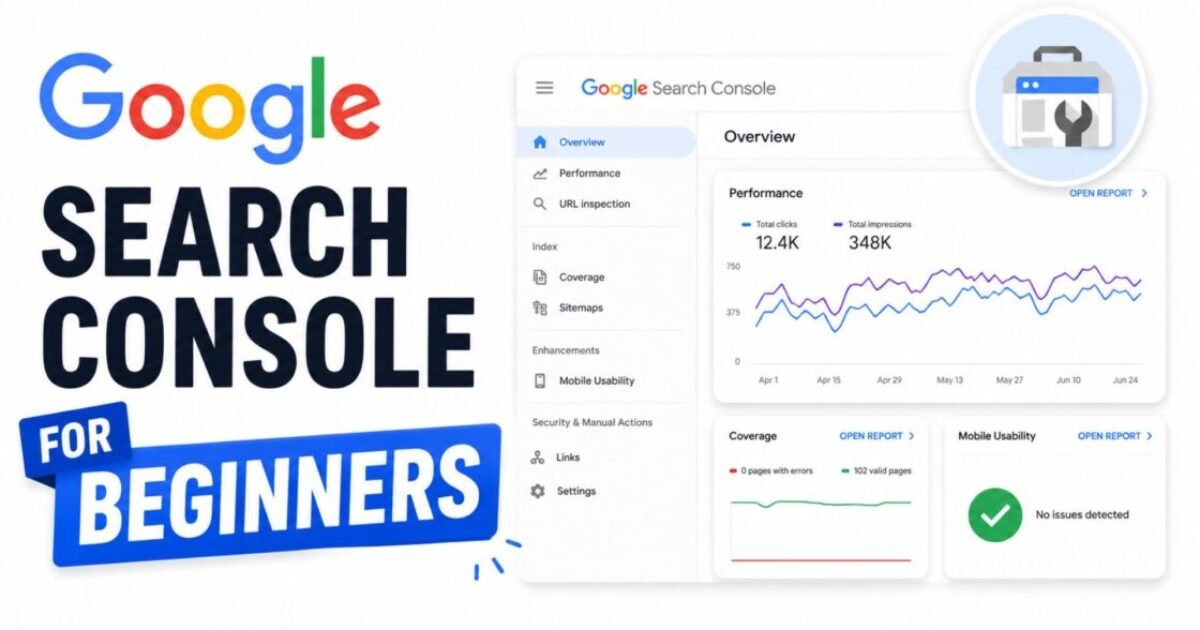
Google Search Console for Beginners — Complete Setup Guide (2026)
Sources: Google Search Console Help documentation (support.google.com/webmasters), Google Search Central Blog, tested directly by Sougan on Peplio.com, June 2026
Google Search Console for beginners is the starting point for every serious SEO effort. If you have a website and you are not using Google Search Console, you are running your SEO blind — you have no idea which pages Google has indexed, which keywords are bringing you traffic, or what errors are silently blocking your rankings.
The good news is that Google Search Console for beginners is not complicated once you understand what each report actually does and what to look for. I have been using GSC every week on Peplio since day one, and it is the single most useful free SEO tool I have access to — more useful than any paid rank tracker, because the data comes directly from Google itself.
Most guides to Google Search Console for beginners treat it like a product manual. They list every feature, define every metric, and leave you knowing everything and doing nothing. This guide is different. I am going to show you exactly how to set up Google Search Console for beginners step by step, which five reports actually matter, and the exact 20-minute weekly routine I use to grow Peplio’s organic traffic using GSC data alone.
If you are brand new to SEO, I recommend reading my guide on what SEO is and why it is important before diving into Google Search Console for beginners — it gives you the context that makes GSC data meaningful. Once you have GSC set up, pairing it with Google Analytics gives you the full picture: GSC tells you how people find you on Google, Analytics tells you what they do after they arrive.
- What is Google Search Console and what does it actually do?
- How to set up Google Search Console for beginners — step by step
- Domain property vs URL Prefix — which to choose
- How to verify your site in GSC (4 methods explained)
- How to submit your sitemap to Google Search Console
- Search Performance report — your most important report
- URL Inspection and Indexing report
- Core Web Vitals report
- Links report
- Enhancements and structured data
- My exact GSC weekly routine for Peplio
- FAQ — Google Search Console for beginners
What Is Google Search Console and What Does It Actually Do?
Google Search Console is a free tool from Google that gives website owners a direct window into how Google sees their site. It is not a keyword research tool, a rank tracker, or a traffic analytics platform. It is a direct communication channel between you and Google’s search infrastructure — and for anyone learning Google Search Console for beginners, that distinction matters.
Here is what Google Search Console for beginners actually shows you:
- Which pages Google has indexed — and which ones it has found but chosen not to index, along with the exact reason why
- Which search queries bring people to your site — the real words people typed into Google before clicking your result
- Your average ranking position for any keyword across any date range up to 16 months back
- Your click-through rate (CTR) — what percentage of people who saw your result in search actually clicked it
- Technical errors — crawl problems, mobile usability issues, Core Web Vitals failures, and manual actions if Google has penalised your site
- Your backlink profile — which external sites link to yours and which of your pages they link to most
The most important thing to understand when you start with Google Search Console for beginners is the data lag. GSC’s performance reports run approximately 3–4 days behind real time, and the most recent 2–3 days in any date range are almost always incomplete. Always exclude the last 3 days when drawing conclusions — a dip on the final day of your date range is almost never a real drop.
How to Set Up Google Search Console for Beginners — Step by Step
Setting up Google Search Console for beginners takes about 10 minutes from start to finish. Here is the exact process:
- Go to search.google.com/search-console and sign in with your Google account — use the same Google account you use for Google Analytics if you already have it set up.
- Click Add property in the top-left dropdown menu.
- Choose your property type — Domain or URL Prefix (explained in the next section).
- Verify that you own the website using one of the four methods below.
- Submit your XML sitemap so Google knows every page on your site.
- Wait 48–72 hours for your first data to appear in the reports.
That is the entire Google Search Console for beginners setup process. The steps that trip most people up are verification and the sitemap — so I have given each one its own section below with the exact steps I use on Peplio.
Domain Property vs URL Prefix — Which Should You Choose?
When you add your site in Google Search Console for beginners setup, Google asks you to choose between two property types. This is one of the most common points of confusion:
- Domain property — covers your entire domain including all subdomains (www, blog, shop, m.) and both HTTP and HTTPS versions. This is the right choice for almost everyone. It requires DNS verification by adding a TXT record to your domain’s DNS settings.
- URL Prefix property — only covers one specific URL prefix (for example, https://www.yoursite.com). If someone visits http://yoursite.com instead, that data is tracked separately. This type offers more verification options but fragments your data if you have URL variations or redirects.
My recommendation for Google Search Console for beginners: Choose the Domain property if you can access your domain’s DNS settings. On Hostinger, this is under Domains → Manage → DNS Zone. If DNS feels too technical right now, start with URL Prefix and verify using the HTML tag method instead — you can always add a Domain property later.
How to Verify Your Site in Google Search Console — 4 Methods
Verification is Google’s way of confirming you actually own the site before giving you access to its data. For Google Search Console for beginners, here are all four verification methods in order of ease:
Method 1 — HTML Tag (Recommended for WordPress Beginners)
GSC gives you a meta tag: <meta name="google-site-verification" content="XXXXXXXX" />
On WordPress with RankMath, go to RankMath → General Settings → Webmaster Tools → Google Search Console and paste only the content value — the long string of characters inside the quotes. Save and click Verify in GSC. This is the method I used when first setting up Google Search Console for beginners on Peplio and it takes under two minutes.
Method 2 — DNS TXT Record (Best for Domain Properties)
GSC gives you a TXT record value. Log into your domain registrar or hosting control panel, go to DNS settings, and add a new TXT record with Host set to @ and the Value set to the string GSC provides. DNS changes propagate within minutes on most hosts, though it can take up to 48 hours in rare cases.
Method 3 — HTML File Upload
Download the HTML verification file Google provides and upload it to your website’s root directory via FTP or your hosting file manager. Visit yourdomain.com/google[filename].html to confirm it loads, then click Verify in GSC.
Method 4 — Google Analytics or Google Tag Manager
If you already have Google Analytics or Google Tag Manager running on your site with the same Google account, GSC can verify ownership through those automatically. This is the zero-friction option if either tool is already active.
How to Submit Your Sitemap to Google Search Console
After verifying your site, submitting your XML sitemap is the single most impactful step you can take in Google Search Console for beginners — especially on a new site. A sitemap tells Google every URL you want indexed. Without it, Google has to discover your pages by following links, which is much slower for new sites with few backlinks.
- In the GSC left sidebar, go to Indexing → Sitemaps.
- In the “Add a new sitemap” field, enter your sitemap URL. For most WordPress sites using RankMath or Yoast, your sitemap is at
yourdomain.com/sitemap_index.xml— confirm by visiting that URL in your browser first. If it loads an XML file, that is the correct address. - Click Submit.
- GSC shows the sitemap status as “Success” once processed, along with the number of URLs it found.
One thing that surprises many people when learning Google Search Console for beginners: submitting a sitemap does not guarantee Google will index every URL it contains. GSC shows you which URLs were submitted, which were indexed, and which were discovered but not indexed — and why. That gap between submitted and indexed is where a lot of real SEO diagnostic work happens, and it is the first thing I check after publishing a new article on Peplio.
Search Performance Report — The Most Important Report in Google Search Console for Beginners
Find it at: Performance → Search results
This is the report you will spend most of your time in when using Google Search Console for beginners. It shows four metrics for any time period you choose:
- Clicks — how many times people clicked your result in Google Search during the selected period
- Impressions — how many times your pages appeared in search results, whether clicked or not
- CTR (Click-Through Rate) — what percentage of impressions converted to clicks. According to Backlinko’s Google CTR study, position 1 averages around 27.6% CTR, position 2 around 15.8%, and position 3 around 11%. Below position 10 it typically falls under 1%.
- Average Position — your average ranking across all queries. Important caveat for Google Search Console beginners: this is a blended average. A site ranking #1 for one keyword and #100 for another shows an average position of 50.5 — which tells you almost nothing useful on its own. Always filter by individual pages or queries to get meaningful data.
The single most valuable workflow in Google Search Console for beginners is the Queries tab filtered by position 6–20. Click the Queries tab, filter by average position between 6 and 20, and sort by impressions. Any keyword showing 200+ impressions in this range is a quick win — you are close to page 1 and a targeted content update could push you there. This exercise on Peplio has found multiple pages sitting at position 8–15 with thousands of impressions and near-zero clicks. Fixing those pages gave me faster ranking gains than publishing new content.
URL Inspection and Indexing Report
Find it at: Indexing → Pages
This report shows the indexing status of every page Google has discovered on your site — and for Google Search Console for beginners it is one of the most practically useful reports in the entire tool. The four categories to understand:
- Indexed — these pages are in Google’s index and can appear in search results. Your important pages should be here.
- Not indexed — pages Google found but chose not to index. Always expand this section and read each reason. Common causes include: “Duplicate without user-selected canonical”, “Crawled — currently not indexed” (Google visited but decided not to index it yet), and “Excluded by noindex tag” (a plugin or setting told Google to skip it).
- Error — pages Google tried to crawl but could not access. These need fixing immediately.
- Valid with warning — indexed but with an issue flagged, usually around canonical tags or structured data.
The URL Inspection tool — the search bar at the very top of Google Search Console — is your most powerful diagnostic tool for individual pages. Paste any URL and GSC tells you exactly how Google sees it: whether it is indexed, when it was last crawled, whether the canonical is correct, and what the mobile rendering looks like. If you publish a new article and it is not showing in search after two weeks, the URL Inspection tool is always the first place I check in Google Search Console for beginners troubleshooting.
Core Web Vitals Report
Find it at: Experience → Core Web Vitals
Core Web Vitals are Google’s page experience signals — they measure how fast and smooth your pages feel to real users on real devices. When learning Google Search Console for beginners, you do not need to obsess over these daily, but you do need to check them monthly. The three metrics are:
- LCP (Largest Contentful Paint) — how long the main content takes to load. Under 2.5 seconds is good. Above 4 seconds is poor.
- INP (Interaction to Next Paint) — how quickly the page responds after a user interaction. Under 200ms is good. INP replaced FID as the official interactivity metric in March 2024, per Google’s Web.dev announcement.
- CLS (Cumulative Layout Shift) — how much the page layout shifts while loading. Under 0.1 is good. High CLS usually means images without set dimensions or ads loading and pushing content down.
The GSC report separates your pages into Good, Needs Improvement, and Poor for both Mobile and Desktop. For new WordPress sites, Mobile poor scores are the most common issue — and fixing them means optimising images, setting explicit image dimensions, and deferring non-critical scripts. For a full breakdown of what each metric means and how to improve your scores, see my guide on Core Web Vitals explained.
Links Report
Find it at: Links (bottom of the left sidebar)
The Links report in Google Search Console for beginners shows two things:
- External links — which sites link to yours, how many links each sends, and which of your pages receive the most external links. This is your free backlink audit — no paid tool needed.
- Internal links — which pages on your own site receive the most internal links from other pages. A page with many internal links signals importance to Google. If your most important articles have few internal links from the rest of your site, that is one of the easiest SEO fixes available to you.
For new sites, the External links section will be sparse or empty for the first few months — that is completely normal. What matters is watching it grow over time and confirming the sites linking to you are real and relevant. Understanding what backlinks are and why they matter gives you the full context for reading this report correctly.
Enhancements — Structured Data and Rich Results
Find it at: Experience → Shopping or search for your schema type in the left sidebar
If you are using schema markup on your site — FAQPage, HowTo, Article, Product — Google Search Console shows you which pages have valid structured data and which have errors. Valid schema can earn rich results in Google Search (FAQ dropdowns, How-To steps, star ratings), which significantly increase your CTR without any ranking improvement needed.
On WordPress with RankMath, schema is added automatically based on your post type settings. If the Enhancements report shows errors, the most common causes are missing required fields, mismatched schema types, or conflicts between RankMath and your theme’s own schema output. For Google Search Console beginners using RankMath: check the Schema tab on each post to confirm the correct schema type is selected and all required fields are filled.
My Exact GSC Weekly Routine for Peplio — 20 Minutes
The most common mistake beginners make with Google Search Console for beginners is checking it once during setup and then ignoring it. GSC only produces results when you act on what it tells you consistently. Here is exactly what I do every week on Peplio — the whole thing takes 20 minutes:
Step 1 — Check the Performance report for the last 28 days vs previous 28 days (5 minutes)
Set the date range to last 28 days and click the Compare option to compare against the previous 28-day period. Are clicks up or down? Are impressions trending up? A rising impressions trend with flat clicks tells me new pages are being discovered but not yet ranking high enough to earn clicks — that is normal for new content and the right response is to keep publishing and add internal links. A falling clicks trend with stable impressions tells me CTR is dropping — which means title tags or meta descriptions need improvement.
Step 2 — Find position 6–20 quick wins in the Queries tab (5 minutes)
Filter queries to average position between 6 and 20, sort by impressions descending. Any query with 200+ impressions in this range is a priority for content improvement. I open the page that ranks for it in a new tab, check whether the focus keyword appears in the title, H1, and opening paragraph, and assess whether the content is comprehensive enough to outrank what is currently on page 1. This is the highest-leverage 5 minutes in all of Google Search Console for beginners work.
Step 3 — Check Indexing → Pages for new “Not indexed” entries (5 minutes)
After publishing new articles, I check whether they have been indexed. A new page typically gets indexed within a few days if it has at least one internal link pointing to it from an already-indexed page. If a new article shows “Crawled — currently not indexed” after two weeks, I use the URL Inspection tool to request indexing manually and review whether the content might be too thin or too similar to existing pages.
Step 4 — Scan for new Core Web Vitals and schema errors (5 minutes)
I scan for any new “Poor” URLs in the Core Web Vitals report and any new errors in the Enhancements section. New errors here usually trace back to a recent plugin update, theme change, or new image upload without defined dimensions — they are much easier to fix when caught weekly rather than after months of accumulation.
- ✅ Add your property — use Domain property if possible, URL Prefix if DNS feels too technical
- ✅ Verify ownership — HTML tag via RankMath is the easiest method for WordPress beginners
- ✅ Submit your XML sitemap — usually at yourdomain.com/sitemap_index.xml
- ✅ Wait 48–72 hours for initial data — Google Search Console for beginners is not real-time
- ✅ Run a weekly 20-minute review — Performance, Indexing, Core Web Vitals, Links, Enhancements
- ✅ Always exclude the last 3 days from date ranges — GSC performance data lags behind real time
- ✅ Filter Queries by position 6–20 — this is where your fastest ranking wins are hiding
Frequently Asked Questions — Google Search Console for Beginners
Is Google Search Console free for beginners?
Yes. Google Search Console is completely free for any verified website owner — there is no paid tier, no premium version, and no usage limits on any report. Google provides it at no cost because helping site owners understand their search performance improves the quality of Google Search results overall. You only need a free Google account and a website you can verify ownership of. Google Search Console for beginners is one of the few genuinely free and genuinely powerful tools in digital marketing.
How long does Google Search Console take to show data after setup?
After verifying your site in Google Search Console for beginners setup, initial performance data typically appears within 48–72 hours. However, GSC performance reports always lag 3–4 days behind real time, and the most recent 2 days in any report are almost always incomplete. For brand new sites with no indexed pages, meaningful query data can take 2–4 weeks to appear as Google discovers and indexes your content. The Indexing report updates faster than performance data — usually within 24–48 hours of a new page being crawled.
What is the difference between Google Search Console and Google Analytics?
Google Search Console for beginners shows you what happens before someone arrives on your site — how you appear in Google Search, which keywords you rank for, your impressions and clicks, and whether your pages are indexed. Google Analytics shows you what happens after someone arrives — which pages they visit, how long they stay, and whether they take actions like signing up or clicking a link. Both tools are free and work best together. For a full explanation, see my guide on what Google Analytics does.
Why are some of my pages not indexed in Google Search Console?
The most common reasons pages appear in the “Not indexed” section for Google Search Console beginners are: a noindex tag is applied to the page (check your RankMath Advanced tab on that post), the page is a near-duplicate of another page on your site, the content is too thin for Google to consider worth indexing, the page has no internal links pointing to it so Google rarely revisits it, or the page was very recently published and Google simply has not crawled it yet. Use the URL Inspection tool for each affected page — it shows the exact reason GSC has flagged it as not indexed.
How do I use Google Search Console to improve my SEO rankings?
The highest-leverage workflow in Google Search Console for beginners is the position 6–20 filter in the Queries tab. Set your date range to the last 3 months, click the Queries tab, filter by average position 6–20, and sort by impressions descending. Any keyword with 200+ impressions in this range is an opportunity — you are almost on page 1 and Google already considers your page relevant for this query.
Open the ranking page, confirm the keyword appears in the title and H1, and check whether the content is more comprehensive than what currently sits above you. This is faster than publishing new content because Google already partially trusts the existing page. For a deeper understanding of how search intent affects which pages rank, see my guide on keyword research for beginners.
Does Google Search Console work for brand new websites with no traffic?
Yes — and Google Search Console for beginners is especially valuable for new websites. Submitting your sitemap via GSC is the fastest way to get Google to discover and index your pages. Even with zero organic traffic, the Indexing report tells you exactly which pages Google has found and indexed, and the URL Inspection tool lets you manually request indexing for specific pages. For a site with no existing domain authority, getting your pages indexed quickly through GSC is the first concrete SEO action available to you — and it is completely free.
What is a good CTR in Google Search Console?
CTR in Google Search Console varies significantly by position. According to Backlinko’s large-scale CTR study, position 1 averages around 27.6% CTR, positions 2–3 average 10–16%, positions 4–7 average 3–8%, and anything below position 10 typically sees under 1% CTR. For Google Search Console beginners, a low CTR at a high position (for example, position 3 with 2% CTR) usually means your title tag or meta description is not compelling enough compared to competitors — it is a signal to rewrite your snippet, not to rebuild the page.
- What Is SEO and Why Is It Important? (Complete 2026 Guide)
- What Does Google Analytics Do? (Beginner’s Guide 2026)
- What Are Backlinks and Why Do They Matter in 2026?
- On-Page SEO Checklist — Everything to Check Before You Publish
- Core Web Vitals Explained — How to Improve Your Scores (Free)
- What Is Keyword Research? The Beginner’s Guide (2026)


