
Google Search Console for Beginners: Setup Guide With Real Screenshots (2026)
Google Search Console is a free Google tool that shows which searches bring people to your site, which pages Google has indexed, and what is stopping the rest. For beginners, the setup is three steps: add your site as a property, verify you own it, and submit your sitemap. After that, check four reports every week: Performance, Pages, Sitemaps and URL Inspection.
I run SEO for Peplio and for Demech Chemical Products, and Google Search Console is the one tool I open every single week. Paid tools guess at your traffic. Search Console shows you what Google itself recorded. This Google Search Console for beginners guide uses real screenshots and real numbers from Peplio, including the problems I found and fixed this month, so you can see what each report looks like on a small, growing website and not only on a perfect demo account.
- What Google Search Console does
- How to set up Google Search Console for beginners
- Submit your sitemap (and the mistake I made)
- The Performance report with real numbers
- The Pages report: why pages are not indexed
- URL Inspection and Request indexing
- Core Web Vitals, Manual actions and Security
- Your first 30 days in Search Console
- Beginner mistakes to avoid
- FAQ
What Google Search Console Does for Beginners
Google Search Console is Google’s own free dashboard for website owners. It does not track visitors the way Google Analytics does. It reports what happens before the click: which searches showed your pages, how many people clicked, which pages Google has added to its index, and which ones it skipped and why.
For anyone learning SEO, Google Search Console for beginners answers three questions no other free tool answers with Google’s own data:
- Is Google finding my pages? The Pages and Sitemaps reports.
- Is Google showing my pages? The Performance report: impressions and average position.
- Are people clicking? Clicks and click-through rate (CTR) per page and per search query.
If you are still learning the basics of ranking, read why SEO is important and the main types of SEO first. Search Console makes much more sense once you know what you are trying to improve.
How to Set Up Google Search Console for Beginners, Step by Step
Step 1: Choose your property type. Go to Search Console, click Add property, and pick one of two types (Google explains both in its add a property guide):
- Domain property covers every version of your site (http, https, www, non-www and all subdomains). It needs a DNS record, so you need access to your domain or hosting panel.
- URL-prefix property covers one exact address, such as https://peplio.com/. It is easier to verify and is what Peplio uses.
If you can edit DNS, pick Domain. If you are on WordPress and DNS feels scary, URL-prefix is completely fine.
Step 2: Verify that you own the site. Google gives several verification methods. The easiest on WordPress are:
- Site Kit by Google plugin: sign in with Google and it verifies automatically. This is how Peplio is connected.
- HTML tag: paste a meta tag into your SEO plugin (Rank Math and Yoast both have a field for it).
- DNS TXT record: required for Domain properties. Add the TXT record in your hosting panel; it can take a few hours to work.
Step 3: Submit your sitemap. Covered in the next section, because this is where most beginners (including me) make mistakes.
Data starts appearing within a few days. The Performance report then keeps up to 16 months of history, so set it up today even if your site is new.
Submit Your Sitemap in Google Search Console (and the Mistake I Made)
A sitemap is a file that lists the pages you want Google to find. WordPress SEO plugins create it for you: Rank Math uses /sitemap_index.xml. Google’s sitemap documentation explains the format if you build one by hand.
To submit it, open Indexing, then Sitemaps, type the sitemap address and press Submit. Here is Peplio’s real Sitemaps report:
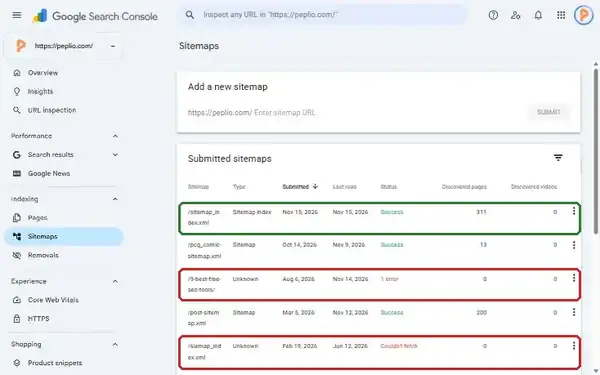
Look at the red boxes. At some point an article address (/9-best-free-seo-tools/) was submitted in the sitemap box. It is not a sitemap, so Google shows “1 error”. An older copy of the sitemap index also shows “Couldn’t fetch”. Neither breaks anything, but they are noise. The lesson for beginners: submit one sitemap index only, check that its status says Success, and remove anything else.
While cleaning up Peplio this week I also found two sitemap entries I had never added, pointing to strange files like hiroshi.php. That is a classic sign of spam injected by a hacked plugin or file manager. I removed them, deleted the risky file manager plugin and confirmed the site was clean. If you see sitemap names you do not recognise, treat it as a security warning, not a curiosity.
No SEO plugin? Create a clean robots.txt and sitemap.xml in seconds, then submit it in Search Console.
Open the free toolThe Performance Report: Google Search Console for Beginners With Real Numbers
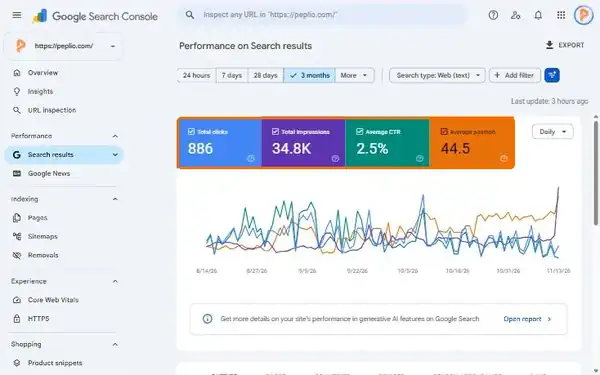
The Performance report is the most useful screen in Google Search Console for beginners. Open Performance, then Search results, set the date to 3 months and switch on all four metric boxes. This is Peplio’s report for the last three months:
What the four numbers mean, using Peplio as the example:
- Total clicks (886): people who clicked a Peplio result in Google.
- Total impressions (34.8K): how many times a Peplio page appeared in someone’s results, even if they never scrolled to it.
- Average CTR (2.5%): clicks divided by impressions.
- Average position (44.5): the average ranking across every query. Position 44 is page five, which explains the low CTR.
Here is the honest part. Comparing the first month of that period with the last month, Peplio’s impressions grew from 9,101 to 13,290 (up 46%), but clicks fell from 334 to 224. Google was showing the site more often, mostly on page three and beyond, where almost nobody clicks. That single comparison told me the next job was not “more content” but pushing existing pages from position 20 to the first page.
Scroll down and you get tabs for Queries, Pages, Countries, Devices and Dates:
- Countries: India sent Peplio 303 clicks, but the USA produced the most impressions (13,311) with only 99 clicks. Plenty of US visibility, very low US rankings.
- Devices: 585 clicks came from desktop and 262 from mobile, so desktop layout matters more for this site than I had assumed.
- Queries with position 6 to 20: these are your fastest wins. They already rank on page one or two, so better titles, a clearer answer near the top and a few internal links can move them up. My full method is in how to choose low competition keywords.
The Pages Report: Why Some Pages Are Not Indexed
Open Indexing, then Pages. Google’s Page indexing report splits every URL it knows into Indexed and Not indexed. Do not panic at a big grey number. This is Peplio’s:
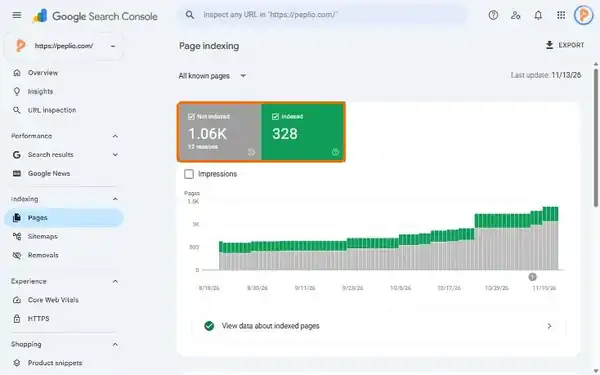
1,060 “not indexed” sounds terrible. Scroll down to Why pages aren’t indexed and it makes sense:
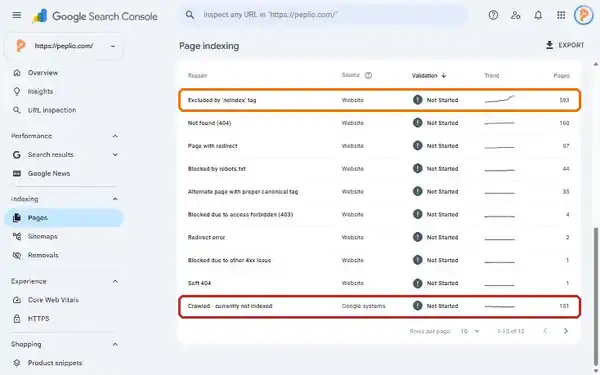
- Excluded by ‘noindex’ tag (593): I told Google not to index these. Most are off-topic tool listings in the PeplioHUB directory. This is correct and needs no fix.
- Not found (404) (160) and Page with redirect (57): old URLs that were deleted or merged. Normal for a site that cleans up its content, as long as your own internal links do not point to them. I fixed 29 broken internal links this week for exactly this reason.
- Alternate page with proper canonical tag (35): duplicate versions pointing to the main page. Also fine.
- Crawled, currently not indexed (151): this is the one that matters. Google visited the page and decided it was not worth indexing yet.
“Crawled, currently not indexed” almost always means a quality or uniqueness problem, not a technical one. The page is too similar to other pages, too thin, or has no internal links telling Google it matters. I covered the full fix in why Google indexes but does not rank a page, and the technical side in technical SEO for beginners.
URL Inspection and Request Indexing in Google Search Console
The URL Inspection tool checks one page at a time. Paste any URL from your site into the search bar at the top of Search Console. Here is a Peplio article that Google crawled and skipped:
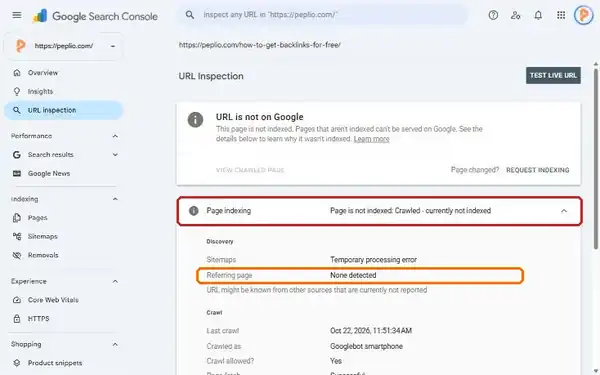
Two details on this screen are worth more than the headline. Last crawl tells you when Google last looked; if you have improved the page since then, Google has not seen the new version. Referring page: None detected means Google did not find this page through a link from another page, which is a strong hint to add internal links from your popular articles.
And here is the guide you are reading right now:
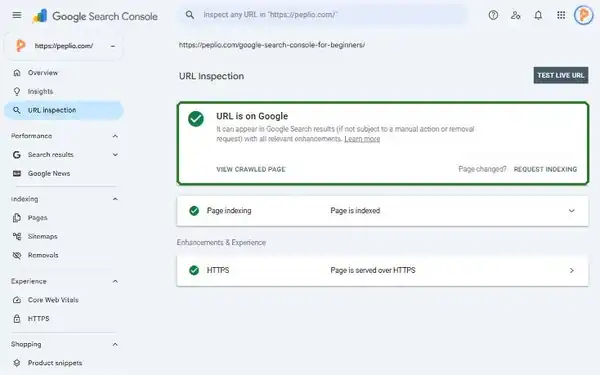
When to click Request indexing: only after you have published a new page or made a real change to an existing one. Requesting indexing on an unchanged page rarely changes anything, because Google has already judged that version. Requesting it many times does not help either, because Google says repeat requests do not change your place in the queue.
Core Web Vitals, Manual Actions and Security Issues
Core Web Vitals. This report uses speed data from real Chrome users. Peplio currently shows 48 URLs as “need improvement” on mobile and none as “poor”. It only shows data for pages with enough real visitors, so small sites often see gaps. For what each metric means, read Core Web Vitals explained.
Manual actions. This shows whether a Google reviewer has penalised your site for spam, such as unnatural links or cloaking. Peplio shows “No issues detected”. Check it once a month; Google explains every type in its manual actions help page.
Security issues. Shows hacked content or malware Google has found. If anything appears here, fix it before you do any other SEO work.
Links. Shows your top linked pages and which sites link to you. It is the free way to see your backlinks; if you are new to them, start with what backlinks are.
Core Web Vitals showing “need improvement”? Test any page and see what is slowing it down.
Check your page speedYour First 30 Days With Google Search Console for Beginners
Add the property, verify, submit one sitemap index and confirm it says Success.
Open Pages. Read every “why not indexed” reason and decide which ones are intentional.
Repair broken internal links, remove wrong sitemaps, and improve pages stuck in Crawled, not indexed.
In Performance, filter queries at position 6 to 20 and improve those pages first.
After the first month, my weekly routine takes about 20 minutes: compare the last 28 days with the previous 28 days in Performance, look for new “not indexed” reasons in Pages, and scan Core Web Vitals and Manual actions for anything new.
Google Search Console Mistakes Beginners Make
- Clicking Request indexing every day on a page you have not changed
- Submitting article URLs or several old copies in the Sitemaps box
- Panicking at “not indexed” pages that you noindexed on purpose
- Judging success by impressions alone while clicks fall
- Improve the page first, then request indexing once
- Keep a single sitemap index with status Success
- Focus on “Crawled, currently not indexed” and 404s from your own links
- Watch clicks and the position 6 to 20 queries

Search Console does not grow your traffic. It tells you exactly where your traffic is leaking.
For months I mostly looked at the clicks graph. When I finally read the Pages report line by line, I found 29 broken internal links, two wrong sitemap entries, spam sitemaps added by a bad plugin, and this very guide sitting in “Crawled, currently not indexed”. None of that showed up in any paid SEO tool. Fixing what Search Console showed me did more in one week than a month of writing new articles.
Follow Mitu and Seema as their bakery learns SEO, ads and Google reviews one episode at a time. Start with Episode 3 if Search Console is new to you.
Read the Peplio comics- Google Search Console is free and shows Google’s own data on searches, clicks and indexing.
- Setup for beginners: add a property, verify ownership, submit one sitemap index.
- Performance shows clicks, impressions, CTR and position; queries at position 6 to 20 are the fastest wins.
- In Pages, ignore intentional noindex and focus on “Crawled, currently not indexed” and broken links.
- Request indexing only after a real change to the page.
How long does Google Search Console take to show data?
Usually two to four days after verification. Indexing data can take longer on a brand new site because Google first has to discover and crawl your pages. Linking new pages from your existing articles, as explained in how to increase website traffic, speeds this up.
Is Google Search Console the same as Google Analytics?
No. Search Console shows what happens in Google Search before the click. Analytics shows what visitors do on your site after they arrive. Use both; Site Kit connects them in WordPress.
Why does Google Search Console say my page is not indexed?
Check the reason in the Pages report. Noindex and redirects are often intentional. “Crawled, currently not indexed” usually means the page needs more unique value and internal links; see search intent in SEO to make sure the page answers what people actually searched for.
Google Search Console for Beginners: FAQ
Is Google Search Console free?
Yes. Google Search Console is completely free for any website owner who verifies their site. There is no paid version.
Which property type should beginners choose?
Choose a Domain property if you can add a DNS record, because it covers every version of your site. Otherwise a URL-prefix property is fine, and it is easier to verify on WordPress.
How often should I check Google Search Console?
Once a week is enough for most sites. For Google Search Console for beginners, a 20 minute weekly check of Performance, Pages and Sitemaps catches almost every problem early.
What does “Crawled, currently not indexed” mean?
Google visited the page but chose not to add it to its index yet. It is usually a sign that the page needs more unique, useful content and more internal links from your stronger pages.
Does Request indexing make a page rank faster?
It only asks Google to crawl the page again. It does not improve rankings, and repeating the request does not move you up the queue. Use it once after a real update.
What is a good CTR in Google Search Console?
It depends on position. Results in the top three often get well above 10 percent, while pages on page two or beyond get very little. A low average CTR in Google Search Console for beginners usually means low positions, not bad titles.
Sources: Google Search Console, Add a website property, Verify site ownership, Build and submit a sitemap, Performance report, Page indexing report, URL Inspection tool, Core Web Vitals report, Manual actions report, Creating helpful content. Peplio data from its own Search Console account, as of 16 November 2026.
This Google Search Console for beginners guide is based on Peplio’s own account. If you follow one thing from it, make Google Search Console for beginners a weekly habit: check Performance, Pages and Sitemaps, fix what they show you, and only then request indexing. Google Search Console for beginners is free, and it is the most honest SEO data you will ever get.